
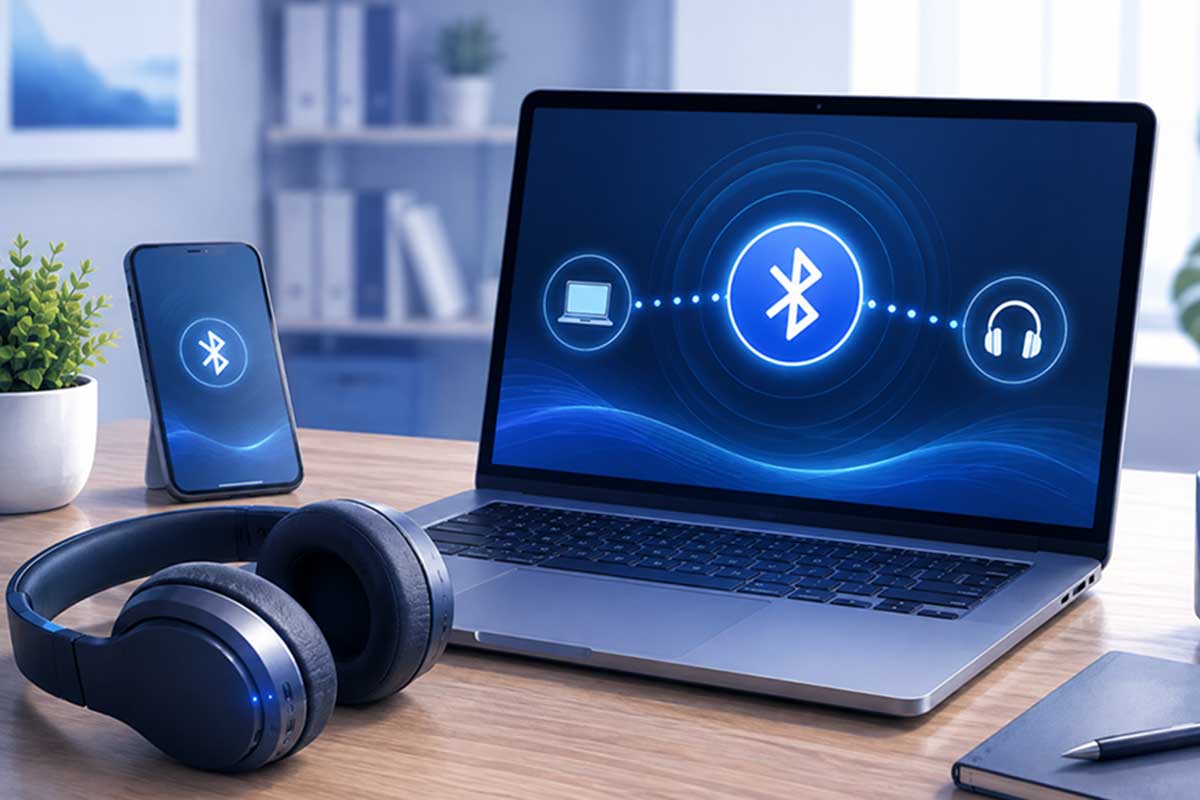
Is your Bluetooth connected but no sound is coming from your headphones, earbuds, speaker, or car audio system? Your device may show that Bluetooth is connected correctly, but the audio still plays through your phone or computer—or you may hear nothing at all.
This is a common Bluetooth problem and doesn’t necessarily mean your headphones, speaker, or device is broken. In many cases, the problem is caused by the wrong audio output, low volume, Bluetooth connection errors, outdated drivers, or incorrect sound settings.
In this beginner-friendly guide, you’ll learn 12 easy ways to fix Bluetooth connected but no sound on Windows PCs, Android phones, iPhones, and other Bluetooth devices.
Quick answer: If Bluetooth is connected but there’s no sound, first increase the volume on both devices, make sure your Bluetooth device is selected as the audio output, disconnect it from other nearby devices, and then turn Bluetooth off and back on. If that doesn’t work, forget the Bluetooth device and pair it again.
If you’re experiencing other device problems too, visit our complete troubleshooting guide:
Common Tech Problems and How to Fix Them (Beginner-Friendly Guide)
https://eworldhelper.com/tech-fixes/common-tech-problems-how-to-fix/
Why Is My Bluetooth Connected but There Is No Sound?
A successful Bluetooth connection doesn’t always mean your audio is being sent to the connected device.
Your phone or computer can remain paired with Bluetooth headphones or a speaker while sending audio somewhere else, such as the built-in speakers.
Other common causes include:
Fortunately, most of these problems can be fixed without replacing your Bluetooth device.
Before You Start
Before changing advanced settings, check these three things.
Make Sure the Bluetooth Device Is Actually Connected
Open the Bluetooth settings on your phone or computer and check the status of your headphones, earbuds, or speaker.
It should say something similar to Connected or Connected for audio.
If it only appears under previously paired or saved devices, connect it again before continuing.
Test Another App or Audio Source
Play audio from another app or website.
For example, if there’s no sound in one streaming app, try a video, music app, or another website.
If Bluetooth audio works elsewhere, Bluetooth itself may be fine and the problem could be limited to that particular app.
Check Whether Your Device Has Other Connection Problems
If Bluetooth isn’t the only connection that’s behaving strangely, the problem may be related to your device rather than the Bluetooth accessory.
Why Is My Device Not Working? Common Problems and Easy Fixes
https://eworldhelper.com/tech-fixes/why-is-my-device-not-working/
Bluetooth Connected but No Sound: Quick Fixes to Try First
Before moving into the detailed troubleshooting steps, try these quick fixes:
If you’re still getting no Bluetooth sound, continue with the fixes below.
1. Check the Volume on Both Devices
Start with the simplest possibility: your Bluetooth connection may be working perfectly, but one of the devices is muted or set to a very low volume.
Bluetooth headphones and speakers can sometimes have their own volume controls independent of the phone or computer they’re connected to.
Start playing music or a video, then:
If you’re using Windows, also click the speaker icon on the taskbar and make sure the volume isn’t muted.
Why This Works
Some Bluetooth devices remember their previous volume level. That means your phone might show a high volume while the connected speaker or headphones are still set very low.
Checking both volume controls eliminates this simple issue before you start changing Bluetooth or system settings.
Still no sound? Leave your Bluetooth device connected and continue to the next step. We’ll check whether your phone or computer is actually sending audio to the correct device.
2. Make Sure the Correct Bluetooth Audio Output Is Selected
If your Bluetooth device says Connected but you still can’t hear anything, your phone or computer may be sending sound to the wrong audio output.
For example, your Bluetooth headphones can remain connected while Windows continues playing audio through your laptop speakers.
On Windows
If you see more than one option for the same Bluetooth device, select the option intended for normal audio or headphones and test it.
You can also go to:
Settings → System → Sound → Output
Under Choose where to play sound, select your Bluetooth device.
On Android
The exact menu can vary depending on your phone, but you can usually:
You can also open Settings → Bluetooth and check that your connected device is enabled for audio or media sound.
On iPhone
While audio is playing:
Why This Works
Bluetooth handles the wireless connection, but your operating system still decides where the sound should play.
Your headphones or speaker can therefore appear connected even while the audio is being routed to:
Manually selecting the correct output tells your device exactly where the audio should go.
Tip: If your Bluetooth device is already selected but you still have no sound, switch temporarily to your phone or computer speakers and then select the Bluetooth device again. This can sometimes refresh the audio connection.
If the correct Bluetooth output is selected and there’s still no sound, continue to the next fix.
3. Disconnect Bluetooth From Other Nearby Devices
Your Bluetooth headphones, earbuds, or speaker may be connected to another nearby phone, tablet, or computer without you realizing it.
Some Bluetooth devices can remember several previously paired devices, and newer headphones may support multipoint Bluetooth, which allows them to connect to two devices at the same time.
This can sometimes cause audio to play from the wrong device or prevent sound from playing correctly.
Check Your Other Devices
Look for other devices nearby that you’ve previously paired with the same Bluetooth headphones or speaker, such as:
Temporarily turn Bluetooth off on those devices.
Then return to the phone or computer you’re currently using and reconnect your Bluetooth headphones or speaker.
Try Reconnecting
Once other nearby connections have been removed:
Why This Works
A Bluetooth accessory that’s connected to multiple devices may switch between them automatically.
For example, your headphones could be connected to your laptop and phone at the same time. If the laptop takes control of the audio connection, your phone may still show the headphones as connected even though you don’t hear its audio.
Temporarily disconnecting the other devices helps determine whether another Bluetooth connection is interfering with the one you’re trying to use.
Tip: If your headphones support multipoint Bluetooth, you don’t necessarily need to disable the feature permanently. We’re only disconnecting other devices temporarily to find out whether they’re causing the no-sound problem.
If Bluetooth is connected to only one device and you still can’t hear anything, continue to the next fix.
4. Turn Bluetooth Off and Back On
Sometimes Bluetooth remains connected but the audio connection between your devices stops working correctly. This can happen after your phone or computer wakes from sleep, switches between Bluetooth devices, or experiences a temporary software glitch.
Turning Bluetooth off and back on forces your device to establish a fresh wireless connection.
Try This First
If the Bluetooth device doesn’t reconnect automatically, select it manually from your list of paired devices.
Restart the Bluetooth Accessory Too
If toggling Bluetooth on your phone or computer doesn’t help, restart the Bluetooth accessory itself.
Turn your headphones, earbuds, or speaker completely off, wait around 10 seconds, and then turn it back on.
Reconnect it to your phone or computer and test the audio again.
Why This Works
Bluetooth connections rely on several temporary wireless and audio processes. Occasionally, the connection can remain active even though the audio portion of the connection has stopped responding correctly.
Turning Bluetooth off and back on can:
Tip: Don’t simply disconnect and immediately reconnect. Waiting around 10 seconds after turning Bluetooth off gives the connection time to close properly before you establish a new one.
If your Bluetooth device reconnects successfully but there’s still no sound, the saved pairing information itself may be causing the problem. That’s what we’ll fix next.
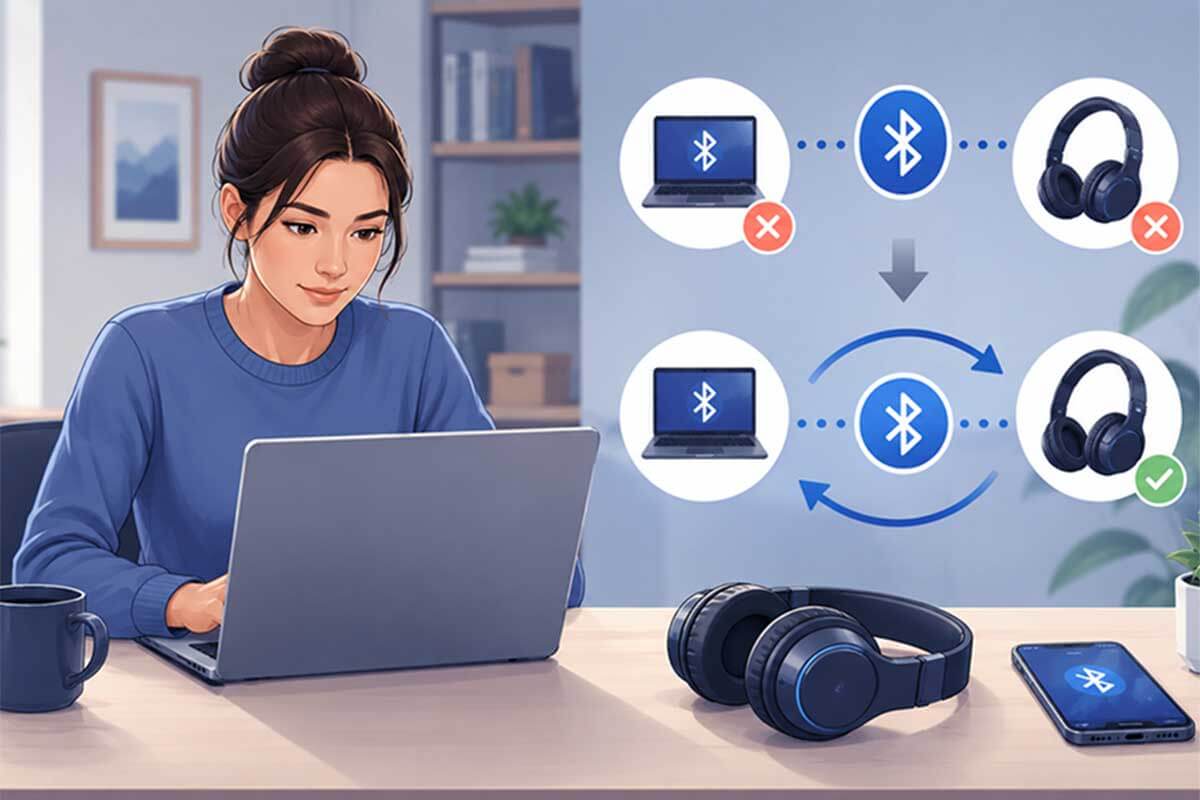
5. Forget the Bluetooth Device and Pair It Again
If turning Bluetooth off and back on didn’t restore the sound, the saved connection between your devices may be corrupted or outdated.
Your phone or computer stores pairing information every time you connect Bluetooth headphones, earbuds, or speakers. Occasionally, this saved information can develop an error, causing the device to appear connected even though Bluetooth audio isn’t working properly.
Removing the Bluetooth device and pairing it again creates a completely fresh connection.
On Windows
Once connected, make sure it’s selected as your audio output and test the sound.
On Android
The exact wording varies between Android phones, but generally:
On iPhone
Why This Works
Removing and pairing the device again can fix:
Think of it as creating a new connection instead of continuing to use one that may have developed an error.
Tip: Before removing your Bluetooth accessory, make sure you know how to put it into pairing mode again. The method varies between headphones, earbuds, and speakers, so check the manufacturer’s instructions if you’re unsure.
If you’ve paired the device again and Bluetooth is connected but there’s still no sound, continue to the next fix. We’ll start checking the device’s audio and software settings.
6. Restart Your Phone or Computer
If your Bluetooth device pairs successfully but still doesn’t play sound, restart the phone or computer it’s connected to.
Bluetooth and audio services run continuously in the background. Occasionally, one of these services can stop responding correctly, especially after your device has been running for a long time, waking from sleep, or installing an update.
A restart closes these temporary processes and starts them again with a fresh connection.
On Windows
Choose Restart rather than simply shutting the computer down and turning it back on. On some Windows systems, Fast Startup can preserve certain system information after a normal shutdown, while Restart performs a more complete refresh.
On Android or iPhone
Restart your phone normally using its power controls.
After the phone starts again:
Why This Works
Restarting your phone or computer can refresh:
It can be particularly useful if the Bluetooth connected but no sound problem appeared suddenly even though the same headphones or speaker worked correctly before.
Tip: Restart the Bluetooth accessory as well if you haven’t already. Restarting both devices gives the connection a completely fresh start.
If you’ve restarted everything and there’s still no Bluetooth sound, the next step is to check whether an app or audio setting is preventing sound from reaching your Bluetooth device.
7. Check App and Audio Settings
If your Bluetooth headphones or speaker work with some apps but have no sound in one particular app, check that app’s audio settings before changing your Bluetooth configuration again.
Some apps can use a different audio output from the one selected by your phone or computer. This is especially common with video calling, gaming, music, and communication apps.
Test Sound in Another App
First, determine whether the problem affects everything or only one app.
Try playing audio from:
If your Bluetooth headphones work normally in other apps, your Bluetooth connection is probably working correctly.
The problem is more likely related to the affected app’s settings.
Check the App’s Audio Output
If the app has its own audio or sound settings, open them and look for options such as:
Make sure your Bluetooth headphones, earbuds, or speaker are selected.
This is particularly important with video conferencing and communication apps, which may remember an audio device you previously used.
Check App Volume on Windows
Windows can also control the volume and output device for individual apps.
Go to:
Settings → System → Sound → Volume mixer
Find the app you’re using and check that:
Then play the audio again.
Close and Reopen the App
If the correct Bluetooth device is already selected, completely close the affected app and reopen it.
Some applications don’t automatically switch audio outputs when you connect Bluetooth headphones while the app is already running.
Restarting the app can force it to recognize your newly connected Bluetooth audio device.
Why This Works
Your main system audio settings and an individual app’s audio settings don’t always match.
Your computer might correctly use Bluetooth headphones for most sounds while one application continues trying to send audio to:
Checking the application’s settings helps determine whether you’re dealing with a Bluetooth problem or simply an incorrect audio output inside one app.
Tip: If Bluetooth sound works everywhere except one application, don’t reset your entire Bluetooth connection yet. Troubleshoot that application first.
If there’s no sound from any app, continue to the next fix. We’ll check whether your device’s software or Bluetooth drivers need attention.
8. Update Bluetooth and Audio Drivers
If Bluetooth connects successfully but you still have no sound on a Windows computer, an outdated or malfunctioning Bluetooth or audio driver could be causing the problem.
Drivers allow Windows to communicate with hardware such as your Bluetooth adapter, headphones, speakers, and sound card. If a driver becomes outdated or develops an error, Bluetooth may still show Connected even though audio doesn’t work correctly.
Update Your Bluetooth Driver on Windows
After the update, restart your computer and reconnect your Bluetooth device.
Check Your Audio Driver Too
If updating the Bluetooth driver doesn’t help:
Restart your computer after installing any available update.
Check Windows Update
Windows may also provide Bluetooth, audio, or manufacturer driver updates through Windows Update.
Go to:
Settings → Windows Update → Check for updates
Install relevant updates, restart the computer, and test your Bluetooth audio again.
Important: Avoid downloading random “driver updater” programs from third-party websites. Windows Update or your computer manufacturer’s official support website is generally the safer place to get drivers.
What About Android and iPhone?
Phones don’t normally let you manually install Bluetooth drivers like Windows does.
Instead, check whether a system update is available:
Android: Settings → System → Software update
(The exact location varies by manufacturer.)
iPhone: Settings → General → Software Update
System updates can include fixes for Bluetooth compatibility, audio problems, and other connection bugs.
Why This Works
An outdated or corrupted driver can prevent Windows from handling Bluetooth audio correctly even when the basic Bluetooth connection still works.
Updating the software can resolve:
For additional Windows-specific troubleshooting, Microsoft also provides an official guide for fixing Bluetooth problems in Windows.
9. Restart Bluetooth Services on Windows
If your Bluetooth device is connected but still has no sound, one of the Bluetooth services running in the background on Windows may have stopped working correctly.
Windows uses background services to discover, connect to, and communicate with Bluetooth devices. Restarting the Bluetooth service can sometimes restore audio without requiring you to remove your headphones or reset your entire computer.
Restart the Bluetooth Support Service
If the service isn’t currently running, right-click it and select Start instead.
After restarting the service:
Check the Service Startup Type
If the Bluetooth problem keeps returning, you can also check how the service starts.
Avoid changing Windows services unnecessarily. If you’re unsure about a setting, leave it at its existing/default configuration rather than changing multiple services at once.
Why This Works
Your Bluetooth hardware can be working normally while a Windows service responsible for managing Bluetooth connections has temporarily stopped responding.
Restarting the service forces Windows to reload that part of the Bluetooth system and can help with problems such as:
Tip: Only restart Bluetooth-related services you recognize. There’s no need to disable or change unrelated Windows services when troubleshooting a Bluetooth audio problem.
If restarting the Bluetooth service doesn’t restore the sound, continue to the next fix. We’ll use Windows’ built-in troubleshooting options to check for audio and Bluetooth problems automatically.
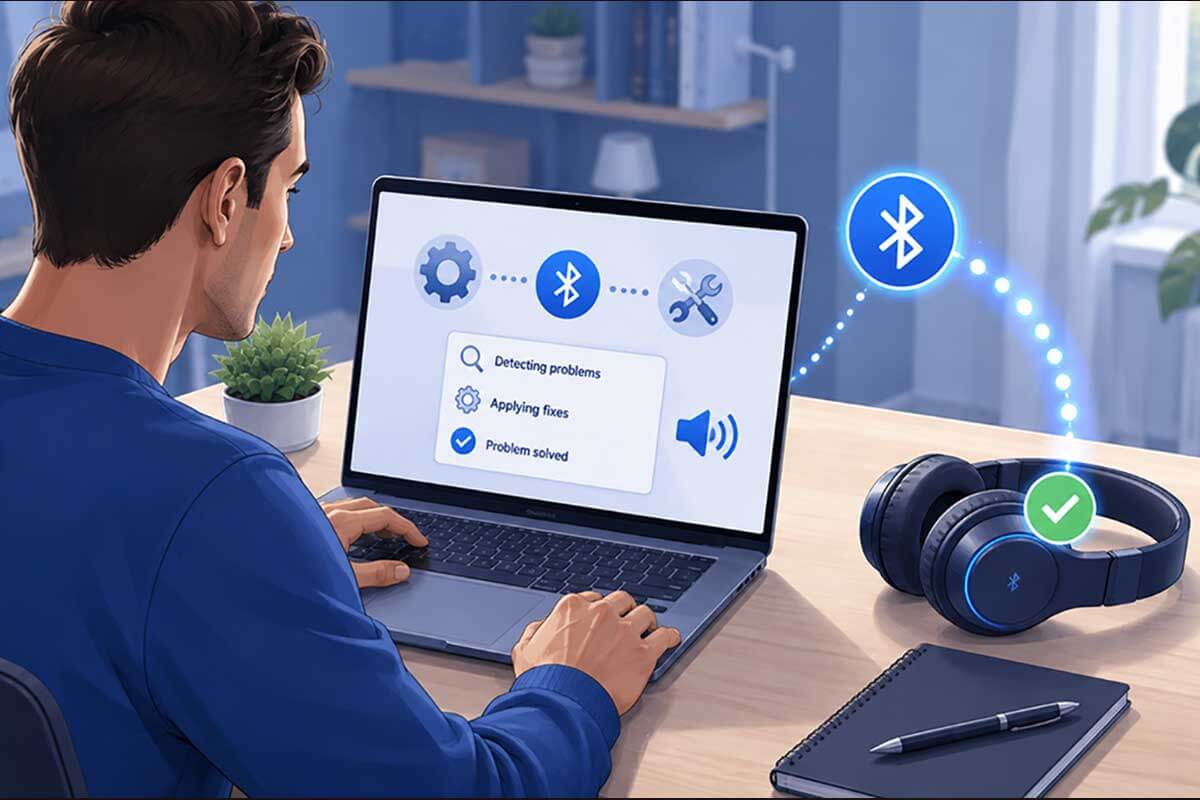
10. Run the Windows Bluetooth Troubleshooter
If you’ve checked your drivers and Bluetooth services but still have Bluetooth connected with no sound, Windows’ built-in troubleshooting tools may be able to identify the problem automatically.
This is especially useful when you’re not sure whether the issue is coming from Bluetooth itself or your computer’s audio settings.
Run the Bluetooth Troubleshooter
On newer versions of Windows, Microsoft may direct Bluetooth troubleshooting through the Get Help app.
Start by:
Depending on your version of Windows, you may also find troubleshooting options under:
Settings → System → Troubleshoot → Other troubleshooters
If a Bluetooth option is available, run it and follow the instructions.
Run the Audio Troubleshooter Too
If Windows says your Bluetooth connection is working normally, the problem may be with audio playback instead.
Open the Get Help app and search for:
Audio troubleshooter
Follow the recommended steps and allow Windows to check your sound configuration.
You can also check:
Settings → System → Sound
Make sure your Bluetooth headphones or speaker are still selected as the output device.
What Windows May Check
Depending on your system, the troubleshooting process may help identify problems such as:
After completing the troubleshooting process, restart your computer, reconnect your Bluetooth device, and test the audio again.
Why This Works
Bluetooth audio involves several parts of Windows working together, including your Bluetooth adapter, audio device, drivers, services, and sound settings.
A built-in troubleshooter can sometimes identify a configuration problem that’s difficult to notice manually.
Tip: If the troubleshooter doesn’t find anything, don’t repeatedly run it. Continue with the next fixes instead, because the problem may be related to your network settings, Bluetooth accessory, or device configuration rather than something Windows can automatically repair.
If Bluetooth still connects but doesn’t produce sound, continue to the next step.
11. Reset Network Settings
If Bluetooth is still connected but there’s no sound after trying the previous fixes, resetting your device’s network settings may help.
Network settings store information related to Bluetooth, Wi-Fi, and other connections. If one of these settings becomes corrupted, Bluetooth may connect normally while audio doesn’t work as expected.
Because a network reset can remove saved connections, use this as a later troubleshooting step rather than one of the first things you try.
On Windows
Windows includes a network reset option that reinstalls network adapters and restores their settings to their defaults.
Go to:
Settings → Network & internet → Advanced network settings → Network reset
Then:
Depending on your Windows version and hardware, you may need to reconnect to saved networks or reconfigure certain network settings afterward.
On Android
The exact menu varies by phone manufacturer and Android version, but look for an option similar to:
Settings → System → Reset options → Reset Wi-Fi, mobile & Bluetooth
Before confirming, carefully read what your phone says will be removed.
After the reset, reconnect your Wi-Fi and pair your Bluetooth device again.
On iPhone
Go to:
Settings → General → Transfer or Reset iPhone → Reset → Reset Network Settings
Enter your passcode if requested and confirm the reset.
Your iPhone will remove saved network-related settings, so you’ll need to reconnect to Wi-Fi networks and pair Bluetooth accessories again afterward.
Important Before You Reset
A network reset may remove information such as:
Make sure you know your important Wi-Fi passwords before proceeding.
Why This Works
If corrupted network configuration data is interfering with Bluetooth audio, resetting the network settings gives your device a fresh connection configuration.
This can sometimes solve persistent problems where your Bluetooth accessory pairs and appears connected but still doesn’t play sound, even after you’ve removed and paired it again.
Tip: Don’t perform a network reset if you haven’t tried the simpler fixes above. It can be effective, but reconnecting your Wi-Fi networks and Bluetooth devices afterward takes additional time.
If you’ve completed a network reset and Bluetooth still has no sound, there’s one final thing we should determine: whether the problem is actually with your headphones, speaker, or the device you’re connecting them to.
12. Test the Bluetooth Device With Another Phone or Computer
If you’ve tried all the previous fixes and your Bluetooth device is still connected but has no sound, it’s time to determine which device is actually causing the problem.
The easiest way to do this is to connect your Bluetooth headphones, earbuds, or speaker to another phone, tablet, or computer.
Test Your Bluetooth Accessory
First, disconnect the Bluetooth accessory from your current device.
Then:
If the Bluetooth Device Works on Another Device
If your headphones or speaker work normally with another phone or computer, the Bluetooth accessory itself is probably fine.
The problem is more likely related to your original device’s:
Go back through the relevant fixes in this guide, particularly the audio output, driver, software update, and network reset steps.
If There’s Still No Sound on Another Device
If the same Bluetooth accessory connects successfully but produces no sound on multiple devices, the problem is more likely with the accessory itself.
Check for:
If available, check the manufacturer’s official support instructions for your exact model.
Try Another Bluetooth Accessory
You can also perform the test in reverse.
Connect a different pair of Bluetooth headphones or another Bluetooth speaker to your original phone or computer.
If the second Bluetooth device works normally, that’s another strong indication that the original headphones or speaker may be causing the problem.
Why This Works
Testing with another device helps isolate the source of the problem.
For example:
Headphones work with another phone → Your original phone or computer is probably causing the issue.
Headphones don’t work with any device → The headphones themselves may have a problem.
Different headphones work with your computer → Your original Bluetooth accessory is likely the problem.
This simple test can prevent you from unnecessarily replacing your phone, computer, or Bluetooth accessory.
Tip: Before replacing a Bluetooth device, check the manufacturer’s support page for firmware updates and model-specific reset instructions. Some headphones and speakers have their own factory-reset procedure that can solve persistent audio problems.
Still No Bluetooth Sound?
If you’ve tried all 12 fixes and your Bluetooth device still connects but produces no sound, the problem may require device-specific troubleshooting.
At this point, think about what you discovered during the tests above.
If the Problem Is With Your Phone or Computer
If your Bluetooth headphones or speaker work normally with another device, focus on the original phone or computer.
Before considering a repair, make sure you’ve:
If several Bluetooth accessories fail on the same device, there could be a problem with its Bluetooth hardware or system configuration.
If you’re also experiencing other unexplained problems with the device, you may need to troubleshoot the phone or computer separately before assuming the Bluetooth accessory is faulty.
If the Problem Is With the Bluetooth Accessory
If your headphones, earbuds, or speaker produce no sound when connected to multiple phones or computers, check the manufacturer’s support page for your exact model.
Look for:
Avoid assuming the accessory is permanently broken until you’ve tried its official reset procedure. The reset method can differ significantly between Bluetooth devices.
When Should You Consider Repair or Replacement?
Repair or replacement may be worth considering if the Bluetooth accessory:
If the accessory is still under warranty, contact the manufacturer before attempting any physical repair yourself.
The good news is that Bluetooth connected but no sound is usually caused by an audio setting, pairing problem, driver issue, or temporary software error rather than failed hardware.
Frequently Asked Questions
-
Why is my Bluetooth connected but there is no sound?
Your Bluetooth device may be connected correctly while the audio is being sent to another output, such as your phone speaker, laptop speakers, or monitor. Low volume, incorrect audio settings, corrupted pairing information, outdated drivers, or temporary Bluetooth errors can also cause the problem.
Start by checking the volume on both devices and making sure your Bluetooth headphones or speaker are selected as the audio output.
-
Why are my Bluetooth headphones connected but sound is coming from my phone?
This usually happens when your headphones are paired successfully but haven’t been selected as the active audio output.
Open your phone’s audio or media output controls and select your Bluetooth headphones. If they’re already selected, disconnect and reconnect them before testing the audio again.
-
Why is Bluetooth connected but there is no sound on Windows?
On Windows, this can happen because the wrong output device is selected, the Bluetooth or audio driver isn’t working correctly, or a Windows Bluetooth service has stopped responding.
Check Settings → System → Sound first and make sure your Bluetooth device is selected under the audio output options. If that doesn’t work, update your Bluetooth and audio drivers and restart the computer.
-
Why do my Bluetooth headphones connect but not play music?
Your headphones may be connected to another nearby device, the media volume may be muted, or an app may be using a different audio output.
Disconnect the headphones from other phones and computers, check the volume on both devices, and try playing audio from a different app.
If the problem continues, forget the Bluetooth headphones and pair them again.
-
Can a low battery cause Bluetooth audio problems?
Yes. Some Bluetooth headphones, earbuds, and speakers may behave unpredictably when their battery becomes very low. You might experience audio interruptions, connection problems, or other unusual behavior.
Charge the Bluetooth accessory fully and test it again before moving on to more advanced troubleshooting.
-
How do I know if my Bluetooth headphones are broken?
Connect the headphones to another phone, tablet, or computer and play some audio.
If they work normally on another device, the problem is probably with your original phone or computer. If the headphones connect but produce no sound on multiple devices, check for firmware updates and follow the manufacturer’s reset instructions.
If the problem remains after those steps, the headphones may have a hardware issue.
Final Thoughts
When Bluetooth is connected but there’s no sound, it doesn’t necessarily mean your headphones, speaker, phone, or computer is broken. In most cases, the problem is caused by a simple audio output setting, pairing error, temporary Bluetooth glitch, outdated driver, or software issue.
Start with the easiest fixes first: check the volume on both devices, make sure the correct audio output is selected, and disconnect your Bluetooth accessory from other nearby devices. If that doesn’t work, turn Bluetooth off and back on, forget and re-pair the device, and restart your phone or computer.
Windows users can also check Bluetooth and audio drivers, restart Bluetooth services, and use the built-in troubleshooting tools. If the problem continues, resetting network settings may help resolve more persistent connection issues.
Most importantly, test your Bluetooth headphones or speaker with another phone or computer before replacing anything. This simple test can help you determine whether the problem is with the Bluetooth accessory or the device you’re connecting it to.
By working through these 12 fixes in order, you should be able to identify the cause of most Bluetooth audio problems and get your sound working again without needing professional technical support.