
You plug a USB device into your computer, but instead of being able to use it, Windows displays a “USB device not recognized” message—or nothing happens at all.
This can happen with USB flash drives, external hard drives, phones, printers, keyboards, mice, and many other USB devices.
The good news is that the problem doesn’t always mean your USB device is broken.
Sometimes Windows simply fails to communicate with the device correctly. A loose connection, faulty USB port, damaged cable, driver problem, or Windows setting can all cause a USB device to stop working.
In this guide, we’ll go through 10 easy ways to fix a USB device not recognized in Windows 11, starting with the simplest checks before moving to Windows settings and drivers.
You don’t need advanced technical knowledge. We’ll troubleshoot one possibility at a time so you can identify whether the problem is coming from the USB device, cable, USB port, or Windows itself.
If you’re having problems with other devices too, our Common Tech Problems and How to Fix Them: Beginner-Friendly Guide covers simple troubleshooting steps for many everyday technology problems.
Quick Answer: How Do I Fix a USB Device Not Recognized?
If Windows 11 doesn’t recognize your USB device, start with these simple checks:
These simple tests can quickly tell you whether the problem is related to the device, cable, USB port, or your Windows computer.
For example, if the USB device works normally on another computer, the device itself is probably not the problem. You can then focus on Windows settings, drivers, or the USB ports on your PC.
If the device isn’t recognized on any computer, there may be a problem with the USB device or its cable.
Don’t format, reset, or make major changes to a USB drive containing important files just because it isn’t appearing in Windows. Start with the safer troubleshooting steps first.
If none of these quick checks work, continue through the fixes below in order.
Why Does Windows 11 Say “USB Device Not Recognized”?
Windows displays a USB device not recognized error when it detects that something has been connected through USB but cannot communicate with the device correctly.
There are several possible reasons.
A loose or unstable USB connection
The device may not be completely inserted into the USB port, or the connection may temporarily fail.
Removing the device and reconnecting it can sometimes solve the problem immediately.
A faulty USB port
Individual USB ports can stop working even when the rest of the computer works normally.
Trying another port is one of the fastest ways to determine whether the port is causing the problem.
A damaged or incompatible USB cable
For devices that connect using a removable cable, the cable itself can be the problem.
A device might even receive power while the data connection isn’t working correctly.
A USB hub or docking station problem
USB hubs and docks add another connection between the device and your computer.
If Windows isn’t detecting the device, connecting it directly to the computer can help determine whether the hub or dock is responsible.
A Windows or driver problem
Windows uses drivers to communicate with connected hardware.
If a USB driver becomes outdated, corrupted, or temporarily stops working, Windows may detect the connection but fail to identify the device correctly.
Power management settings
Windows can turn off certain USB devices or hubs to reduce power consumption. Occasionally, this can interfere with a USB device reconnecting correctly.
A problem with the USB device itself
Finally, the device may have developed a hardware problem.
That’s why testing it on another computer is useful before changing lots of Windows settings.
Microsoft also recommends checking the device’s status through Device Manager when Windows reports a USB recognition problem. We’ll show you exactly how to do that later in this guide.
For Microsoft’s own USB troubleshooting information, see Microsoft’s official Windows USB troubleshooting guide.
Fix 1: Disconnect and Reconnect the USB Device
It sounds simple, but disconnecting and reconnecting the device should be the first thing you try when Windows says USB device not recognized.
Sometimes Windows fails to establish a proper connection when a USB device is first inserted. The device may receive power, but Windows may not communicate with it correctly.
Safely disconnect the USB device from your computer.
Wait about 10–15 seconds, then reconnect it firmly.
Give Windows a few seconds to detect the device before trying anything else.
If you’re using a USB flash drive, external drive, keyboard, mouse, phone, or another device with a direct USB connection, make sure the connector is inserted completely.
Restart the Computer With the USB Device Disconnected
If reconnecting the device doesn’t work, disconnect it again and restart your computer.
After Windows has completely restarted, wait until the desktop has loaded and then reconnect the USB device.
Restarting Windows can clear temporary problems with USB controllers, drivers, and other background processes.
If the device works after restarting, you probably don’t need to make any additional changes.
However, if Windows still doesn’t recognize it, continue to the next fix.
Fix 2: Try a Different USB Port
The USB device itself may be working perfectly while the USB port you’re using is causing the problem.
Disconnect the device and connect it to another USB port on the same computer.
If you’re using a desktop PC, try one of the USB ports on the back of the computer as well. These ports are usually connected directly to the motherboard and can help you rule out problems with front-panel USB connections.
For a laptop, simply test the available USB ports one at a time.
Give Windows a few seconds to recognize the device each time you move it.
What If the Device Works in Another USB Port?
If your USB device works normally in another port, that’s useful information.
It suggests that:
You can continue using the working port for now.
If multiple USB devices fail only in the same port, the problem is even more likely to be related to that particular USB port rather than the devices.
Avoid USB Hubs During Troubleshooting
If your device is connected through a USB hub, docking station, monitor, or adapter, remove that extra connection temporarily.
Connect the USB device directly to your computer instead.
A hub can sometimes cause problems because of insufficient power, connection issues, or compatibility problems.
This doesn’t necessarily mean your USB hub is broken. We’re simply removing another possible source of the problem while troubleshooting.
If the device works when connected directly to the computer but stops working through the hub, you’ve narrowed the problem down considerably.
Fix 3: Check the USB Cable and Test the Device on Another Computer
If changing USB ports doesn’t solve the problem, the next step is to determine whether the problem follows the USB device or stays with your computer.
For devices that use a detachable USB cable, inspect the cable first.
Look for:
If you have another compatible cable available, try it.
This is particularly useful for external hard drives, phones, printers, cameras, and other devices that connect using a separate USB cable.
A Device Can Receive Power but Still Have a USB Problem
Don’t assume the cable is working simply because the device turns on or starts charging.
USB connections can carry both power and data.
In some situations, a damaged or unsuitable cable can still provide power while failing to transfer data correctly.
For example, your phone might charge when connected to the computer while Windows doesn’t recognize it as a connected device.
Some USB cables are also designed primarily or exclusively for charging and may not support normal data transfer.
Trying a known working data cable can quickly rule this out.
Test the USB Device on Another Computer
If possible, connect the USB device to another computer.
This is one of the most useful troubleshooting tests because it helps separate a device problem from a Windows problem.
If the USB device works normally on another computer, the device is probably okay. The problem is more likely related to your original computer’s USB ports, drivers, Windows settings, or power management.
If the device isn’t recognized on another computer either, the device or its cable becomes a stronger suspect.
However, don’t immediately assume the device has failed completely.
Some devices require manufacturer software, specific drivers, additional power, or particular connection settings before they can work correctly.
Be Careful With USB Drives Containing Important Files
If the problem involves a USB flash drive or external storage drive containing important data, avoid formatting it just because Windows doesn’t recognize it properly.
You may see Windows messages suggesting that a drive needs to be formatted before it can be used.
Don’t format the drive if it contains files you need.
Formatting could make recovering those files more difficult.
For now, our goal is simply to determine whether Windows can detect the device correctly.
We’ll check Windows itself in the upcoming fixes before making any major changes.
Fix 4: Check the USB Device in Device Manager
If the USB device works physically but Windows 11 still doesn’t recognize it, Device Manager is the next place to check.
Device Manager shows the hardware Windows can detect and can help reveal whether the USB device has a driver or communication problem.
To open Device Manager:
You may see entries such as:
You should also check other relevant sections. For example, a USB flash drive or external hard drive may appear under Disk drives, while other accessories may appear in their own categories.
Look for an Unknown USB Device
If Windows detects that something is connected but cannot identify it correctly, you may see an entry such as Unknown USB Device.
There may also be a yellow warning symbol beside the device.
If you see one, right-click it and choose Properties.
Under the General tab, look at the Device status box. Windows may display an error message or error code that provides more information about the problem.
One common message is:
Unknown USB Device (Device Descriptor Request Failed)
This means Windows detected a USB connection but couldn’t retrieve the information needed to identify and configure the device properly.
Don’t worry if you see this message. It doesn’t automatically mean the USB device is permanently damaged.
Scan for Hardware Changes
While Device Manager is open, you can also ask Windows to look for connected hardware again.
Click Action at the top of Device Manager and select:
Scan for hardware changes
Windows will rescan the computer for connected devices.
Check whether your USB device now appears correctly.
If nothing changes, continue to the next fix.
Fix 5: Uninstall and Reinstall the Problem USB Device
A corrupted or incorrectly loaded device entry can sometimes prevent Windows from recognizing a USB device properly.
Instead of manually downloading drivers immediately, you can first let Windows reinstall the device automatically.
Open Device Manager again and locate the problematic USB device.
If you found an Unknown USB Device or another entry that clearly corresponds to the device you’re troubleshooting:
Windows should attempt to detect the device and install the necessary driver again.
Don’t Uninstall Random USB Controllers
Be careful when working inside Device Manager.
You don’t need to uninstall every item listed under Universal Serial Bus controllers.
Removing unrelated USB controllers can temporarily affect your keyboard, mouse, external drives, or other USB hardware.
For this troubleshooting step, concentrate on the device that appears to be causing the problem.
If you aren’t sure which Device Manager entry belongs to your USB device, try this simple method:
Keep Device Manager open, disconnect the USB device, and watch which entry disappears. Then reconnect it and see which entry returns.
That can make the problematic device much easier to identify.
Fix 6: Update the USB Driver
If reinstalling the device doesn’t solve the problem, check whether Windows can find an updated driver.
A driver acts as the communication layer between Windows and your hardware. If the driver is outdated, damaged, or incompatible, Windows may have trouble recognizing the USB device.
Open Device Manager, right-click the affected device, and select:
Update driver
Then choose:
Search automatically for drivers
Windows will search for an appropriate driver available through the system.
If Windows installs an update, restart the computer afterward and test the USB device again.
Check Windows Update for Driver Updates
You should also check Windows Update.
On Windows 11, go to:
Settings → Windows Update → Check for updates
Install any relevant updates that are available and restart your computer if required.
You can also check:
Settings → Windows Update → Advanced options → Optional updates
If Driver updates are available, review them for anything related to your USB device, chipset, or computer manufacturer.
You don’t need to install every optional driver simply because it’s listed. Focus on updates that are relevant to the problem you’re troubleshooting.
Check the Device Manufacturer’s Website When Necessary
Some USB devices need their manufacturer’s own drivers or software rather than relying entirely on Windows.
This can apply to devices such as:
If Windows cannot find an appropriate driver, visit the official support website of the device manufacturer and search for your exact model.
Avoid downloading drivers from random third-party “driver download” websites. Drivers operate at a relatively deep level within Windows, so it’s safer to get them from Windows Update or the hardware manufacturer’s official website.
For additional instructions, Microsoft also provides guidance on how to update drivers manually in Windows.
Fix 7: Change USB Power Management Settings
Windows 11 can turn off certain USB devices to save power. Usually this works without causing problems, but occasionally Windows may fail to wake a USB device correctly.
You can temporarily change this setting to see whether power management is causing the problem.
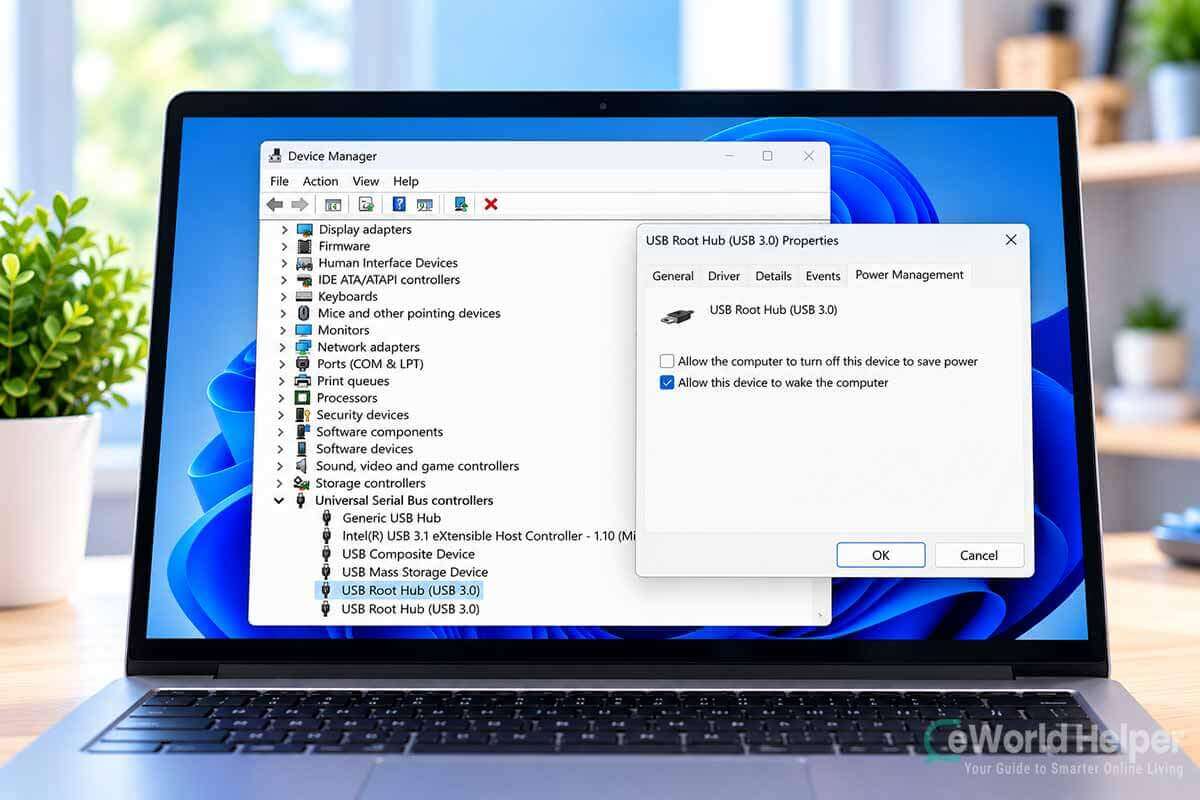
Open Device Manager and expand:
Universal Serial Bus controllers
Look for an entry such as USB Root Hub or Generic USB Hub.
Right-click it and select Properties.
If you see a Power Management tab:
Restart your computer and test the USB device again.
Not every computer or USB controller will show this option, so don’t worry if you can’t find it.
When Is This Fix Most Useful?
Power management is particularly worth checking if your USB device:
If your USB device has never worked on the computer at all, continue with the next fixes as well.
Fix 8: Turn Off USB Selective Suspend Temporarily
Windows has another power-saving feature called USB selective suspend.
It allows Windows to suspend individual USB devices that aren’t actively being used instead of keeping every connected USB device fully powered.
Normally, you should leave this feature enabled. However, temporarily disabling it can help determine whether power management is contributing to your USB recognition problem.
Search Windows for Edit power plan and open it.
Then select:
Change advanced power settings
If your computer provides the option, expand:
USB settings → USB selective suspend setting
Change the setting to Disabled, click Apply, and then click OK.
Restart the computer and test your USB device.
If disabling selective suspend makes no difference, you can return to the same menu and enable it again.
Note: Depending on your Windows 11 version, device, and power configuration, the USB selective suspend option may not appear. If you don’t see it, simply skip this step.
Fix 9: Install Windows 11 Updates
If the USB device still isn’t recognized, make sure Windows 11 itself is up to date.
Updates can include bug fixes, compatibility improvements, security updates, and hardware-related fixes.
Go to:
Settings → Windows Update
Then select:
Check for updates
Allow Windows to download and install available updates.
If Windows asks you to restart the computer, do so before testing the USB device again.
You don’t need to repeatedly install unrelated optional software while troubleshooting. The goal here is simply to make sure Windows isn’t missing an important system update that could affect hardware detection.
Fix 10: Check Whether Windows Can See the USB Drive in Disk Management
This final check is particularly important if the problem involves a USB flash drive or external hard drive.
Sometimes Windows detects the storage device correctly, but it doesn’t appear in File Explorer.
In that situation, the problem may not actually be USB recognition.
Right-click the Start button and select:
Disk Management
Look through the drives displayed in the lower section of the window.
Try to identify your USB drive by its approximate storage capacity.
The USB Drive Appears but Has No Drive Letter
If the USB drive appears in Disk Management but doesn’t have a drive letter, that may explain why you can’t see it in File Explorer.
You can right-click the appropriate volume and select:
Change Drive Letter and Paths
Then assign an available drive letter.
Be certain you’ve identified the correct drive before making changes.
Don’t Initialize or Format an Important Drive Without Understanding the Warning
Disk Management may sometimes show a USB drive as Unallocated, Unknown, or Not Initialized.
Be careful here.
If the drive contains important files, don’t immediately initialize, format, delete partitions, or create a new volume just to make the drive appear.
Those actions can affect the existing data.
If the files are important and the drive suddenly became unreadable, it may be better to stop troubleshooting and consider professional data-recovery assistance.
What If the USB Device Is Still Not Recognized?
If you’ve tried all 10 fixes and Windows 11 still doesn’t recognize the device, use what you’ve learned during troubleshooting to narrow down the cause.
If the USB device works on another computer, the problem is more likely related to your Windows installation, drivers, USB controller, or computer hardware.
If other USB devices work normally on your computer but this particular device doesn’t work anywhere, the USB device itself may have failed.
If several USB devices fail on the same port, the port may have a hardware problem.
And if none of your USB ports recognize any devices, the issue may involve the computer’s USB controller, chipset drivers, hardware, or Windows installation.
At that point, getting help from your computer or device manufacturer’s support service may be more useful than repeatedly changing Windows settings.
If you’re experiencing other hardware or Windows problems as well, see our Common Tech Problems and How to Fix Them: Beginner-Friendly Guide for more beginner-friendly troubleshooting steps.
Frequently Asked Questions About USB Devices Not Recognized in Windows 11
-
Why does my USB device keep saying “not recognized”?
Windows may show a USB device not recognized error when it detects that something has been connected but cannot communicate with it correctly.
Common causes include a loose connection, faulty USB port, damaged cable, driver problem, power-management setting, or a problem with the USB device itself.
Start by reconnecting the device and trying another USB port before changing Windows settings.
-
Why is my USB device getting power but not showing up?
Receiving power doesn’t necessarily mean the USB connection is working correctly.
USB can carry both power and data, so a device may turn on or charge even when Windows cannot communicate with it.
Try another USB port and, if the device uses a removable cable, test a different compatible
data cable.For USB storage devices, you should also check Disk Management because Windows may detect the drive even when it doesn’t appear in File Explorer.
-
How do I reset a USB device in Windows 11?
You usually don’t need to reset the USB system completely.
Instead, open Device Manager, locate the problematic USB device, right-click it, and choose Uninstall device.
Disconnect the USB device and restart your computer. After Windows starts again, reconnect the device and allow Windows to detect and configure it.
Avoid uninstalling unrelated USB controllers unless you know exactly what they control.
-
Why is my USB flash drive not showing up in File Explorer?
If a USB flash drive isn’t visible in File Explorer, Windows may still be detecting it.
Right-click Start → Disk Management and look for the drive.
If the drive appears but doesn’t have a drive letter, assigning one may make it visible in File Explorer.
However, if the drive appears as Unallocated, Unknown, or Not Initialized, proceed with caution. Don’t format or initialize a drive containing important files without understanding what will happen to the existing data.
-
Can Windows Update fix a USB device not recognized error?
Sometimes.
Windows Update can provide system fixes and compatible hardware drivers that may resolve USB-related problems.
Go to:
Settings → Windows Update → Check for updates
You can also check Advanced options → Optional updates for relevant driver updates.
However, if only one particular USB device has stopped working, you should still test the device, cable, and different USB ports rather than assuming Windows Update will solve the problem.
-
How do I know if my USB device is broken?
One of the easiest tests is to connect the USB device to another computer.
If the device works on another computer, the problem is more likely related to your original computer’s USB ports, drivers, Windows settings, or hardware.
If the device isn’t recognized on multiple computers—even after trying another compatible cable when possible—the device itself may have a hardware problem.
For a storage device containing important files, avoid repeatedly formatting, initializing, or modifying the drive while trying to diagnose it.
Final Thoughts: Fixing a USB Device Not Recognized in Windows 11
A USB device not recognized error can look like a serious hardware problem, but often the cause is much simpler.
Start with the basics: reconnect the device, try another USB port, check the cable, and test the device on another computer.
If those steps don’t work, move gradually into Windows troubleshooting by checking Device Manager, drivers, power-management settings, Windows Update, and Disk Management.
Most importantly, change one thing at a time and test the USB device after each step. That makes it much easier to identify what actually fixed the problem.
If the device still isn’t recognized after trying all of these fixes, testing it on another computer can help determine whether you’re dealing with a Windows problem or a failing USB device.