

Writing emails can take more time than it seems.
You might know exactly what you want to say but struggle with how to start. Or you may spend several minutes rewriting the same message because it sounds too formal, too casual, too long, or simply unclear.
AI can make this process much faster.
Instead of asking AI to do everything for you, you can use it as an email writing assistant. It can help you create a first draft, improve something you’ve already written, change the tone, shorten a long message, suggest subject lines, or help you respond to an email you’re unsure how to answer.
You don’t need advanced technical skills or complicated automation to get started. Tools such as ChatGPT, Google Gemini, and Microsoft Copilot can all assist with everyday writing tasks when you give them clear instructions.
The important part is knowing what information to give the AI, how to write a useful prompt, and how to review the result before sending it.
In this beginner-friendly guide, you’ll learn how to use AI to write emails faster without making your messages sound robotic. We’ll also cover practical prompts you can adapt for work emails, client messages, follow-ups, replies, and other everyday situations.
If you’re interested in using AI for more than email, our How to Use AI for Productivity: A Beginner’s Guide to Saving Time explains how AI can also help with planning, research, organizing information, creating first drafts, and other time-consuming tasks.
Quick Answer: How Can You Use AI to Write Emails?
The simplest way to use AI for email writing is to tell it who you’re emailing, why you’re contacting them, what information needs to be included, and how you want the message to sound.
For example, instead of entering:
Write a follow-up email.Give AI more context:
Write a short, friendly follow-up email to a client who hasn't responded to my website proposal. I sent the proposal five days ago. Ask whether they've had a chance to review it and let them know I'm happy to answer any questions. Keep the email professional but warm.The second prompt gives AI enough information to produce a much more useful first draft.
A simple formula you can remember is:
Recipient + Purpose + Important details + Tone + Length or format
You can then review the draft, correct any inaccurate information, personalize the wording, and send it when you’re satisfied.
AI works best when it helps you get from a blank page to a useful draft faster. You should still make the final decisions about what your email says.
What Can AI Help You Do With Emails?
AI can help with much more than creating a new email from scratch.
In many cases, the biggest time savings come from using AI for the small writing tasks that happen before and after the first draft—such as deciding how to phrase something, shortening a message, changing its tone, or creating a clear reply.
Here are some of the most useful ways beginners can use AI for email.
Write a New Email From Scratch
If you know what you need to communicate but don’t know how to begin, AI can create a first draft for you.
You only need to provide the important details, such as:
For example:
Write a professional email to a client letting them know their website updates are complete. Mention that I've updated the homepage, fixed the contact form, and tested the website on mobile devices. Ask them to review the changes and send me any feedback.Instead of spending time deciding how to structure the email, you immediately have a draft that you can review and personalize.
Reply to an Email Faster
Sometimes writing a reply takes longer than writing a new email because you need to respond to several points at once.
AI can help organize your response.
You can provide the relevant parts of the email and explain what you want your reply to communicate.
For example:
Help me reply to this email. Thank the client for their feedback, confirm that I can make the requested changes, and explain that I expect to finish them by Friday. Keep the reply friendly and concise.However, be careful when copying emails into an AI tool. Remove passwords, financial information, private customer information, confidential business details, or anything else that shouldn’t be shared with the service.
We’ll discuss privacy in more detail later in this guide.
Improve an Email You’ve Already Written
You don’t always need AI to write the entire message.
Often, a better approach is to write your email normally and then ask AI to improve it.
For example:
Improve this email so it sounds clearer and more professional. Keep my original meaning and don't add any new information.This can be particularly useful when you know exactly what you want to say but aren’t satisfied with how you’ve written it.
You can also ask AI to correct grammar, improve sentence structure, remove repetition, or make complicated sentences easier to understand.
Change the Tone of an Email
The same information can sound very different depending on how it is written.
You might want an email to sound:
Professional
Friendly
Warm
Polite
Confident
Concise
Instead of rewriting the whole message yourself, you can ask AI to adjust the tone.
For example:
Rewrite this email to sound warmer and friendlier while keeping it professional. Don't change the facts or make it longer.Be specific about the tone you want. Simply asking AI to “make this better” gives it much more freedom to change your message.
Shorten Long Emails
If you’ve written a long email, AI can help remove unnecessary words while keeping the important information.
For example:
Shorten this email to about 150 words. Keep all important dates, questions, and action items. Remove repetition and unnecessary explanation.This is especially useful when you have written several paragraphs and realize the recipient could probably understand the same message in half the space.
Create Email Subject Lines
AI can also generate subject-line options based on your message.
Instead of asking for a generic subject line, provide context:
Suggest five clear, professional subject lines for this email. Avoid clickbait and keep each one under 50 characters.You can then choose the option that best represents the actual purpose of your email.
The goal isn’t to use AI for every email you send. It’s to use it where writing, rewriting, organizing, or refining the message would otherwise take unnecessary time.
How to Use AI to Write Emails Step by Step
You don’t need a complicated workflow to write emails with AI. For most everyday messages, the process can be reduced to a few simple steps.
The key is to give AI enough information to create a useful draft without expecting it to guess important details.
Step 1: Decide What the Email Needs to Accomplish
Before opening an AI tool, identify the main purpose of your email.
Are you trying to:
Try to describe the purpose in one sentence.
For example:
I need to follow up with a client who hasn't responded to the proposal I sent last week.That gives you a clear starting point for your prompt.
Step 2: Give AI the Important Details
Next, provide the information that needs to appear in the email.
You might include:
You don’t need to write everything perfectly. Short notes are usually enough.
For example:
Recipient: Existing client
Purpose: Website maintenance update
Completed: WordPress and plugin updates
Also checked: Backups and contact forms
Action: No action required from client
Tone: Friendly and professional
AI can turn those rough notes into a readable email.
However, don’t include sensitive or confidential information unless you’re comfortable with how the AI service handles that data.
Step 3: Tell AI How the Email Should Sound
Tone matters because an email to a close colleague shouldn’t necessarily sound like an email to a new customer.
Include the desired tone directly in your prompt.
For example:
Keep the email friendly, professional, and concise. Avoid overly formal language.You can also specify what you don’t want.
For example:
Don't use sales language, exaggerated claims, or unnecessary apologies.These instructions can prevent AI from producing a technically correct email that doesn’t sound appropriate for the situation.
Step 4: Ask AI to Create the First Draft
Now combine the information into one clear prompt.
For example:
Write a short email to an existing client letting them know their monthly website maintenance is complete. Mention that WordPress and the plugins were updated and that I checked the backups and contact forms. No action is required from the client. Keep the email friendly and professional and avoid overly formal language.The first result doesn’t need to be perfect.
Think of it as a starting draft rather than a finished email.
Step 5: Refine the Draft With Follow-Up Instructions
If the first version isn’t quite right, you don’t necessarily need to start again.
Tell AI exactly what you want changed.
For example:
Make it shorter.Or:
Make the opening friendlier but keep the rest professional.Or:
Keep my original wording in the second paragraph, but simplify the rest.Or:
Remove anything that wasn't included in the information I provided.Specific follow-up instructions usually work better than repeatedly asking AI to “try again.”
Step 6: Review the Email Before Sending It
This is the step you should never skip.
Check that:
Also read the email as if you were the recipient.
Ask yourself:
Is it immediately clear why I’m receiving this email and what I need to do next?
If the answer is yes, you’re probably ready to send it.
AI can speed up the writing process, but you remain responsible for the final message. This simple draft → refine → review workflow gives you the efficiency of AI without giving up control over what you communicate.
Ready-to-Use AI Email Prompts for Everyday Situations
Once you understand the basic workflow, you don’t need to create every prompt from scratch.
The following prompts can be used as starting points for common email situations. Replace the information in [brackets] with your own details, then adjust the instructions to match the recipient and situation.
Remember that a good prompt gives AI enough context to help without including unnecessary private or confidential information.
Prompt for a Professional Email
Use this when you know what you want to communicate but need help turning your notes into a polished email.
Write a professional email to [recipient/relationship] about [topic]. Explain that [important information]. Ask them to [action or response needed]. Keep the email clear, friendly, and professional. Don't add any facts that I haven't provided.This works well for client communication, project updates, requests, and general business emails.
Prompt for a Follow-Up Email
Following up can be awkward, especially when you don’t want to sound impatient.
Try:
Write a short follow-up email to [recipient]. I contacted them [time period] ago about [topic] but haven't received a response yet. Politely ask whether they've had a chance to review it. Keep the tone friendly and professional without sounding pushy.If this is your second or third follow-up, tell AI that too so it can adjust the wording appropriately.
Prompt for Replying to an Email
When an incoming email contains several questions or requests, give AI the points you want your response to cover.
Help me write a reply to an email from [recipient/relationship]. I want to thank them for [reason], answer their question about [topic], explain that [important information], and ask them to [next step]. Keep the reply concise, friendly, and professional.You don’t necessarily need to paste the entire original email. Often, summarizing the relevant points is enough and can reduce the amount of private information you share.
Prompt for Improving an Existing Email
If you’ve already written the email, AI can act more like an editor than a writer.
Improve the email below so it is clearer, more concise, and professional. Keep my original meaning and important details. Don't invent new information or make the message unnecessarily formal.

[Paste your draft here]
This is one of the safest ways to preserve your own voice because you’re giving AI your writing as the starting point.
Prompt for Making an Email Friendlier
Sometimes a message contains the right information but sounds colder than you intended.
Try:
Rewrite this email so it sounds warmer and friendlier while remaining professional. Keep all facts, questions, dates, and important details unchanged. Avoid exaggerated enthusiasm.

[Paste your draft here]
Prompt for Shortening a Long Email
For an email that has become too detailed:
Shorten the email below while keeping all important information, questions, deadlines, and action items. Remove repetition and unnecessary explanation. Keep the tone [professional/friendly/formal].

[Paste your email here]
You can also specify a target such as under 150 words if you need a particularly concise message.
Prompt for a Client Project Update
This is useful for freelancers, agencies, consultants, and anyone who regularly sends progress updates.
Write a concise project update email to my client. The project is [project]. I've completed [completed work]. I'm currently working on [current work]. I need the client to [action required]. The next step is [next step]. Keep the message professional, positive, and easy to scan. Don't add information I haven't provided.Prompt for Requesting Information
When you need something from another person:
Write a polite email to [recipient] asking for [information/files/approval]. Explain that I need it because [brief reason]. If relevant, mention the deadline of [date]. Make the requested action very clear. Keep the email concise and professional.Prompt for a Polite Reminder
For deadlines, payments, documents, approvals, or other outstanding actions:
Write a polite reminder email to [recipient] about [outstanding item]. The original request was made on [date/time period]. Ask them to [required action]. Keep the message friendly and professional and avoid sounding demanding.For sensitive situations such as overdue payments, make sure you personally review the wording before sending it.
Prompt for Creating Subject Lines
Once your email is finished, you can ask AI to generate several subject-line options.
Suggest five clear subject lines for the email below. Each subject line should accurately describe the purpose of the email, be concise, and avoid clickbait or exaggerated language.

[Paste the email or briefly describe it]
Don’t automatically choose the most attention-grabbing option. For most everyday emails, clarity is more useful than cleverness.
Create Your Own Reusable Prompt Template
If you regularly send similar emails, you can turn your best prompt into a reusable template.
A simple general-purpose template is:
Recipient: [Who am I emailing?]
Purpose: [Why am I emailing them?]
Important details: [What must be included?]
Action needed: [What should they do next?]
Tone: [Friendly, professional, formal, etc.]
Length: [Short, detailed, under 150 words, etc.]
Special instructions: Don't invent information. Keep dates, names, numbers, and facts exactly as provided.
Save a template like this somewhere convenient and fill in the blanks whenever you need it.
That turns AI email writing into a repeatable process rather than spending time figuring out how to prompt the AI every time you write an email.

How to Make AI-Written Emails Sound More Human
AI can create a grammatically correct email in seconds, but that doesn’t always mean the message sounds like something you would actually write.
AI-generated emails can sometimes be overly formal, unnecessarily enthusiastic, repetitive, or filled with phrases you wouldn’t normally use. This becomes especially noticeable when you send emails regularly to clients, colleagues, or customers who are familiar with your communication style.
The goal isn’t to hide the fact that AI helped you. The goal is to make sure the final email accurately represents your message, tone, and intentions.
Give AI a Sample of Your Writing Style
One of the easiest ways to get more natural results is to show AI how you normally communicate.
You could provide a previous email you’ve written and say:
Use the email below as a style reference. Write my new email with a similar tone, sentence length, and level of formality. Don't copy specific information from the example.

[Paste your example email]

New email details: [Add your information]
Remove private or sensitive information from the example before sharing it.
You don’t need to provide dozens of emails. Even one appropriate example can give AI more context about the style you’re trying to achieve.
Ask for Simple, Natural Language
If an AI-generated email sounds too polished or formal, tell it directly.
For example:
Rewrite this using simple, natural language. Keep it professional, but make it sound like a real person wrote it. Avoid overly formal wording and unnecessary phrases.You can be even more specific:
Keep the sentences relatively short. Use everyday language. Don't use corporate jargon.Clear instructions are usually more effective than simply saying “make it sound human.”
Remove Generic AI-Sounding Phrases
AI tools sometimes produce introductions or transitions that feel unnecessary for a simple email.
For example, you may get wording such as:
I hope this message finds you well.There is nothing inherently wrong with that phrase. If you genuinely use it, you can keep it.
But don’t keep phrases simply because AI generated them.
If you normally start an email with “Hi Sarah,” and immediately explain why you’re writing, it’s perfectly fine to continue doing that.
Your normal communication style should guide the final version.
Add Details Only You Would Know
AI can help structure the email, but personal context often makes the message feel genuine.
Instead of:
Thank you for your help with the project.you might write:
Thanks for sending the homepage feedback yesterday.Specific details can make an email clearer and more personal at the same time.
However, don’t ask AI to invent these details. Add them yourself or provide them as part of your prompt.
Edit the Draft Yourself
You don’t need to accept the AI-generated version word for word.
Change sentences.
Delete unnecessary lines.
Replace words you wouldn’t normally use.
Add a short personal comment where appropriate.
Sometimes the fastest workflow is:
Your rough thoughts → AI creates a draft → You make the final edits
That gives you the speed of AI while keeping your own communication style.
Don’t Over-Optimize Every Email
There is also a point where using AI can become counterproductive.
If you’ve spent ten minutes repeatedly prompting AI to improve a three-sentence email that you could have written yourself in two minutes, AI hasn’t improved your productivity.
For very simple messages such as:
Hi James,

Thanks for sending this. I'll review it this afternoon and get back to you tomorrow.

Best,
Anna
you may not need AI at all.
Use AI when it removes friction from writing, not simply because it’s available.
The best AI-assisted email should still feel like your email when you’re finished with it.
Common Mistakes to Avoid When Using AI for Emails
AI can make email writing faster, but it can also create new problems when you rely on it too heavily.
Most of these problems are easy to avoid if you treat AI as a writing assistant rather than an automatic email sender.
1. Sending the First AI Draft Without Reviewing It
An AI-generated email may look polished while still containing incorrect information.
Before sending, check names, dates, prices, deadlines, links, project details, and anything else that needs to be accurate.
This becomes especially important when the email involves clients, payments, appointments, contracts, or important business decisions.
A polished sentence isn’t necessarily a correct sentence.
2. Giving AI Too Little Context
A prompt such as:
Write an email asking for an update.leaves AI to guess almost everything about the situation.
Instead, explain who you’re contacting, what you’re waiting for, when you last communicated, and how you want the message to sound.
You don’t need a complicated prompt. You just need enough context for AI to understand the situation.
3. Letting AI Invent Missing Information
If important details are missing, an AI tool may sometimes produce information that sounds plausible but wasn’t actually provided.
You can reduce this risk by adding an instruction such as:
Use only the information I provide. If an important detail is missing, leave a placeholder or ask me for it instead of inventing it.Even with that instruction, review the finished email yourself.
4. Making Every Email Too Formal
AI-generated business emails can sometimes sound more formal than the situation requires.
A simple update between people who communicate regularly doesn’t necessarily need phrases such as:
I am writing to formally inform you...A straightforward:
Just wanted to send you a quick update...may fit the relationship much better.
Tell AI what level of formality you actually need instead of automatically asking for a “professional email.”
5. Creating Emails That Are Longer Than Necessary
AI can easily turn a simple point into several paragraphs.
If the recipient only needs an update and one question, a long explanation may make the message harder to understand.
You can instruct AI:
Keep this under 120 words and make the main action clear.But don’t shorten an email simply to meet an arbitrary word count. Keep the information the recipient actually needs.
6. Copying Sensitive Information Into an AI Tool
Be careful about what you paste into an AI service.
Depending on the situation, sensitive information could include:
If AI only needs the general context, replace identifying details with placeholders such as [Client Name], [Company], or [Amount].
We’ll cover privacy and security more carefully in the next section.
7. Losing Your Own Communication Style
If every email is generated entirely by AI, your messages can gradually start sounding generic.
This matters particularly when you regularly communicate with the same clients, colleagues, or customers.
Use your own wording where it adds personality. AI can improve the structure and clarity without replacing the way you naturally communicate.
8. Using AI When Writing the Email Yourself Would Be Faster
AI isn’t automatically the fastest option.
For a message such as:
Thanks, Sarah. Tuesday at 2 PM works for me.opening an AI tool, explaining the situation, generating a response, and reviewing it would probably take longer than simply writing the email.
A useful rule is:
Use AI when it removes meaningful work from the task.
If the message is already easy to write, just write it.
Avoiding these mistakes helps keep AI email writing fast, accurate, appropriate, and genuinely useful rather than adding another unnecessary step to your workflow.
How to Use AI for Emails Safely: Privacy and Security
Email often contains information that you wouldn’t post publicly. That makes privacy especially important when using AI to help write or reply to messages.
More broadly, responsible AI use means considering risks such as privacy, security, accuracy, and reliability. The National Institute of Standards and Technology provides an AI Risk Management Framework for understanding and managing risks associated with AI systems.
You don’t need to avoid AI completely. Instead, develop the habit of sharing only the information the AI actually needs to help with the task.
Never paste passwords, authentication codes, API keys, recovery codes, or other login credentials into an AI prompt.
AI doesn’t need this information to help you write an email.
Instead of:
Tell John that the WordPress username is admin and the password is...you could simply write:
Draft an email telling the client that I'll send their website login details separately through our usual secure method.Keep credentials outside the AI conversation.
Remove Personal and Confidential Information
If you’re asking AI to improve an existing email, consider whether the recipient’s identity or other private details are actually necessary.
For example, instead of pasting:
Sarah Williams from ABC Company hasn't paid invoice #4587 for $1,250...you could change it to:
[Client] hasn't paid [invoice] for [amount]...AI can still help you improve the wording without knowing the real names, invoice numbers, or amounts.
This approach is particularly useful when you’re working with customer, employee, client, or company information.
Summarize an Email Instead of Pasting the Entire Message
Sometimes AI doesn’t need the original email at all.
Suppose a client sends you a long message asking when a project will be finished and requesting two changes.
Rather than copying the complete email, you could tell AI:
A client asked when their project will be completed and requested two additional changes. Help me write a friendly reply confirming that I'll complete the current work by Friday and review the additional requests separately.You’ve provided the context needed for the writing task without sharing the entire conversation.
Check the Privacy Settings of the AI Tool You Use
Different AI services can have different settings and policies for how conversations and uploaded information are handled.
Before using an AI service regularly for work-related email, check its current privacy controls and data-use policies.
This is particularly important if you’re using an employer-provided account, business version of an AI service, or AI features integrated directly into workplace software.
Don’t assume every AI tool handles your information in exactly the same way.
Be Extra Careful With Sensitive Work Emails
Some emails require more caution than others.
Examples include messages involving:
For sensitive situations, follow your organization’s policies and consider whether an AI tool should be involved at all.
Saving a few minutes isn’t worth exposing information that should remain confidential.
Be Careful With AI-Generated Links and Contact Details
AI may occasionally generate a website address, email address, phone number, or other detail that looks believable but is incorrect.
Don’t assume those details are accurate simply because they appear confidently in the draft.
If the email contains contact information, links, statistics, policies, prices, or other factual claims, verify them before sending.
Keep the Final Send Decision With You
For beginners, it’s generally better to use AI to draft and improve emails rather than automatically sending them.
A simple workflow gives you much more control:
Provide safe context → Generate draft → Review facts → Personalize → Send
That final review gives you an opportunity to catch incorrect information, inappropriate wording, privacy problems, or details that AI misunderstood.
AI can make email writing considerably more efficient, but convenience shouldn’t come at the expense of privacy, accuracy, or security.
Which AI Tools Can You Use to Write Emails?
You don’t necessarily need a dedicated AI email-writing app to get started.
General-purpose AI assistants can already help you draft emails, rewrite messages, adjust tone, summarize information, and generate replies. If you’re a beginner, it’s usually better to learn how to use one AI tool effectively before adding several different tools to your workflow.
Here are three popular options.
ChatGPT
ChatGPT can help you create emails from rough notes, rewrite existing drafts, generate replies, change the tone of a message, shorten long emails, and suggest subject lines.
For example, you could provide a few notes and ask:
Turn these notes into a short, friendly email to a client. Keep all facts exactly as provided and don't add any new information.

[Add your notes]
You can then continue refining the same draft with follow-up instructions such as:
Make it shorter and slightly more casual.or:
Keep the first paragraph, but make the request in the second paragraph clearer.This back-and-forth approach can be particularly useful because you don’t have to create a completely new prompt every time you want to adjust the draft.
Google Gemini
Google Gemini can also help with common email-writing tasks such as creating drafts, rewriting text, summarizing information, and brainstorming different ways to phrase a message.
Google also offers Gemini features within some of its productivity products, depending on the account, product, and features available to you.
For beginners, however, you don’t need a complicated setup.
You can start by giving Gemini the same basic information we’ve used throughout this guide:
Recipient + purpose + important details + tone + desired length
Then review and personalize the result before using it.
Google provides instructions for using Gemini to draft emails in Gmail , including creating new drafts and refining existing text.
Microsoft Copilot
Microsoft Copilot is another option for AI-assisted writing and productivity.
You can use it to help draft or rewrite text, summarize information, generate ideas, and improve the clarity of a message. Microsoft also integrates Copilot capabilities into some Microsoft 365 experiences, with availability depending on the product and account.
Again, the underlying email-writing process remains similar regardless of which AI assistant you choose:
Explain the situation → provide the necessary details → request a draft → refine it → review it yourself
Microsoft also provides a guide to drafting email messages with Copilot in Outlook .
Do You Need a Dedicated AI Email Writer?
Not necessarily.
There are specialized AI email-writing tools and email clients with built-in AI features, but a beginner doesn’t need to subscribe to several services simply to start writing better emails.
First, learn how to create good prompts and review AI-generated drafts using a general-purpose AI assistant.
Later, if email takes up a significant part of your workday, you can decide whether features such as inbox integration, automated summaries, reusable templates, or suggested replies would genuinely save you additional time.
Which AI Email Tool Should a Beginner Choose?
There isn’t one tool that is automatically best for everyone.
If you already use ChatGPT, Gemini, or Copilot, start with the one you have access to.
The quality of your instructions and your final review often matters more than constantly switching between AI tools looking for the perfect email writer.
You can even test the same non-sensitive prompt with different tools and compare the results.
Whichever tool you choose, remember the principle we’ve used throughout this guide:
AI creates the starting point. You control the final email.
How to Create a Simple AI Email Workflow
Once you’ve used AI for a few emails, you’ll probably notice that you repeat many of the same instructions.
You may regularly ask AI to keep emails concise, use a friendly but professional tone, preserve the facts you’ve provided, and avoid adding information.
Instead of writing those instructions from scratch every time, you can create a simple reusable AI email workflow.
The goal isn’t to automate every email. It’s to make the emails that require more thought faster and easier to handle.
Step 1: Identify the Emails You Write Repeatedly
Start by thinking about the types of emails you send regularly.
These might include:
You don’t need a template for every possible situation.
Start with one type of email that regularly takes you longer than it should.
Step 2: Create a Reusable Prompt
Next, create a prompt containing the instructions that remain mostly the same.
For example:
Write a short project update email to my client using the information below.

Keep the tone friendly and professional. Use simple, natural language and keep the email concise. Don't invent information or change any dates, numbers, names, or facts I provide.

Completed: [add completed work]
Currently working on: [add current work]
Need from client: [add required action]
Next step: [add next step]
The next time you need to send a project update, you only have to replace the information in brackets.
Step 3: Save Prompts That Work Well
If a prompt consistently produces useful drafts, save it somewhere easy to access.
You could keep your prompts in a notes app, document, task manager, or another system you already use.
Give each prompt a simple name such as:
Client Follow-Up
Project Update
Information Request
Polite Reminder
Email Rewrite
You don’t need an elaborate prompt library. A handful of useful templates can be more practical than dozens you rarely use.
Step 4: Add Your Current Information
When it’s time to write an email, open the appropriate template and provide only the information relevant to that message.
For example:
Completed: Homepage and contact page updates
Currently working on: Mobile layout improvements
Need from client: Approval for the new homepage image
Next step: Complete final testing after approval
AI now has both the reusable instructions and the current context it needs to create the draft.
Before submitting the prompt, quickly check that you haven’t included information that should remain private or confidential.
Step 5: Generate and Refine the Draft
Let AI create the first version, then decide whether anything needs changing.
Instead of regenerating the entire email repeatedly, use short follow-up instructions such as:
Make this about 20% shorter.Make the request for approval clearer.Make the opening slightly friendlier.Remove the last paragraph.Keep everything else unchanged.This can be faster than continuously rewriting the original prompt.This can be faster than continuously rewriting the original prompt.
Step 6: Do a Final Human Review
Before sending, perform one final check.
Ask:
Are the facts correct?
Does this sound like me?
Is the purpose of the email obvious?
Is it clear what the recipient needs to do next?
Is there anything here that shouldn’t be shared?
Then make any final edits yourself and send the email.
Over time, the workflow becomes:
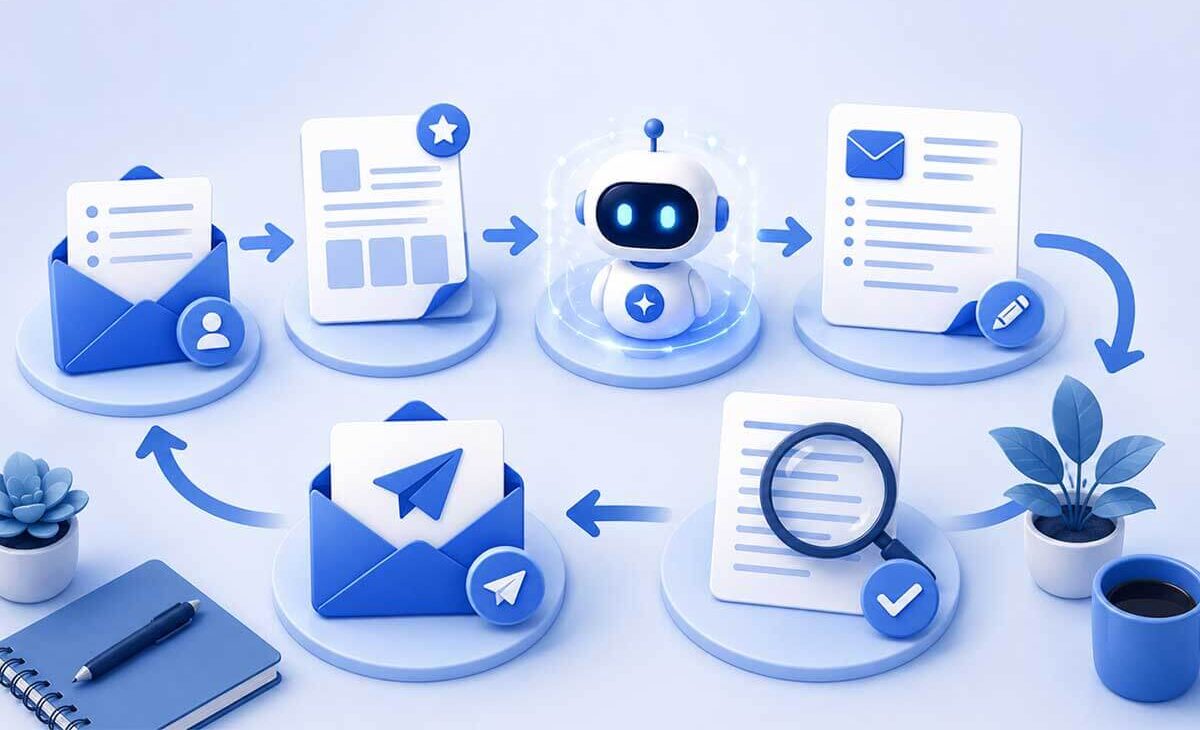
Choose template → Add current details → Generate draft → Refine → Review → Send
The biggest productivity benefit doesn’t necessarily come from AI writing one email faster. It comes from creating a repeatable process for emails you write again and again.
When Should You Use AI for Email — and When Should You Write It Yourself?
AI can make email writing faster, but that doesn’t mean every message needs AI assistance.
Sometimes AI is useful because you’re dealing with a complicated message, struggling with wording, or repeatedly writing similar emails. Other times, writing the message yourself is faster and more appropriate.
Knowing the difference is part of using AI productively.
Email writing is also easier to manage when it has a dedicated place in your schedule. Our guide to using AI to plan your day shows how to organize tasks, priorities, meetings, and focused work into a realistic daily plan.
Use AI When You’re Stuck on How to Start
A blank email can sometimes take longer than the actual writing.
You know what you need to communicate, but you’re unsure how to introduce the subject or structure the message.
In that situation, give AI your main points and ask it to create a first draft.
For example:
I need to tell a client that their project will be delayed by two days because I need additional information from them. Help me draft a short, professional email that explains the situation clearly without sounding defensive.Once you have a starting point, you can rewrite it in your own style.
Use AI When an Email Has Several Points to Cover
AI can be particularly helpful when you need to communicate several pieces of information in one message.
For example, you might need to:
Give AI those points and ask it to organize them into a logical email.
You still control the information; AI simply helps structure it.
Use AI When You Need to Be Careful With Tone
Some emails are difficult to phrase.
You might need to remind someone about an overdue payment, disagree politely, explain a delay, respond to criticism, or say no to a request.
AI can help you explore different ways to communicate the same message.
For example:
Give me three ways to phrase this request: one warm and friendly, one neutral and professional, and one more direct but still polite.You can then choose or combine the wording that best fits the situation.
For particularly sensitive or high-stakes messages, however, AI assistance shouldn’t replace careful human judgment.
Use AI for Emails You Write Repeatedly
This is where the reusable workflow we created earlier becomes especially valuable.
If you regularly send project updates, follow-ups, reminders, or similar messages, AI can turn your current notes into a consistent draft using a saved prompt.
That can remove repetitive writing without requiring you to automate the entire communication process.
Write the Email Yourself When It’s Very Simple
Not every email needs optimization.
If all you need to say is:
Hi David,

Yes, Thursday works for me. See you then!
just write it.
Using AI for extremely simple messages can add more steps than it removes.
Be Cautious With Highly Personal Messages
AI can suggest wording, but some messages depend heavily on your personal relationship with the recipient.
A heartfelt thank-you, apology, condolence, congratulations, or other deeply personal message may be more meaningful when written primarily in your own words.
If you do use AI, consider using it only to help organize what you already want to say, rather than asking it to invent the sentiment for you.
Be Cautious With High-Stakes Emails
Emails involving legal disputes, contracts, major financial decisions, employment matters, medical information, security incidents, or other serious consequences deserve additional care.
AI may help with clarity or structure, but don’t assume its wording or advice is correct simply because it sounds professional.
When necessary, have the message reviewed by an appropriate qualified person before sending it.
Ask One Simple Question
When you’re unsure whether to use AI for an email, ask:
Will AI make this message easier or faster to write without creating unnecessary risk or extra work?
If yes, AI may be useful.
If you could write the email correctly in less time than it would take to prompt, generate, review, and edit an AI response, just write it yourself.
The goal is not to have AI involved in every email.
The goal is to use it selectively, where it genuinely makes communication easier or more efficient.
Frequently Asked Questions About Using AI to Write Emails
-
Can AI write an email for me?
Yes. AI can create an email draft from instructions or rough notes you provide.
For better results, tell the AI who you’re emailing, why you’re contacting them, what information must be included, what action you want the recipient to take, and what tone you want.
You should still review the finished email before sending it to make sure the information is accurate and the message sounds appropriate.
-
What is the best prompt for AI email writing?
There isn’t one perfect prompt for every email, but a useful formula is:
Recipient + Purpose + Important details + Action needed + Tone + Length
For example:
Write a short, friendly follow-up email to a client about a proposal I sent five days ago. Ask whether they’ve had a chance to review it and whether they have any questions. Keep the message professional and don’t sound pushy.
The more relevant context you provide, the less the AI has to guess.
-
Can I use AI to reply to emails?
Yes. You can summarize the email you’ve received and tell AI what you want your response to communicate.
You can also provide the original message when appropriate, but avoid sharing unnecessary personal, confidential, financial, or security-related information.
Always check that the AI-generated reply accurately addresses the sender’s questions before using it.
-
How do I make AI-written emails sound less robotic?
Give AI clear instructions about the tone and writing style you want.
You can ask it to use simple language, shorter sentences, less formal wording, or a warmer tone. You can also provide a non-sensitive example of your own writing as a style reference.
Most importantly, edit the final draft yourself. Changing even a few phrases can make the message sound much more like your natural communication style.
-
Is it safe to use AI to write work emails?
It can be, but you need to think carefully about the information you share.
Avoid entering passwords, login credentials, confidential company information, private customer data, financial information, or other sensitive material. Check the privacy policies and settings of the AI service you’re using, especially for workplace communication.
For sensitive or high-stakes emails, additional human review may be appropriate.
-
Can AI improve an email I’ve already written?
Yes, and this can be one of the easiest ways to use AI for email.
Instead of asking AI to create the message from scratch, write your own draft and ask AI to make it clearer, shorter, friendlier, or more professional.
For example:
Improve this email for clarity and grammar. Keep my original meaning and tone, and don’t add any information I haven’t provided.
This approach can save time while keeping more of your original writing in the final message. -
Should I use AI for every email?
No.
For short messages, confirmations, and simple replies, writing the email yourself may be faster.
AI becomes more useful when you’re struggling with wording, dealing with several points at once, adjusting the tone of a difficult message, improving a draft, or creating emails you send repeatedly.
The purpose of using AI is to reduce the work involved in writing an email—not add another unnecessary step.
Final Thoughts: Use AI to Write Emails Faster, Not Automatically
Learning how to use AI to write emails isn’t about handing over all of your communication to an AI tool.
The real benefit comes from using AI for the parts of email writing that slow you down.
It can help you get past a blank page, organize several ideas into a clear message, improve an awkward draft, adjust the tone of a difficult email, create a polite follow-up, or turn a few rough notes into a useful first draft.
But the final email should still be yours.
Before sending an AI-assisted email, take a moment to check the facts, remove unnecessary wording, personalize the message, and make sure it sounds appropriate for the person receiving it.
You also don’t need complicated automation or several different AI subscriptions to get started.
Choose one AI tool you already have access to and begin with one type of email that regularly takes up your time.
A simple process is often enough:
Explain what you need → Provide the important details → Generate a draft → Refine it → Review it yourself → Send
If you find yourself writing the same type of email repeatedly, save the prompt that works and turn it into a reusable template. Over time, you can build a small collection of prompts for the messages you send most often.
And remember: sometimes the fastest option is simply to write the email yourself.
Use AI when it genuinely makes the task faster, clearer, or easier. Keep your judgment, knowledge, and personal communication style in the final message.
Email is only one place where AI can save time. If you’d like to explore other practical uses, see our guide to using AI for everyday productivity.