
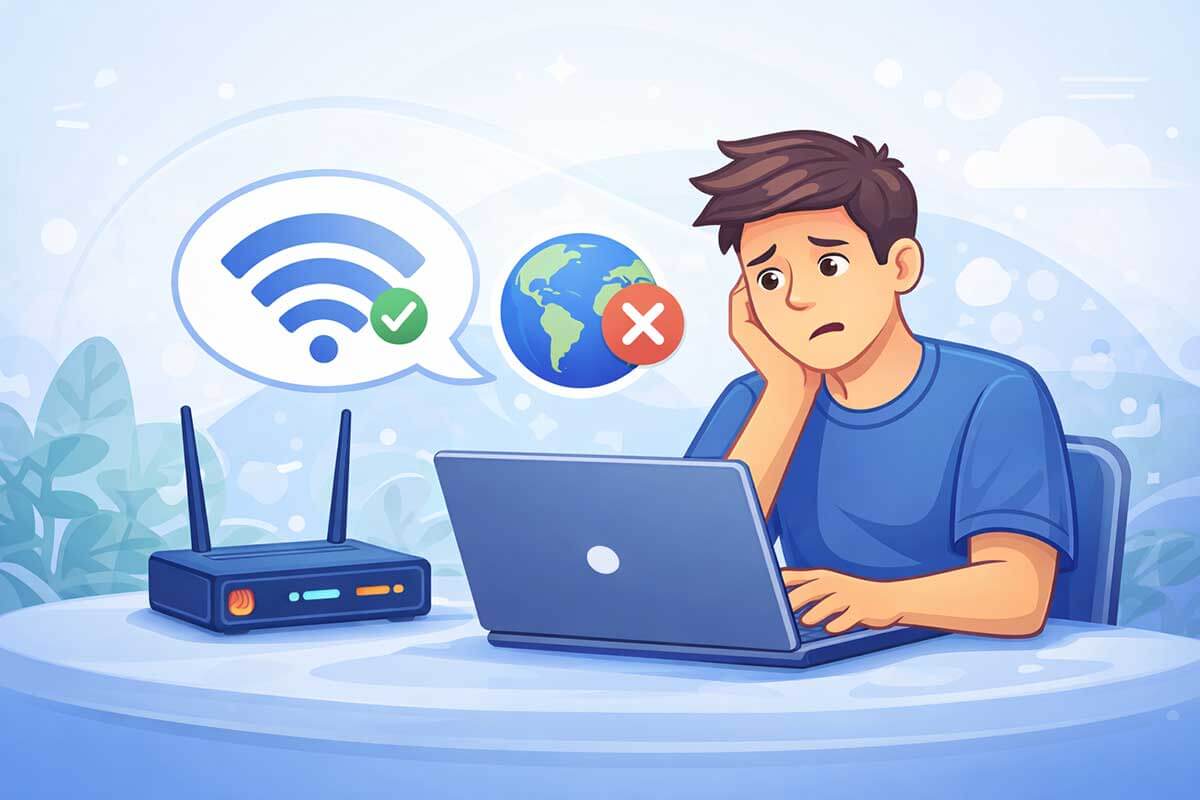
Seeing the message “Wi-Fi connected but no internet” can be frustrating, especially when everything looks normal at first. Your phone, laptop, or tablet shows that it is connected to Wi-Fi, but websites do not load, apps stop working, and videos refuse to play.
The good news is that this problem is usually easier to fix than it seems. In many cases, the issue is caused by a temporary router problem, an internet outage, a DNS error, or a device setting that needs a quick reset.
In this beginner-friendly guide, you will learn why your Wi-Fi says connected but there is no internet, what causes it, and the exact steps you can follow to fix it on different devices. Many of these issues are also explained in our guide on common tech problems and how to fix them.
Why does Wi-Fi say connected but there is no internet?
When your device says it is connected to Wi-Fi, it only means the device has successfully connected to your router. It does not always mean your router has a working internet connection.
This can happen for several reasons:
That is why you can appear to be connected while still being unable to browse the web, use apps, or stream videos.
Signs that your Wi-Fi is connected but not working properly
Sometimes the problem is obvious, but sometimes it is confusing because the Wi-Fi icon still appears normal. Here are the most common signs:
If more than one device has the same issue, the problem is usually with the router, modem, or internet service rather than with one phone or computer.
Step 1: Check If the Internet Is Down
Before changing any settings, confirm whether the internet service is working.
What to do:
If no one has internet, the issue is likely with the service provider and may resolve on its own.
Step 2: Restart the Modem and Router (Most Important Step)
This fixes many internet problems.
How to restart correctly:
Restarting clears temporary network errors and refreshes the connection.
Step 3: Forget and Reconnect to the Wi-Fi Network
Sometimes your device saves a faulty connection.
What to do:
This often fixes authentication and connection issues.
Step 4: Check Date, Time, and Airplane Mode
Incorrect settings can block internet access.
Check that:
These small settings can cause internet access to fail even when Wi-Fi is connected.
Step 5: Test With a Different Device
If one device has no internet but others work:
For general device issues, our basic computer troubleshooting guide explains safe steps beginners can follow.
Step 6: Check Router Lights and Cables
Look at your router and modem lights:
Make sure all cables are firmly connected and undamaged.
Step 7: Reset Network Settings (Optional)
If the problem continues, resetting network settings may help.
This will:
⚠️ Only do this if basic steps don’t work, as you’ll need to reconnect networks afterward.
Step 8: When to Contact Your Internet Provider
Contact support if:
This will:
This helps resolve the problem faster.
Frequently Asked Questions
-
Why does my Wi-Fi say connected but no internet?
This usually means your device is connected to the router, but the router is not getting internet access. The cause may be a service outage, router issue, DNS problem, or device network error.
-
How do I fix Wi-Fi connected but no internet?
Start by restarting your router and the affected device. Then forget and reconnect to the Wi-Fi network, check if other devices have the same issue, and test whether your internet service is down.
-
Why is my phone connected to Wi-Fi but nothing loads?
This can happen when the router has no internet access, when DNS is not working correctly, or when your phone has a temporary network glitch. Restarting the phone and reconnecting to Wi-Fi often helps.
-
Why is my laptop connected to Wi-Fi but there is no internet?
A laptop may show this error because of outdated network settings, IP conflicts, DNS problems, or router issues. Restarting the laptop and resetting network settings can often fix it.
-
Can a router work without internet?
Yes. Your device can still connect to the router’s Wi-Fi network even if the router is not receiving internet from your provider. That is why it may say connected without actually giving internet access.
Final Thoughts
Seeing Wi-Fi connected but no internet access is frustrating, but most cases are easy to fix with simple checks. Restarting equipment and reconnecting to the network solves many issues without technical knowledge.
If you’re experiencing other device or software problems, our guide on why your device may not be working walks you through beginner-friendly troubleshooting steps.
For a complete overview of everyday technology issues, visit our main guide on common tech problems and how to fix them.