
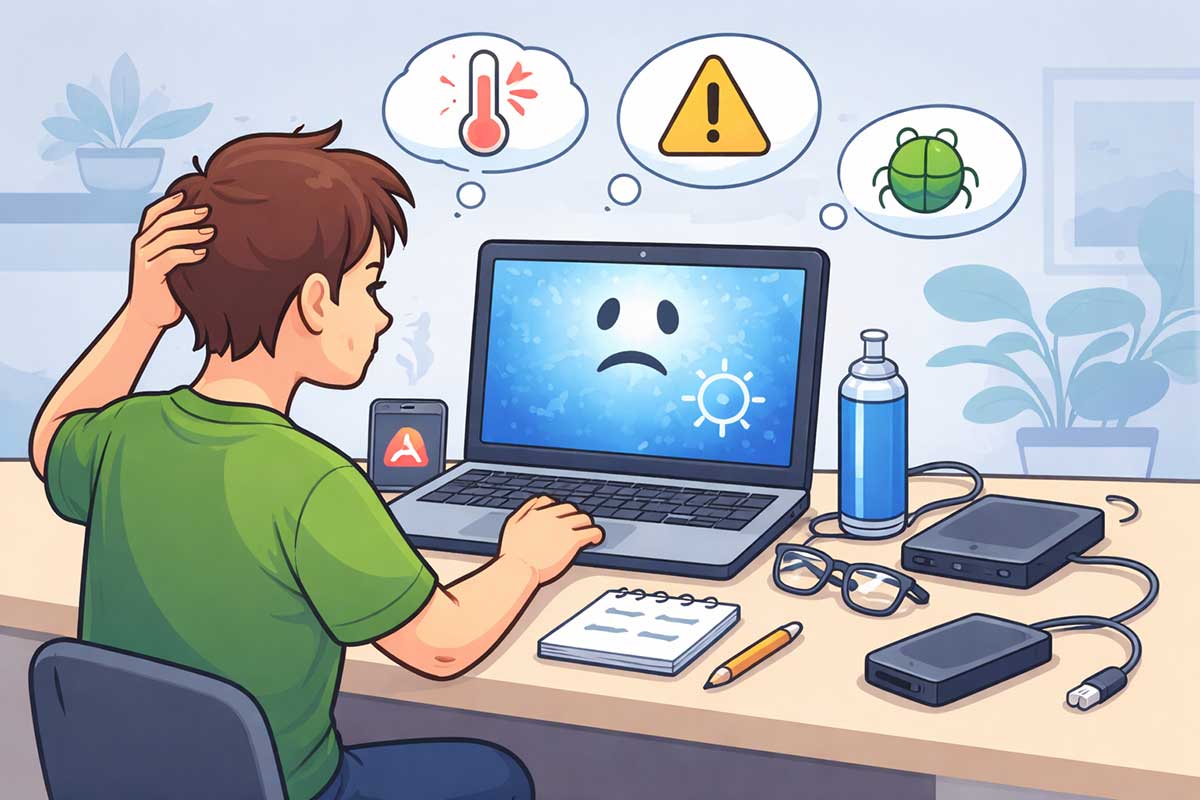
Computer freezing or crashing is a common problem that frustrates many beginners and everyday users. Your screen stops responding, programs close unexpectedly, or the system restarts without warning.
The good news is that most freezing and crashing issues are common tech problems and can often be fixed with simple, safe steps. Many of these issues are also explained in our guide on common tech problems and how to fix them.
This beginner-friendly guide walks you through the most common causes and easy fixes you can try before seeking professional help.
Why Computer Freezing or Crashing Happens
A computer may freeze or crash when something interrupts normal system operation. This doesn’t always mean your device is broken.
Common reasons include:
Understanding the cause makes troubleshooting much easier.
Quick Checks to Try First
Before diving deeper, try these basic steps:
If the issue disappears after restarting, it may have been a temporary system overload.
Fix 1: Close Heavy or Unresponsive Programs
When a computer freezes, one program is often using too many system resources.
What to do:
Running too many apps at once is one of the most common beginner mistakes.
Fix 2: Check Storage Space
Low disk space can cause freezing, slow performance, and crashes.
What to try:
As a general rule, keep at least 15–20% free storage on your main drive.
Fix 3: Update Your System and Software
Outdated software can conflict with your operating system and cause crashes.
Make sure to:
Many freezing issues are resolved simply by staying up to date.
Fix 4: Check for Overheating
Overheating can cause computers to freeze or shut down to protect hardware.
Signs of overheating:
Beginner-friendly tips:
Fix 5: Scan for Malware
Malware can silently slow down or crash your computer.
Run:
If you’re unsure how to do this, start with basic troubleshooting steps explained in our basic computer troubleshooting guide.
Sometimes freezing happens during online tasks due to unstable internet connections.
If apps freeze while browsing or streaming, you may also want to read:
Network issues can affect system responsiveness more than people realize.
When to Seek Professional Help
You should consider professional help if:
At that point, hardware issues or advanced software problems may be involved.
Final Thoughts
A computer that freezes or crashes doesn’t always mean serious damage. In many cases, simple fixes like closing programs, freeing storage, updating software, or improving ventilation can solve the problem.
If you’re new to troubleshooting, start slow, follow each step carefully, and refer back to our common tech problems guide whenever you feel stuck.