
Have you ever tried uploading a PDF document only to discover that the file is too large? Whether you’re submitting a job application, sending an email attachment, uploading an assignment, or sharing important documents, large PDF files can quickly become frustrating.
Fortunately, you don’t need expensive software or advanced technical skills to solve this problem.
Learning how to compress a PDF online is one of the easiest ways to reduce file size without installing additional programs. Several online tools allow you to upload a PDF, compress it, and download a smaller version in just a few steps.
However, not all PDF compression methods produce the same results. Some tools significantly reduce file size but also affect image quality, while others preserve more detail but produce larger files.
In this beginner-friendly guide, you’ll learn how to:
We’ll also explore some popular free PDF compression services and explain when an offline alternative might be a better choice.
By the end of this guide, you’ll know how to make a PDF smaller and choose a compression method that suits your needs.
What Does PDF Compression Mean?
PDF compression is the process of reducing the file size of a PDF document while keeping its content as usable and readable as possible.
A PDF file can contain text, photographs, graphics, fonts, and other elements. Some of these elements, especially high-resolution images, can make the document much larger than necessary.
When you compress a PDF, a compression tool analyzes the document and attempts to reduce the amount of storage space it requires.
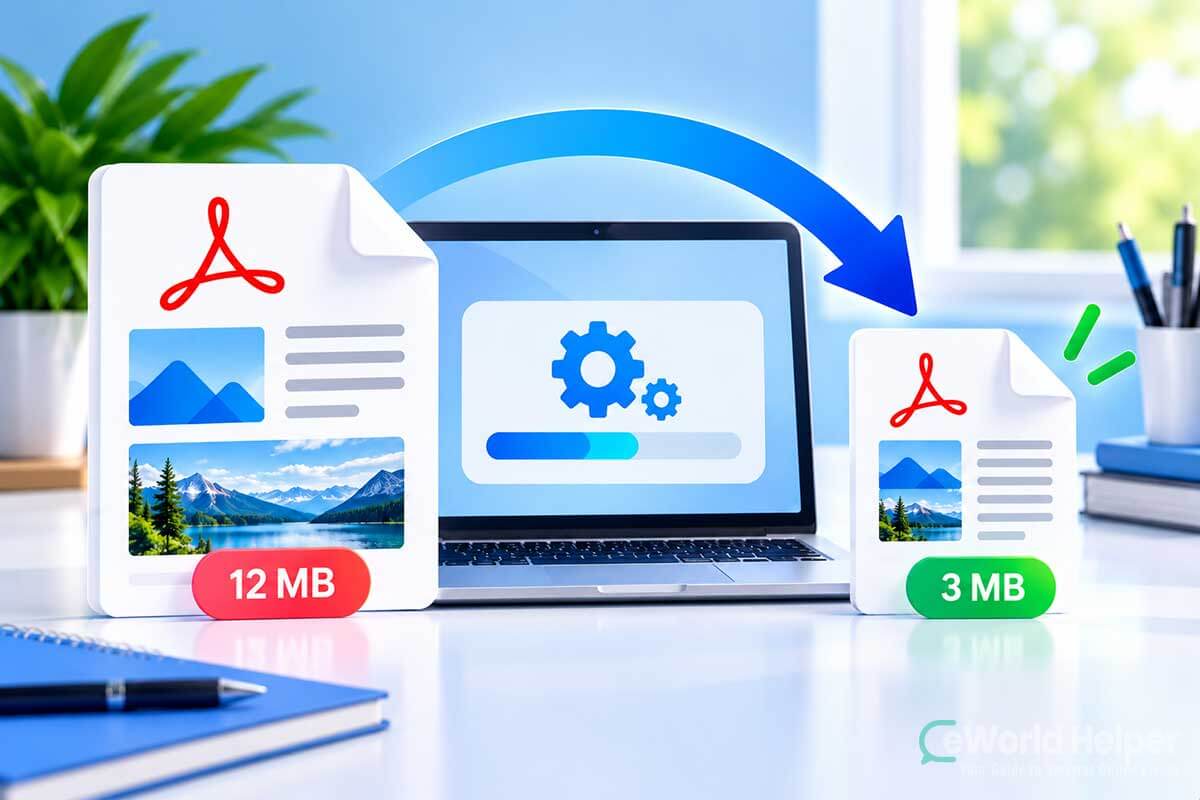
For example, a PDF that originally takes up 15 MB might become 5 MB after compression. However, the actual reduction depends on the document’s contents and the compression method used.
Why Do PDF Files Become So Large?
Several factors can increase PDF file size:
Understanding what makes your PDF large can help you choose the most effective compression method.
If you have several PDF documents that need to be sent or stored together, you can combine them before reducing their file size. Follow our step-by-step guide on how to merge PDF files online for free to organize multiple PDFs into one document.
Does Compressing a PDF Reduce Its Quality?
Not necessarily.
Some compression methods reduce file size without noticeably changing the document’s appearance. Others achieve smaller files by lowering image resolution or applying stronger image compression.
For text-based PDFs, compression may have little visible effect on quality. However, image-heavy documents, such as scanned reports, portfolios, and photo collections, may show noticeable differences.
The best approach is to choose a compression level that balances file size and readability.
Tip: Always open the compressed PDF and check its text, images, and page layout before sharing or uploading it. Keep the original file until you’re satisfied with the result.
How to Compress a PDF Online for Free (Step-by-Step)
One of the easiest ways to reduce PDF file size is to use a free online PDF compression tool. These services work directly in your web browser, so you don’t need to download or install additional software.
For this tutorial, we’ll use iLovePDF, a popular web-based service that provides a straightforward PDF compression tool.
You can follow these steps on a Windows computer, Mac, or mobile device.
Step 1: Open the Online PDF Compression Tool
Open your preferred web browser, such as Google Chrome, Microsoft Edge, Safari, or Firefox.
Visit the official iLovePDF Compress PDF tool.
You’ll find an option to select a PDF file from your device.
Before uploading, make sure you know where your PDF is saved. For example, it might be in your Downloads, Documents, or Desktop folder.
Important: Avoid uploading confidential documents, financial records, identification documents, or other sensitive files to third-party online services unless you’ve reviewed their privacy and security practices.
Step 2: Upload the PDF File
Click Select PDF file and choose the document you want to compress.
Alternatively, you may be able to drag and drop the PDF directly into the upload area.
Wait for the upload to finish before continuing.
If you’re using a phone or tablet, your browser may open a file picker where you can select a document from your device or cloud storage.
Step 3: Choose a PDF Compression Level
After uploading your PDF, iLovePDF provides compression options.
Depending on the options currently available, you may see:
For most everyday documents, start with Recommended Compression.
If your PDF contains detailed photographs, illustrations, or small text in scanned images, consider using a less aggressive compression setting.
Some options or usage limits may vary depending on the service’s current free and paid plans.
Step 4: Compress Your PDF
Once you’ve selected the appropriate compression level, click Compress PDF.
The tool will process your document and attempt to reduce its file size.
Processing time depends on several factors, including:
Most ordinary documents should not require complicated settings or manual adjustments.
Step 5: Download the Compressed PDF
When compression is complete, use the download option to save the smaller PDF to your device.
The tool may display the original and compressed file sizes so you can see how much space was saved.
For example, if a PDF is reduced from 12 MB to 4 MB, its file size has decreased by approximately 67%.
Save the compressed version with a recognizable filename, such as document-compressed.pdf, so you can distinguish it from the original.
Step 6: Check the Compressed PDF Before Using It
Open the downloaded PDF and review it carefully.
Check that:
If the document looks noticeably worse, try compressing the original PDF again using a less aggressive setting.
Remember: A smaller file isn’t always better. The goal is to reduce PDF size while keeping the document useful and readable.
Once you’re satisfied with the result, you can attach the compressed PDF to an email, upload it to a website, or share it with someone else.
Best Free Online PDF Compression Tools
Although iLovePDF is a convenient option, it’s not the only service available for reducing PDF file size. Several online tools offer PDF compression with slightly different features, interfaces, and limitations.
Choosing the right tool depends on your document, how much you need to reduce its size, and whether you prefer a simple interface or additional PDF editing features.
Here are four useful options worth considering.
1. iLovePDF — Best for Simple PDF Compression
iLovePDF is a convenient choice for beginners who want to compress a PDF without dealing with complicated settings.
Its compression interface is straightforward, making it suitable for everyday documents such as assignments, resumes, reports, and presentations.
Key advantages:
Things to consider: Free usage may have file-size, processing, or other limits. Some advanced features require a paid subscription.
For most ordinary documents, the recommended compression setting is a practical starting point.
2. Smallpdf — Best for an Easy-to-Use Interface
Smallpdf provides another straightforward way to reduce PDF file size online.
The service is designed around simple document workflows, making it useful for people who occasionally need to compress, convert, or organize PDF files.
Key advantages:
Things to consider: Free access may be limited by daily usage allowances or feature restrictions. Stronger compression options may require a paid plan.
Smallpdf can be a useful alternative if you prefer its interface or want to compare the results with another service.
3. Adobe Acrobat Online — Best for a Familiar PDF Brand
Adobe Acrobat’s online PDF compressor allows users to reduce PDF file size through a browser.
Adobe is widely associated with the PDF format, and its online tools offer a familiar option for people who already use Acrobat products.
Key advantages:
Things to consider: Available compression settings, sign-in requirements, and free usage limits may vary. Some features require an Acrobat subscription.
Adobe Acrobat Online is worth considering if you already use Adobe’s document tools.
4. PDF24 Tools — Best for Additional Free PDF Utilities
PDF24 Compress PDF is another option for reducing PDF file size without installing software.
PDF24 also offers a collection of utilities for working with PDF documents, including merging, splitting, converting, and organizing files.
Key advantages:
Things to consider: Compression results depend on the document and the settings selected. Very high compression may reduce image quality.
PDF24 also offers desktop software for Windows, which may be useful when you prefer to process documents locally rather than upload them to an online service.
Which PDF Compression Tool Should You Choose?
If you’re unsure which service to try first, use this simple comparison:
| Tool | Best For | Main Consideration |
|---|---|---|
| iLovePDF | Beginners who want quick compression | Free usage limits |
| Smallpdf | Simple document workflows | Some features require payment |
| Adobe Acrobat Online | People familiar with Adobe tools | Sign-in or feature restrictions |
| PDF24 Tools | Users who want additional PDF utilities | Settings may require experimentation |
There isn’t one tool that produces the smallest file in every situation.
A PDF containing mostly text may compress differently from a scanned document containing dozens of photographs.
If your first attempt doesn’t reduce the file enough, consider testing another tool with the original document and comparing the results.
Tip: Always download and inspect the compressed file before deleting your original PDF. For confidential documents, consider an offline compression method instead of uploading files to a third-party service.
How to Compress a PDF Without Losing Too Much Quality
Reducing PDF file size is helpful, but the compressed document still needs to look professional and remain easy to read.
If you use aggressive compression settings, photographs may become blurry, scanned text may lose clarity, and detailed graphics may appear less sharp.
Fortunately, a few simple techniques can help you balance file size and quality.
1. Start With the Recommended Compression Setting
When learning how to compress a PDF online, it’s usually best to begin with the tool’s recommended or balanced compression option.
This setting generally aims to reduce file size without sacrificing too much visual quality.
If the compressed document is still too large, you can try stronger compression using the original PDF. However, always check the result before sharing it.
2. Avoid Compressing the Same PDF Repeatedly
Compressing an already compressed PDF multiple times doesn’t necessarily produce a significantly smaller file.
In some cases, repeated lossy compression can reduce image quality further.
Instead, keep a copy of the original document and use it whenever you want to experiment with different compression settings.
3. Optimize Images Before Creating Your PDF
If you’re creating a PDF from Word, PowerPoint, or another application, consider optimizing the images before exporting the document.
For example:
Reducing unnecessary image data before exporting can help you create a smaller PDF from the beginning.
4. Choose Compression Based on Your Document Type
Different documents need different compression settings.
A text-based resume may remain perfectly readable after moderate compression, while a photography portfolio may require higher image quality.
For scanned documents, pay particular attention to small text, signatures, and fine details.
If you’re preparing a document for professional printing, avoid reducing image quality without checking the printer’s requirements.
5. Compare the Original and Compressed Files
Before uploading or emailing the compressed PDF, open both versions and compare them.
Pay attention to photographs, charts, tables, scanned text, and other important details.
If the smaller file looks noticeably worse, try a less aggressive setting.
Remember: The best compressed PDF isn’t necessarily the smallest one. It’s the version that meets your file-size requirements while preserving the quality your readers need.
Is It Safe to Compress PDFs Online?
Online PDF compression tools can be convenient, but it’s important to understand what happens when you upload a document to a third-party website.
When you use a browser-based PDF compressor, your document may be transferred to the service’s servers for processing. This means the provider may temporarily handle a copy of your file.
Many established PDF services describe security measures and file-deletion policies, but their practices can differ. It’s worth checking the provider’s current privacy policy before uploading anything important.
What Types of PDFs Should You Avoid Uploading?
Be particularly careful with documents containing sensitive or confidential information.
Examples include:
For these files, an offline compression method is generally the safer choice because you can avoid transferring the document to an online PDF service.
How to Choose a Safer Online PDF Compressor
Before using an online PDF compression service, consider these precautions:
For additional guidance on protecting your personal information online, visit the Federal Trade Commission’s consumer advice website.
Can You Compress a PDF Without Uploading It Online?
Yes. If your PDF contains private information, you can use software that processes the document locally on your computer.
For example, Windows users can explore PDF24 Creator, which includes PDF compression and other document tools.
Mac users can also explore PDF export options in the built-in Preview application, although some compression methods may noticeably reduce image quality.
Offline processing helps keep the document on your device, but you should still download software from trusted sources and protect the resulting files.
Our recommendation: Use reputable online PDF compressors for ordinary, non-sensitive documents. For confidential or highly personal files, choose a trusted offline tool whenever possible.
What to Do If Your PDF Is Still Too Large
Sometimes, even after using an online PDF compression tool, your document may still be too large to upload or send by email.
For example, a website might accept files up to 5 MB, but your compressed PDF could still be 8 MB.
If this happens, don’t worry. There are several additional ways to reduce PDF file size.
1. Try a Stronger Compression Setting
If you initially selected a balanced or recommended compression level, try a stronger option.
Some online PDF tools offer multiple compression levels, allowing you to prioritize smaller files over image quality.
However, stronger compression may make photographs, scanned text, and detailed graphics less clear.
Always compare the compressed result with your original document before using it.
2. Remove Unnecessary Pages
A PDF containing extra pages may be larger than necessary.
If your document includes blank pages, duplicate content, or sections that aren’t required, removing them could help reduce its size.
You can use an online PDF page-management tool, such as PDF24’s Remove PDF Pages tool, to remove unwanted pages from a non-sensitive document.
Be careful not to delete important information, especially when preparing official documents or applications.
3. Reduce Image Size in the Original Document
If you created the PDF using Microsoft Word, PowerPoint, or another application, consider editing the original document.
Large photographs and high-resolution graphics often contribute significantly to PDF file size.
Try resizing oversized images, compressing pictures where supported, and exporting the document again.
This can sometimes produce better results than repeatedly compressing an existing PDF.
4. Check Whether the PDF Contains Scanned Images
Scanned documents can be particularly large because each page may be stored as an image.
If you have access to the original paper document, scanning it again at a suitable resolution may help reduce the file size.
For ordinary text documents, a moderate scanning resolution may be sufficient. However, documents containing fine details, photographs, or small text may require higher quality.
Avoid lowering the resolution so much that the text becomes difficult to read.
5. Check the Upload Requirements
Before spending more time compressing your PDF, check the website’s file-upload requirements.
Look for:
For example, if a website accepts PDF files up to 10 MB and your document is already 8 MB, further compression may be unnecessary.
Tip: If you cannot reduce a PDF below the required limit without making it unreadable, check whether the recipient allows an alternative submission method or file format.
Frequently Asked Questions About PDF Compression
-
How can I compress a PDF online for free?
You can compress a PDF online for free using services such as iLovePDF, Smallpdf, or PDF24 Tools. Open the compression tool, upload your document, select an available compression setting, and download the smaller PDF. Always check the resulting file before sharing it.
-
Can I compress a PDF without losing quality?
Yes, some PDFs can be compressed without noticeable quality loss, especially when they contain mostly text or unnecessary data. However, stronger compression may reduce the quality of photographs and scanned pages. Choose a balanced compression setting and compare the result with the original document.
-
Why is my PDF still large after compression?
Your PDF may contain high-resolution photographs, scanned pages, embedded fonts, or complex graphics. Some files are also already optimized, leaving little room for further reduction. Try adjusting compression settings, removing unnecessary pages, or optimizing images in the original document.
-
How do I reduce a PDF to under 1 MB?
Start by using a PDF compression tool with an appropriate compression setting. If the document remains larger than 1 MB, consider removing unnecessary pages or reducing image resolution. However, not every PDF can be reduced below 1 MB while remaining readable, especially if it contains many pages or detailed images.
-
Is it safe to use free online PDF compression tools?
Reputable services may use security measures to protect uploaded documents, but uploading a PDF still involves sharing it with a third-party provider. Check the service’s privacy policy and avoid uploading sensitive documents unless you understand and accept how they will be handled. For confidential files, consider an offline compression tool.
-
Can I compress a PDF on my phone without installing an app?
Yes. Many online PDF compression tools work through mobile browsers, including Chrome and Safari. Open the tool’s website, select a PDF from your phone, choose a compression option, and download the result. The available features and upload limits may vary depending on the service.
Final Thoughts: How to Compress a PDF Online Easily
Learning how to compress a PDF online is a simple way to make large documents easier to upload, email, and share.
Free tools such as iLovePDF, Smallpdf, Adobe Acrobat Online, and PDF24 make it possible to reduce PDF file size without installing additional software.
For the best results, start with a balanced compression setting, keep your original document, and check the compressed version before sharing it. Remember that the smallest file isn’t always the best option, especially when your PDF contains photographs, scanned pages, or detailed graphics.
If you’re working with confidential documents, consider using an offline PDF compression tool to avoid uploading sensitive information to third-party services.
PDF compression is also just one way to make digital documents easier to manage. For example, if you regularly work with lengthy reports, research papers, or study materials, our guide on How to Summarize a PDF With ChatGPT explains how AI can help you understand long documents more efficiently.
With the right tools and a few simple precautions, you can reduce PDF file size while keeping your documents useful, readable, and ready to share.