
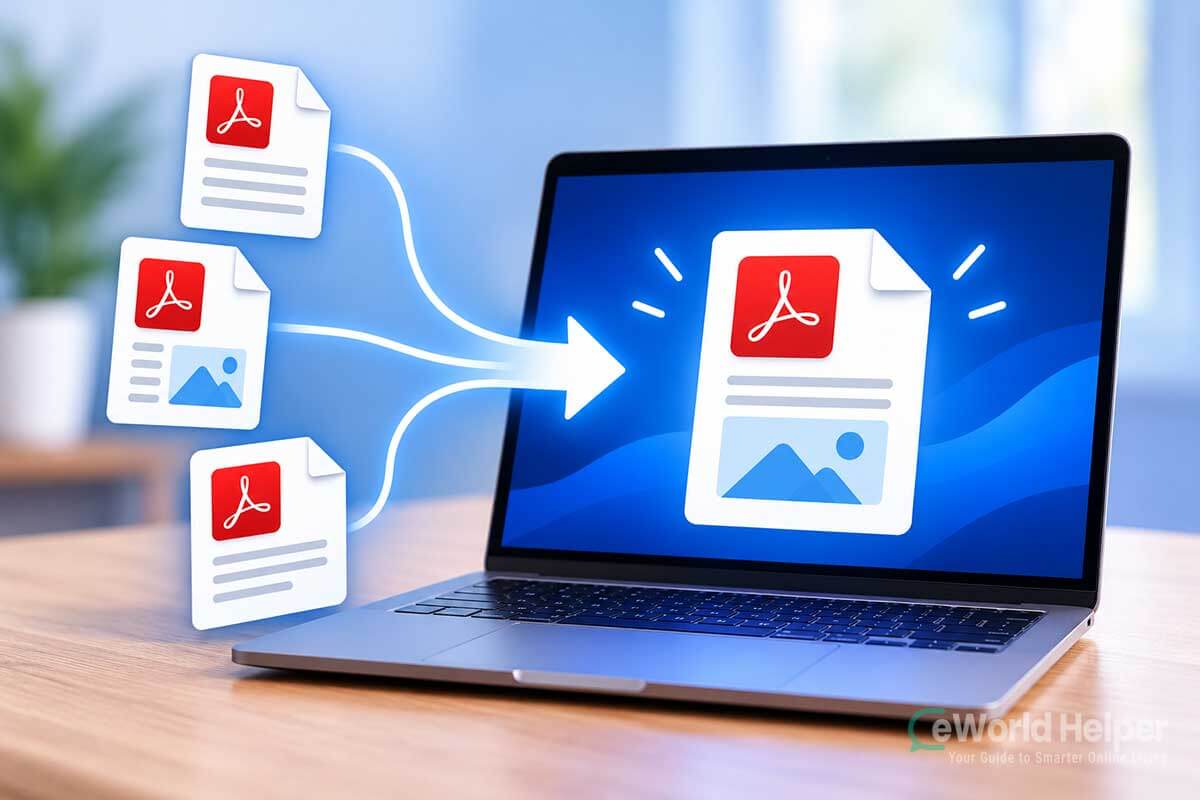
Have you ever needed to combine several PDF files into one document but weren’t sure how to do it?
Maybe you have separate invoices, scanned documents, school assignments, or work reports that need to be sent together. Instead of attaching multiple files, merging them into a single PDF can make everything easier to organize, share, and store.
The good news is that you don’t need expensive software or advanced technical skills to get started.
Learning how to merge PDF files online for free is straightforward. Several browser-based tools allow you to upload your documents, arrange them in the correct order, and combine them into one PDF in just a few steps.
However, not every free PDF merger works the same way. Some tools have file-size limits, require an account, or process documents on external servers.
In this beginner-friendly guide, we’ll explain how to merge PDF files online for free, explore useful tools, and share practical tips for keeping your documents organized and secure.
By the end, you’ll know how to combine PDFs on your computer or phone and what to check before sharing the final document.
What Does It Mean to Merge PDF Files?
Merging PDF files means combining two or more separate PDF documents into one file.
For example, imagine you have three PDF documents: a cover letter, a resume, and a certificate. Instead of sending them as separate attachments, you can merge them into a single PDF containing all three documents in your preferred order.
The original pages are placed together in one document, making the information easier to manage.
Most online PDF merging tools let you upload multiple files, rearrange their order, and download the combined document.
When Should You Combine PDF Files?
Merging PDFs is useful in many everyday situations, including:
Before merging documents, make sure they belong together and that the recipient accepts a combined PDF.
What’s the Difference Between Merging and Compressing a PDF?
Although both tasks involve PDF files, they serve different purposes.
Merging a PDF combines multiple documents into one file.
Compressing a PDF reduces a document’s file size, making it easier to upload, email, or store.
For example, you might merge five scanned documents into one PDF and then compress the resulting file if it’s too large to send.
If your combined document exceeds an email attachment or upload limit, follow our guide on how to compress a PDF 4online for free to learn how to reduce its size.
Best Free Online Tools to Merge PDF Files
Several websites allow you to combine PDF documents without installing software. However, their free features, upload limits, and account requirements can differ.
Here are three popular options worth considering.
1. PDF24 Tools
PDF24’s Merge PDF tool is a straightforward option for combining multiple documents.
You can upload your PDF files, change their order using drag and drop, and download the merged document.
Key features:
PDF24 states that files uploaded to its online tools are automatically deleted from its servers after one hour.
For beginners who want a simple, free solution, PDF24 is a practical starting point.
2. iLovePDF
iLovePDF provides a browser-based tool for combining PDF files.
Its interface lets you select multiple documents and arrange them before creating the final PDF.
Key features:
iLovePDF is useful if you regularly work with different PDF tools in one place.
3. Adobe Acrobat Online
Adobe Acrobat’s online PDF merger is another option for combining documents.
It provides an online interface for selecting files and creating a single PDF.
Key features:
Adobe Acrobat Online may be a convenient choice if you already use Adobe’s PDF services.
Which Free PDF Merger Should You Choose?
For a simple task, start with a tool that lets you upload, arrange, merge, and download documents without unnecessary steps.
Our recommendation for this tutorial is PDF24 Tools, because it offers a straightforward merging process without requiring an account.
Remember that online PDF mergers process your documents according to their individual privacy policies. Avoid uploading confidential files unless you have reviewed how the service handles them.
In the next section, we’ll walk through the PDF24 merging process step by step.
How to Merge PDF Files Online for Free Using PDF24
One of the easiest ways to combine PDF documents is with PDF24’s free online merging tool.
You don’t need to install software or create an account. Simply open the website, upload your documents, arrange them, and download the combined PDF.
Follow these steps to get started.
Step 1: Open the PDF24 Merge PDF Tool
Open your web browser and visit the PDF24 Merge PDF tool.
The page provides an area where you can select PDF documents from your device.
Before continuing, make sure the files you want to combine are saved somewhere you can easily find them, such as your Downloads or Documents folder.
Step 2: Upload the PDF Files You Want to Combine
Click Choose files and select the PDF documents you want to merge.
You can select multiple files at once or add them individually.
For example, if you’re combining a job application, you might upload your resume, cover letter, and certificates.
Wait until the selected documents appear in the merging area before proceeding.
Step 3: Arrange Your PDF Files in the Correct Order
Once your files are uploaded, check their order.
PDF24 allows you to rearrange documents by dragging them into the correct position.
For example, a job application might follow this order:
The order matters because the merged PDF will follow the sequence you select.
Take a moment to confirm that no files are missing or duplicated.
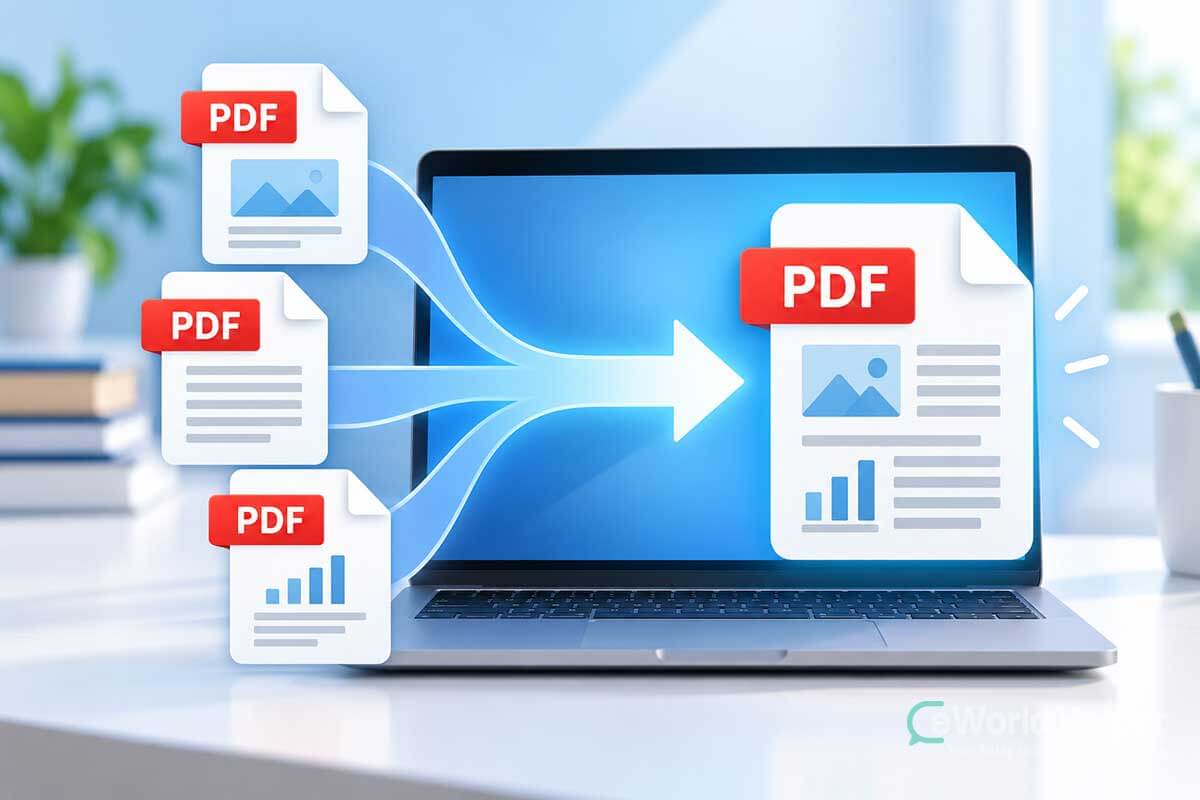
Step 4: Merge Your PDF Documents
After arranging your files, click the Merge button.
PDF24 will process the selected documents and combine them into one PDF.
Processing time may vary depending on the number and size of your files.
Keep the browser tab open until the merged document is ready.
Step 5: Download and Check Your Merged PDF
When processing is complete, click Download to save the combined PDF to your device.
Open the downloaded file and check that:
You can also rename the file to something meaningful, such as job-application-documents.pdf.
Helpful tip: If your merged PDF is too large to email or upload, you can reduce its size using our free PDF compression guide.
You have now successfully combined multiple PDF files into one document without installing additional software.
Is It Safe to Merge PDF Files Online?
Merging PDF files online can be convenient, but it’s important to understand what happens to your documents when you upload them to a website.
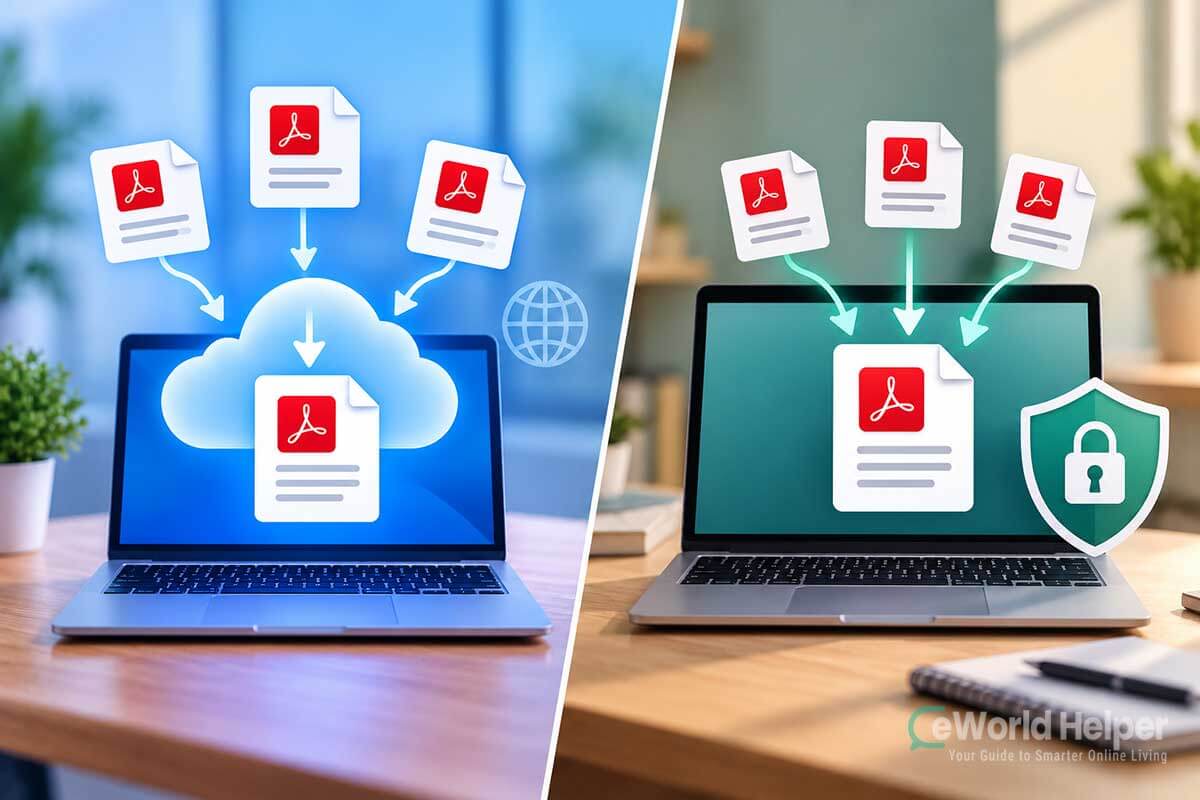
Most browser-based PDF merging services require you to upload your files to their servers for processing. This means your documents may temporarily leave your device.
Reputable services generally explain how they handle uploaded files in their privacy policies. However, you should never assume that every free PDF merger provides the same level of security.
How to Protect Your Documents When Using Online PDF Tools
Before uploading documents to an online PDF merger, follow these simple precautions:
Remember that HTTPS protects information during transmission, but it doesn’t guarantee how a service handles files after receiving them.
When Should You Use an Offline PDF Merger Instead?
An offline PDF merger may be a better choice when you’re working with confidential or sensitive documents.
For example, if you need to combine private financial records or documents containing personal identification details, using software that processes files locally can reduce the need to upload them to an external server.
Some PDF applications provide local merging features, although availability and pricing vary.
Our recommendation: Use online PDF merging tools for ordinary, non-sensitive documents. For confidential files, consider a trusted offline solution that processes documents entirely on your device.
Common Problems When Merging PDF Files and How to Fix Them
Although online PDF merging tools are usually straightforward, you may occasionally encounter problems when uploading, combining, or downloading your documents.
Here are some common issues and practical ways to resolve them.
1. PDF Files Won’t Upload
If your PDF files aren’t uploading, first check your internet connection and confirm that the files are supported by the merging tool.
Try these solutions:
If only one PDF fails to upload, the document itself may be damaged or password-protected.
2. PDF Pages Appear in the Wrong Order
Incorrect page order is a common problem when combining several documents.
Before clicking the Merge button, drag the uploaded files into your preferred sequence.
If you’ve already downloaded the combined PDF, return to the merging tool, correct the order, and create a new file.
3. The Merged PDF Is Too Large
Combining several documents, especially scanned pages containing high-resolution images, can produce a large PDF.
If the merged document exceeds an email attachment or website upload limit, try compressing it.
Our guide on how to compress a PDF online for free explains the process.
Remember that stronger compression may reduce image quality, so check the final document before sharing it.
4. The Merged PDF Won’t Open
If your downloaded PDF won’t open, the download may be incomplete or the resulting file may be damaged.
Try downloading the document again and opening it with another PDF reader.
If the problem continues, check whether each original PDF opens correctly. Then merge the files again.
5. The Online PDF Merger Isn’t Working
Sometimes an online tool may be temporarily unavailable or fail to process a particular document.
Try refreshing the page, using another supported browser, or switching to a different PDF merging service.
Avoid repeatedly uploading sensitive documents to unfamiliar websites simply to complete the task.
Quick tip: Always open your final PDF and check its page order, readability, and completeness before emailing or submitting it.
Frequently Asked Questions About Merging PDF Files
-
Can I merge PDF files online for free without signing up?
Yes. Some online tools, including PDF24, allow you to combine PDF files without creating an account. Other services may require registration for certain features or usage levels.
-
Can I merge PDF files on my phone?
Yes. Many browser-based PDF merging tools work on Android phones and iPhones. Open the tool in your mobile browser, select the documents from your device, arrange them, and download the merged PDF.
-
Can I combine PDF files without losing quality?
Merging PDF files generally preserves their existing content and visual quality. However, results can vary depending on the tool and the original documents. Always inspect the downloaded PDF, particularly if it contains detailed images or scanned pages.
-
How many PDF files can I merge at once?
The number depends on the service you’re using. Some tools allow many documents, while others limit file counts, total upload size, or free usage. Check the tool’s current restrictions before uploading a large collection.
-
Can I merge password-protected PDF files?
Some PDF merging tools cannot process password-protected documents until they are unlocked. If you have permission to access the files, you may need to enter the password or remove the protection using an authorized method before merging.
-
Can I rearrange PDF pages after merging?
Yes. You can use a PDF page-organizing tool to rearrange pages after merging. However, checking the order before combining documents is usually easier and helps avoid additional editing.
Final Thoughts: How to Merge PDF Files Online for Free
Learning how to merge PDF files online for free can save time when organizing documents for work, school, or personal use.
Tools such as PDF24, iLovePDF, and Adobe Acrobat Online provide convenient ways to combine documents without complicated software setup.
For most everyday tasks, the process is simple: upload your PDFs, arrange them in the correct order, merge the files, and check the downloaded document.
Remember to choose a trustworthy service and avoid uploading confidential information unnecessarily.
With the right tool and a few simple steps, you can turn multiple PDF files into one organized document that’s easier to store and share.