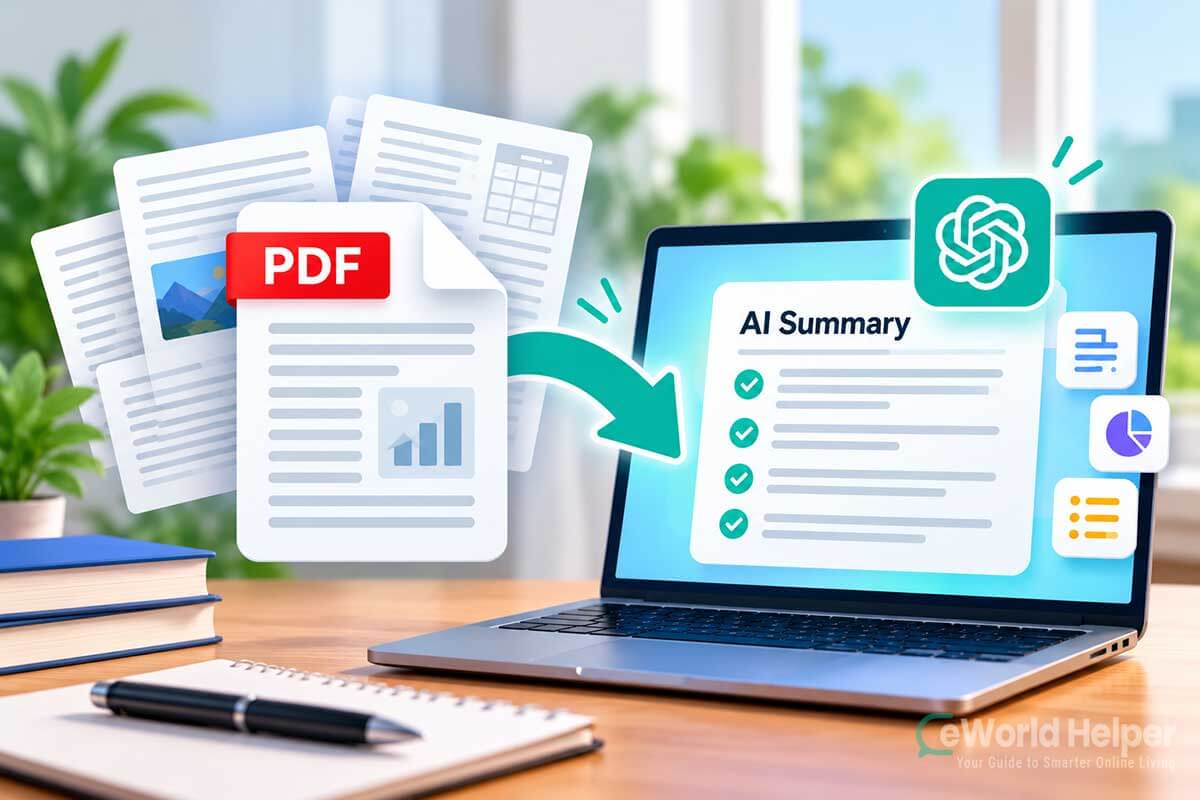
Reading a long PDF can take a lot of time, especially when you only need the most important information.
Whether you’re dealing with a research paper, report, study material, work document, or long guide, ChatGPT can help you understand the content faster by creating a clear summary.
Instead of reading every page first, you can upload a PDF to ChatGPT and ask it to identify the main points, explain difficult sections, create notes, or answer questions about the document.
AI can also help with other everyday tasks. For example, see our beginner-friendly guide on how to use AI to write emails faster.
In this guide, we’ll show you how to summarize a PDF with ChatGPT step by step, along with useful prompts that can help you get better and more accurate summaries.
Can ChatGPT Summarize a PDF?
Yes. ChatGPT can analyze uploaded PDF files and help summarize their contents.
OpenAI’s documentation also explains that ChatGPT can work with uploaded documents to summarize information, extract specific details, and answer questions about their contents.
Depending on the document, you can ask ChatGPT to:
For example, instead of simply asking:
Summarize this PDF.You can give ChatGPT more specific instructions:
Summarize this PDF in simple language. Give me the 10 most important points and explain any technical terms that a beginner may not understand.The more clearly you explain what you need, the more useful the resulting summary is likely to be.
However, AI-generated summaries should not automatically be treated as perfectly accurate. Important documents, academic sources, financial information, legal documents, or other high-stakes material should still be checked against the original PDF.
What You Need Before You Start
You don’t need any advanced technical knowledge to summarize a PDF with ChatGPT.
Before starting, have:
It also helps to know what kind of summary you need.
For example, someone studying for an exam may want detailed study notes, while someone reading a long business report may only want the key findings and recommendations.
Next, we’ll go through the exact steps for uploading a PDF and summarizing it with ChatGPT.
How to Summarize a PDF With ChatGPT Step by Step
Once you have your PDF ready, summarizing it with ChatGPT is fairly straightforward. The important part is not just uploading the document, but also telling ChatGPT exactly what kind of summary you want.
Step 1: Open ChatGPT
Go to ChatGPT and sign in to your account.
You can use the web version or the ChatGPT app if file uploads are available to you.
Step 2: Upload Your PDF
Start a new conversation and use the attachment or file upload option next to the message box.
Select the PDF from your computer or device and wait for it to finish uploading.
Once the file appears in the conversation, you can start asking questions about its contents.
Tip: If your PDF contains sensitive or confidential information, consider whether it is appropriate to upload it before proceeding.
Step 3: Ask ChatGPT to Summarize the PDF
You can start with a simple prompt such as:
Summarize this PDF and give me the main points.This works for a quick overview, but providing more detail about what you need usually produces a more useful result.
For example:
Summarize this PDF in simple language. Give me the key points as bullet points and include any important conclusions or recommendations.Or, if you’re working with study material:
Summarize this PDF as study notes. Organize the information by topic and highlight the most important concepts I should remember.Step 4: Choose the Length of Your Summary
You don’t have to accept the first summary ChatGPT produces.
If it’s too long, ask:
Make this summary shorter and keep only the most important information.If it’s too brief, try:
Create a more detailed summary and explain each major point.You can also request a specific format, such as:
This is one of the biggest advantages of using AI for PDF summarization: you can adjust the result for your specific purpose instead of getting only one fixed summary.
Step 5: Ask Follow-Up Questions About the PDF
You can continue using the same conversation after receiving your summary.
For example, you could ask:
What is the main conclusion of this document?Explain section 3 in simpler language.What are the five most important facts in this PDF?Which parts of this document should I read if I only have 10 minutes?Create 10 study questions based on this document.This can be especially useful with longer documents because you can move from a broad overview to specific details without starting over each time.
Step 6: Verify Important Information
A ChatGPT summary can save time, but it shouldn’t always replace reading the original source.
AI can misunderstand context, overlook a detail, or produce an inaccurate interpretation. This matters particularly when you’re working with academic research, contracts, policies, financial documents, medical information, or other material where small details can be important.
For important claims, ask ChatGPT to identify the relevant page or section, then compare its answer with the original PDF.
For example:
Which page or section of the PDF supports this point?This gives you a practical workflow:
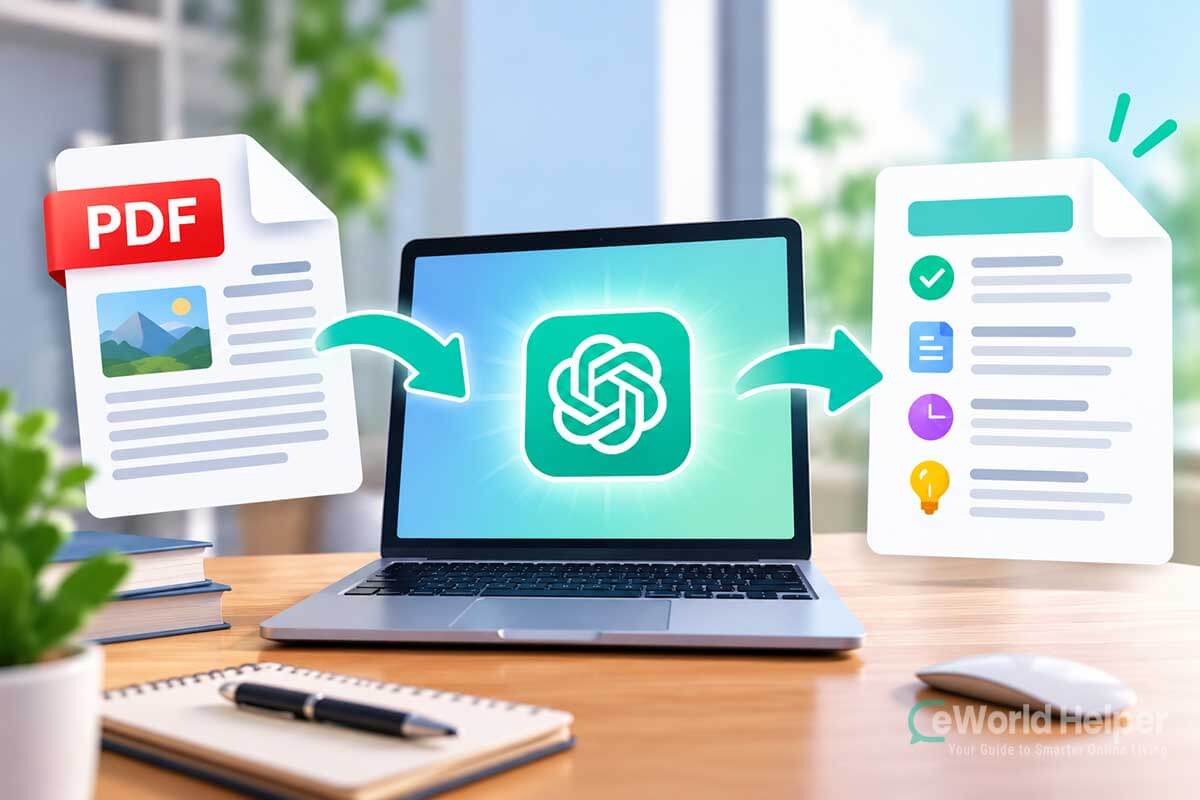
Upload → summarize → ask questions → locate important information → verify it in the original PDF.
That way, ChatGPT helps you read the document more efficiently without treating the AI-generated summary as a substitute for the source itself.
Best Prompts to Summarize a PDF With ChatGPT
The quality of your PDF summary depends partly on the instructions you give ChatGPT.
A simple request such as “summarize this PDF” can work, but it doesn’t tell ChatGPT what information matters most, how detailed the summary should be, or how you want the answer organized.
A more specific prompt can produce a much more useful result.
Prompt for a Quick PDF Summary
If you only want to understand what a document is about, keep the request simple:
Summarize this PDF in 5–10 bullet points. Focus only on the most important information and main conclusions.This works well when you want a quick overview before deciding whether the entire document is worth reading.
You can also ask:
Give me a short summary of this PDF in simple language. Explain what the document is about, its main points, and its conclusion.Prompt for a Detailed PDF Summary
For longer reports, guides, or research documents, a more detailed summary may be useful.
Try:
Create a detailed summary of this PDF. Organize the summary using headings and bullet points. Include the main arguments, important facts, conclusions, and recommendations.You can also ask ChatGPT to summarize the document section by section:
Summarize this PDF section by section. Give each section a heading and explain its most important points without leaving out essential information.This approach can make a long document much easier to understand because the original structure is preserved.
Prompt for Students and Study Notes
ChatGPT can also turn a PDF into more structured study material.
For example:
Turn this PDF into easy-to-understand study notes. Include the key concepts, important definitions, main facts, and information I should remember for an exam.After receiving the notes, you can continue with:
Create 10 questions and answers from this PDF to help me review the material.Or:
Create a short quiz based only on the information in this PDF.This allows you to use the same document for summarizing, studying, and reviewing.
Prompt for Research Papers
Research papers often contain information that isn’t equally important to someone trying to understand the study quickly.
Instead of requesting a general summary, ask ChatGPT to identify specific parts:
Summarize this research paper and separately explain the research question, methodology, key findings, limitations, and conclusion.For important academic work, always compare the generated summary with the original paper before citing or relying on a claim.
Prompt for Long Reports
If you’re dealing with a long business, industry, or technical report, try:
Summarize this report for someone who doesn't have time to read the entire document. Focus on the most important findings, statistics, recommendations, risks, and conclusions.You could then follow up with:
Which five sections of this PDF should I read if I only have 15 minutes?This combines AI summarization with the original document rather than completely replacing it.
Use a Reusable PDF Summary Prompt
For everyday use, you can save a more complete prompt like this:
Read the attached PDF and create a clear summary. Start with a short overview of what the document is about. Then list the key points as bullet points. Include important facts, conclusions, and recommendations. Explain technical terms in simple language when necessary. Finally, list five key takeaways from the document.You can modify this template depending on whether you’re reading a report, research paper, guide, ebook, or study document.
The main idea is simple: tell ChatGPT what to extract, how much detail you need, and how you want the information presented.
Writing better prompts can also make AI more useful for other everyday tasks. See our beginner’s guide to using AI for productivity for more practical ways to save time with AI.
That usually gives you a more useful PDF summary than relying on a one-line request.
How to Summarize a Long PDF With ChatGPT
Short PDFs are usually straightforward to work with, but long documents can require a different approach.
If you’re dealing with a large report, ebook, research paper, manual, or textbook, asking ChatGPT to summarize the entire document at once may not always give you the level of detail you need. Important information can receive less attention when there is a lot of content to process.
Instead, you can break the task into smaller steps.
Start With an Overview of the Entire PDF
After uploading the document, first ask ChatGPT for a broad overview.
For example:
Give me an overview of this PDF. Tell me what the document is about, identify its main sections, and briefly explain the purpose of each section.This gives you a quick map of the document before you start digging into individual topics.
Once you know what’s inside, you can decide which sections deserve a more detailed summary.
Summarize the PDF Section by Section
For a long document, section-by-section summarization can be more useful than requesting one huge summary.
You could ask:
Summarize this PDF section by section. Keep the original section order and give me the most important points from each one.If one particular section is especially important, follow up with something more specific:
Give me a more detailed summary of the section about [topic]. Include its main arguments, examples, and conclusions.This approach is particularly useful for documents that already have a clear structure, such as reports with chapters, research papers, course materials, and ebooks.
Ask ChatGPT to Focus on Specific Information
You don’t necessarily need to summarize every part of a long PDF.
Sometimes you’re only looking for one type of information.
For example, you might ask:
Find the recommendations in this PDF and summarize them.Or:
What does this document say about [specific topic]?You can also request particular types of information, such as:
This can save a significant amount of time when you already know what you’re looking for.
Create a Summary in Stages
Another useful method is to build your summary gradually.
Start with a short overview. Then ask for more detail about the sections that matter to you.
For example:
First, give me the 10 most important points from this PDF.After reading those points, you might continue with:
Explain points 3, 5, and 8 in more detail using information from the PDF.You could then finish with:
Based on everything we've discussed, create a final one-page summary of the document.This creates a layered summary: you begin with the big picture and gradually explore the information you actually need.
What If the PDF Is Too Large to Upload?
You may occasionally have a PDF that can’t be processed as expected because of its size, complexity, formatting, or other file limitations.
In that situation, you can divide the document into smaller PDF files and work through them separately.
For example, you might separate a large document into chapters and summarize each chapter individually.
Keep your prompts consistent:
Summarize this part of the document. Focus on the main ideas, important facts, and conclusions. I will provide additional sections separately.After you’ve summarized all the parts, you can combine your notes and ask ChatGPT to organize them into a single structured summary.
Avoid assuming that every PDF will behave the same way. A simple text-based report may be much easier to process than a document containing complex tables, scanned pages, diagrams, or unusual formatting.
Keep the Original PDF Available
Even when ChatGPT produces a good summary, keep the original document nearby.
If a statement seems particularly important, check it against the source. For documents with page numbers, you can also ask ChatGPT to help you locate where a particular topic appears and then verify it yourself.
Think of ChatGPT as a tool for navigating and understanding a long PDF faster, rather than a reason to completely ignore the original document.
That approach gives you the convenience of AI summarization while still allowing you to check important information when accuracy matters.
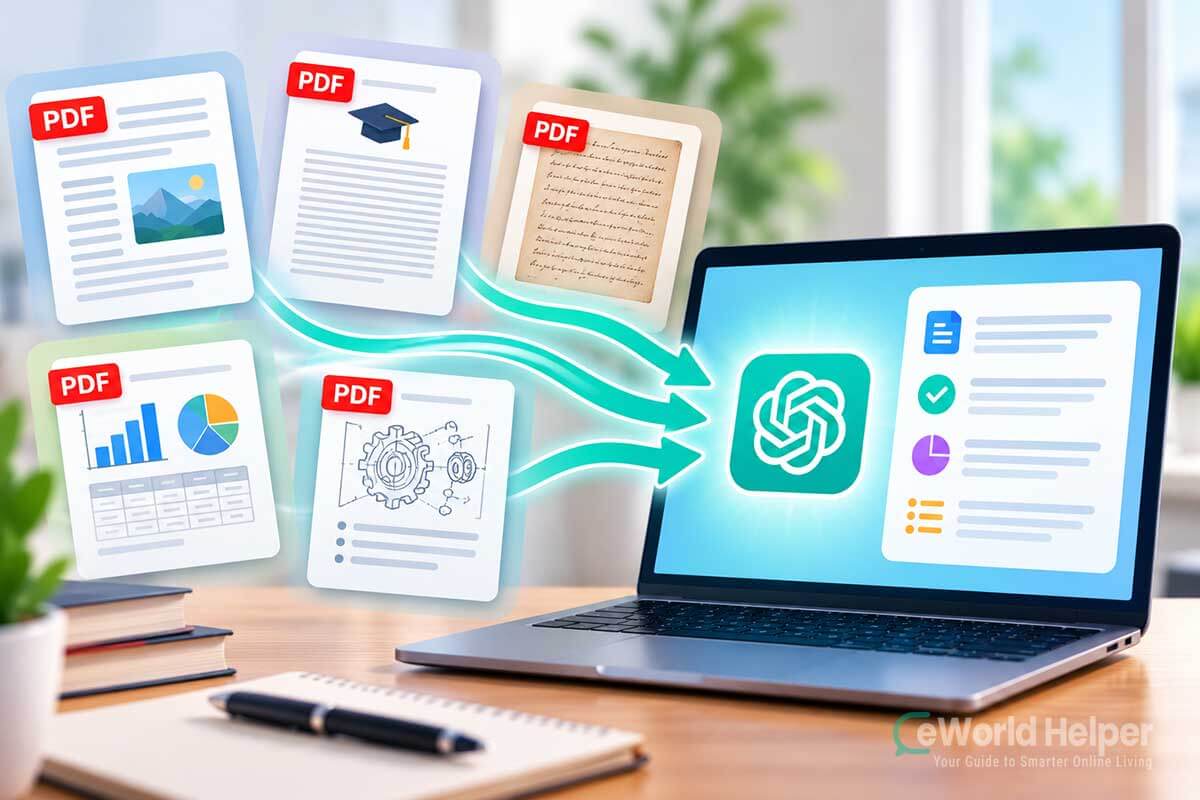
What Types of PDFs Can ChatGPT Summarize?
ChatGPT can help summarize many types of PDF documents, from simple reports to study materials and research papers.
However, not every PDF is structured the same way. A document containing selectable text is different from a scanned document made primarily from images, and PDFs with complicated tables or diagrams may require more careful checking.
Understanding these differences can help you get better results.
Text-Based PDFs
Standard text-based PDFs are generally the easiest documents to summarize.
These might include:
You can upload the PDF and ask ChatGPT for a complete summary, key takeaways, a section-by-section explanation, or answers about specific parts of the document.
For example:
Summarize this report and give me the five most important findings.If the document has clear headings and sections, you can also ask ChatGPT to preserve that structure in the summary.
Research Papers and Academic PDFs
Research papers are another useful application.
Instead of reading the entire paper just to understand its purpose, you can first ask for an overview of its key components.
For example:
Explain the research question, methodology, main findings, limitations, and conclusion of this paper.You can then decide which sections you need to read more carefully.
However, be particularly careful when using AI-generated summaries for academic work. Important qualifications, limitations, statistics, or methodological details can change the meaning of a study.
If you’re going to cite the paper, check the original source rather than citing information solely from ChatGPT’s summary.
Scanned PDFs
Scanned PDFs can be more challenging.
For example, an old book or scanned form may contain pages stored primarily as images rather than normal selectable text.
Whether the information can be interpreted successfully can depend on factors such as:
If ChatGPT appears to miss information from a scanned document, don’t assume the missing information isn’t there.
Check the original page yourself.
You may also get better results by working with individual pages or smaller sections rather than asking for a detailed summary of a difficult scan all at once.
PDFs With Tables and Charts
Business reports, financial reports, research papers, and technical documents often contain tables, graphs, charts, or diagrams.
ChatGPT may be able to help explain this information, but these elements deserve extra attention because their meaning can depend on labels, units, legends, footnotes, and surrounding context.
Instead of simply asking:
Summarize this PDF.You can ask:
Explain the important tables and charts in this PDF separately from the written content.Then verify any important numbers against the original document.
This is especially important when a small difference in a number, percentage, unit, or date could change your interpretation.
PDFs With Images and Visual Information
Some PDFs rely heavily on visual content rather than text.
Examples might include presentations, brochures, illustrated guides, diagrams, or instruction manuals.
When working with this type of document, tell ChatGPT what you want it to focus on.
For example:
Summarize the main written information in this PDF and explain any important visual information that is relevant to the document.If a particular diagram or image is important, ask about it specifically instead of assuming that a general summary captured everything.
Password-Protected or Restricted PDFs
A protected PDF may need to be opened or unlocked through legitimate access before its contents can be processed normally.
If it’s a document you are authorized to access, use the appropriate password or access method provided by the document owner.
Don’t upload confidential documents simply because they can be converted into a PDF. Before using any AI service with sensitive material, consider the document’s privacy requirements and your organization’s rules.
Always Check Important Details
The best results usually come from treating ChatGPT as a reading assistant rather than assuming its summary is a perfect replacement for the original PDF.
For casual documents, a quick summary may be all you need.
For academic, legal, medical, financial, business, or other high-stakes information, verify important details directly in the source document and consult an appropriate professional when necessary.
The more important the information is, the more important that verification becomes.
Common Mistakes to Avoid When Summarizing PDFs With ChatGPT
ChatGPT can make reading long documents much faster, but how you use it matters. A few simple mistakes can lead to summaries that are too vague, incomplete, or less reliable than expected.
Here are some of the most common problems to avoid.
Asking Only “Summarize This PDF”
There is nothing wrong with starting with a simple prompt, but it may produce a general summary that doesn’t focus on what you actually need.
Instead, provide a little more direction.
For example:
Summarize this PDF in 10 bullet points. Include the main arguments, important facts, and final conclusions.If you’re reading for a specific purpose, mention that too. A student, business owner, researcher, and casual reader may all need different information from the same document.
Trying to Get Everything in One Prompt
With a long PDF, don’t feel that you need to get the perfect summary from a single request.
Start with an overview and then ask follow-up questions.
You might first request the main points, then ask ChatGPT to explain an important section, extract recommendations, or simplify a difficult concept.
This usually makes the conversation easier to manage and allows you to focus on the information that actually matters.
This same step-by-step approach can be useful for other AI workflows too. Our guide on how to use AI to plan your day shows how to turn a larger task into a simple, practical AI-assisted workflow.
Trusting Every Detail Without Checking
A polished answer can still contain mistakes.
ChatGPT may misunderstand a section, miss context, or incorrectly interpret a number or conclusion. This is especially important when the PDF contains complex tables, charts, technical language, or scanned pages.
For anything important, compare the summary with the original document.
You can also ask:
Show me where this information appears in the PDF so I can verify it.Then check the relevant page or section yourself.
Ignoring Tables, Charts, and Footnotes
Some of the most important information in a PDF may not appear in the main paragraphs.
A report might place key numbers inside a chart. A research paper may explain an important limitation in a footnote. A financial document could contain critical details in a table.
If these elements matter, mention them in your prompt:
Summarize the written content and separately identify important information from tables, charts, and footnotes.You should still verify important figures against the original PDF.
Uploading Sensitive Documents Without Thinking About Privacy
Before uploading any document to an AI service, consider what information it contains.
If you use ChatGPT, you can also review your account’s Data Controls to understand and manage how eligible conversations may be used.
Be particularly careful with documents containing personal information, passwords, financial records, confidential business information, private client data, or other sensitive material.
If you’re handling documents for an employer or client, also check whether they have rules about using external AI tools.
Using the Summary as a Complete Replacement for the PDF
For a casual article or simple report, a summary might be enough to understand the main idea.
But for important documents, use the summary as a shortcut to understanding the document, not automatically as a replacement for reading it.
ChatGPT can help you identify what matters, explain difficult sections, and reduce the amount of time you spend searching through pages. The original PDF should remain your source when accuracy is important.
Frequently Asked Questions About Summarizing PDFs With ChatGPT
-
Can ChatGPT Summarize a PDF?
Yes. You can upload a supported PDF to ChatGPT and ask it to summarize the document, identify key points, explain sections, or answer questions based on its contents.
For example, you could ask:
Summarize this PDF in 10 bullet points and give me the five most important takeaways.
For longer documents, you may get more useful results by starting with an overview and then asking about individual sections. -
Can ChatGPT Summarize a Long PDF?
ChatGPT can work with long documents, but the results can depend on the PDF’s length, complexity, formatting, and contents.
Instead of asking for one extremely detailed summary, start by asking for the document’s structure and main ideas. You can then request detailed summaries of the sections that matter most.
For very large or complicated documents, working through the PDF in smaller sections can also make the process easier to manage.
-
Can ChatGPT Summarize a PDF for Free?
ChatGPT’s available features and usage limits can vary by plan and can change over time. If your current ChatGPT experience allows you to attach the PDF, you can try uploading it and requesting a summary.
Rather than relying on a specific upload limit that may later change, check the options available in your ChatGPT account when you want to summarize a document.
-
Can ChatGPT Summarize a Scanned PDF?
It may be possible to work with scanned PDFs, but results can vary more than with a clean, text-based document.
Poor image quality, unusual layouts, handwriting, faded text, or incorrectly oriented pages can make information harder to interpret.
If you’re working with an important scanned document, compare the generated summary with the original pages to make sure important information wasn’t missed.
-
Can I Ask ChatGPT Questions About a PDF After It Summarizes It?
Yes. This is one of the most useful parts of working with PDFs in ChatGPT.
After receiving the initial summary, you can continue asking questions about the document.
For example:What is the author’s main argument?
Or:Explain the third section in simpler language.
You can also ask for specific information, comparisons, study questions, important dates, action items, or key takeaways without repeatedly requesting a complete new summary. -
Is a ChatGPT PDF Summary Always Accurate?
No AI-generated summary should automatically be assumed to be completely accurate.
ChatGPT can misunderstand context, overlook details, or interpret information differently from the original document. Tables, charts, scanned pages, technical information, and complicated formatting can require additional attention.
For important information, verify key statements, numbers, quotations, and conclusions against the original PDF.
This is particularly important when you’re working with academic, legal, medical, financial, or professional documents.
-
Can ChatGPT Turn a PDF Into Study Notes?
Yes. Instead of asking only for a summary, tell ChatGPT how you want the information organized.
For example:
Turn this PDF into beginner-friendly study notes. Include the key concepts, important definitions, main facts, and five questions I can use to test myself.
You can then ask ChatGPT to create flashcards, practice questions, a quiz, or a shorter revision sheet based on the same document.
Final Thoughts: Is ChatGPT Good for Summarizing PDFs?
ChatGPT can be a useful tool when you need to understand a PDF without reading every page from beginning to end.
The process is simple: upload your PDF, explain what kind of summary you need, and use follow-up questions to explore the important parts in more detail.
For shorter documents, a single summary may be enough. With longer PDFs, you’ll usually get more useful results by starting with an overview and then working through individual sections, topics, tables, or conclusions.
The quality of your prompt matters too. Instead of simply asking ChatGPT to summarize a PDF, tell it whether you want key takeaways, study notes, a section-by-section explanation, important findings, or a short beginner-friendly summary.
Most importantly, remember that an AI-generated summary isn’t guaranteed to be perfect. If you’re working with important academic, financial, legal, medical, or professional information, verify critical details against the original document.
Used this way, ChatGPT doesn’t have to replace reading. It can help you find the information that matters faster, understand difficult material, and spend less time working through long PDFs.