
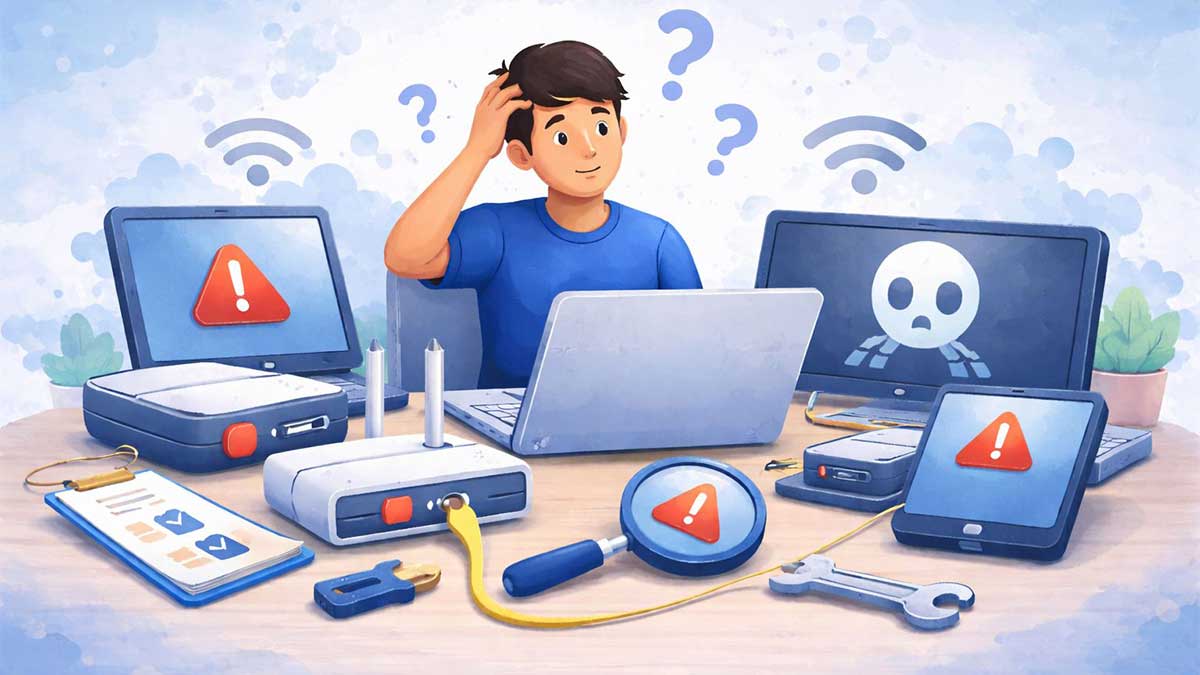
When a device suddenly stops working, it can feel frustrating and confusing — especially if you’re not sure where to start. Many people immediately assume something is broken, but in reality, most technical issues are minor and easy to fix.
This beginner-friendly guide walks you through simple, step-by-step troubleshooting checks you can safely try before seeking professional help. Many of these problems are also covered in our guide on common tech problems and how to fix them, which explains why these issues happen and how to solve them in more detail.
Step 1: Check If the Device Is Powered On
This may sound obvious, but power issues are one of the most common reasons devices stop working.
Before anything else:
If there are no lights, sounds, or signs of activity, the issue is likely related to power rather than a serious technical failure.
Step 2: Restart the Device
Restarting fixes more problems than most people realize.
A restart can:
Turn the device completely off, wait 10–15 seconds, then turn it back on.
If the screen is frozen, hold the power button until the device shuts down.
If restarting fixes the issue, no further action is needed.
Step 3: Check Internet and Connections
If your device turns on but apps, websites, or services aren’t working, the problem may be related to connectivity.
Check the following:
Connection issues are extremely common and often misunderstood. If the problem seems internet-related, our basic computer troubleshooting guide explains simple ways to identify and fix connection problems safely.
Step 4: Look for Error Messages or Warning Signs
Pay attention to any messages on the screen.
Error messages, warning icons, or alerts often give clues about what’s wrong. Even if you don’t understand the message, noting it down can help you search for the exact issue later.
If you see a warning triangle, loading icon, or spinning circle that never stops, it usually means the system is stuck trying to complete a task.
Step 5: Think About Recent Changes
Ask yourself:
Recent changes are a common cause of technical issues. Software updates, plugin conflicts, or system changes can sometimes cause temporary problems that are resolved by restarting or rolling back recent changes.
For website-related issues, slowdowns and errors are often explained in our guide on how to fix a slow WordPress website.
Step 6: Test the Device in a Simple Way
Try using the device for a basic task:
If basic functions work but advanced features don’t, the issue is likely software-related rather than a hardware failure.
This helps narrow down the problem and prevents unnecessary repairs.
Step 7: When to Stop and Get Help
You should consider professional help if:
At this point, continuing to troubleshoot may cause more harm than good.
Final Thoughts
Most devices stop working due to small, fixable issues — not serious damage. By following a calm, step-by-step troubleshooting process, you can often identify the problem and fix it yourself.
If you want a deeper understanding of why these issues happen and how to prevent them in the future, explore our full guide on common tech problems and how to fix them.