
If your printer is not printing, don’t assume it’s broken. Few things are more frustrating than clicking Print and having nothing happen.
Your printer may be turned on and connected, but the document stays in the print queue. The printer might appear offline, your computer may be sending the job to the wrong printer, or there could be a problem with the connection, driver, or printer itself.
The good news is that many printing problems can be fixed without replacing the printer or having advanced technical knowledge.
In this beginner-friendly guide, we’ll work through the most useful fixes in a logical order, starting with the simple things that are easy to overlook. These steps can help with both USB and wireless printers, although some instructions will vary depending on your printer and operating system.
Before changing advanced settings or reinstalling anything, it’s helpful to figure out where the problem is happening.
Quick Answer: Why Is My Printer Not Printing?
If your printer isn’t printing, the problem usually involves one of these areas:
Before going through all the fixes below, try this simple test:
Can the printer print a test or information page directly from the printer itself?
The exact method varies by printer model. Some printers have an option such as Print Test Page, Printer Report, Network Report, or Printer Information in their control panel or settings menu.
If the printer can print its own test page, that’s a useful clue. The printer hardware may be working, and the problem is more likely related to the computer, connection, print queue, settings, or software.
If the printer cannot print anything on its own, check the printer itself first. Look for warning lights or error messages, paper problems, low ink or toner, open covers, or a paper jam.
Don’t worry if you’re not sure which situation applies yet. Start with the first fix below and work through the steps in order. There’s usually no need to try complicated solutions first.
If you’re troubleshooting another computer, phone, or device problem, our Common Tech Problems and How to Fix Them: Beginner-Friendly Guide covers more everyday tech issues and simple solutions.
Fix 1: Check the Printer for Simple Problems First
Before changing settings on your computer, take a minute to check the printer itself.
A surprisingly large number of printing problems are caused by something simple: an empty paper tray, a loose cable, a paper jam, low ink or toner, or a printer waiting for you to respond to an error.
Start with these checks:
If the printer has a screen, follow any instructions displayed there before troubleshooting your computer.
Restart the Printer
If everything looks normal, turn the printer off.
Wait about 30 seconds, then turn it back on and allow it to finish starting up before trying to print again.
This simple restart can clear temporary printer errors and connection problems.
If possible, try printing a test page directly from the printer again. If that works but documents from your computer still don’t print, move to the next fix.
Fix 2: Make Sure You’re Printing to the Correct Printer
If you’ve used more than one printer with your computer, your document may accidentally be going to the wrong one.
This is particularly common if you’ve previously used:
Open the document you want to print and choose Print.
Look at the printer selected in the print window.
Make sure the selected printer is the one you’re actually trying to use.
If you see several versions of the same printer, don’t immediately remove them. First select the printer that currently shows as Ready or available and try printing a simple document.
Check Your Default Printer in Windows
On Windows 11, go to:
Settings → Bluetooth & devices → Printers & scanners
Select the printer you want to use and check its status.
Windows can also manage your default printer automatically. If print jobs repeatedly go to the wrong device, you may want to choose your preferred printer manually.
If your printer is only one of several devices behaving strangely, our Why Is My Device Not Working? Step-by-Step Troubleshooting Guide for Beginners can help you narrow down whether the problem is with the device, connection, software, or settings.
Fix 3: Check Whether Your Printer Is Offline
Sometimes your printer is turned on and working normally, but your computer still shows it as offline.
This usually means your computer cannot currently communicate with the printer. It can happen after restarting your router, changing Wi-Fi networks, waking your computer from sleep, or temporarily losing the printer connection.
If You Have a Wireless Printer
First, make sure your printer is connected to the same Wi-Fi network as your computer.
Many printers let you check the current network name from the printer’s display under an option such as:
Settings → Network → Wi-Fi / Wireless Settings
The exact menu will depend on your printer model.
If the printer isn’t connected to your Wi-Fi, reconnect it using the printer’s wireless setup menu.
You can also restart your printer and Wi-Fi router if the connection appears to have dropped.
If other devices are also having trouble connecting to your network, the problem may not be the printer itself. Our Wi-Fi Connected But No Internet? 8 Easy Fixes That Actually Work guide can help you troubleshoot the network separately.
If You Have a USB Printer
Check that the USB cable is firmly connected to both the printer and your computer.
If it still appears offline:
If possible, you can also try another USB port on your computer.
Avoid changing several settings at once. First determine whether reconnecting the printer brings it back online.
Fix 4: Clear a Stuck Print Queue
You click Print again.
Nothing happens.
So you click it again…and perhaps a third time.
Now several copies of the same document are sitting in the print queue, but none of them are printing.
A stuck print job can prevent every job behind it from printing too.
Clear the Print Queue in Windows 11
Go to:
Settings → Bluetooth & devices → Printers & scanners
Select your printer, then choose:
Open print queue
You’ll see the documents waiting to print.
Cancel any jobs that appear stuck or that you no longer need.
Once the queue is empty, try printing one simple document again.
Microsoft also provides official instructions for viewing and cancelling print jobs in Windows.
In the sentence above, make “viewing and cancelling print jobs in Windows” the external link to Microsoft’s official Windows printer support instructions.
What If the Print Job Won’t Delete?
Sometimes clicking Cancel doesn’t remove a frozen print job.
If that happens, try this first:
For many temporary queue problems, that’s enough to clear the stuck job.
If the document remains there, don’t keep sending more print jobs. We’ll deal with deeper Windows printing problems in the later fixes.
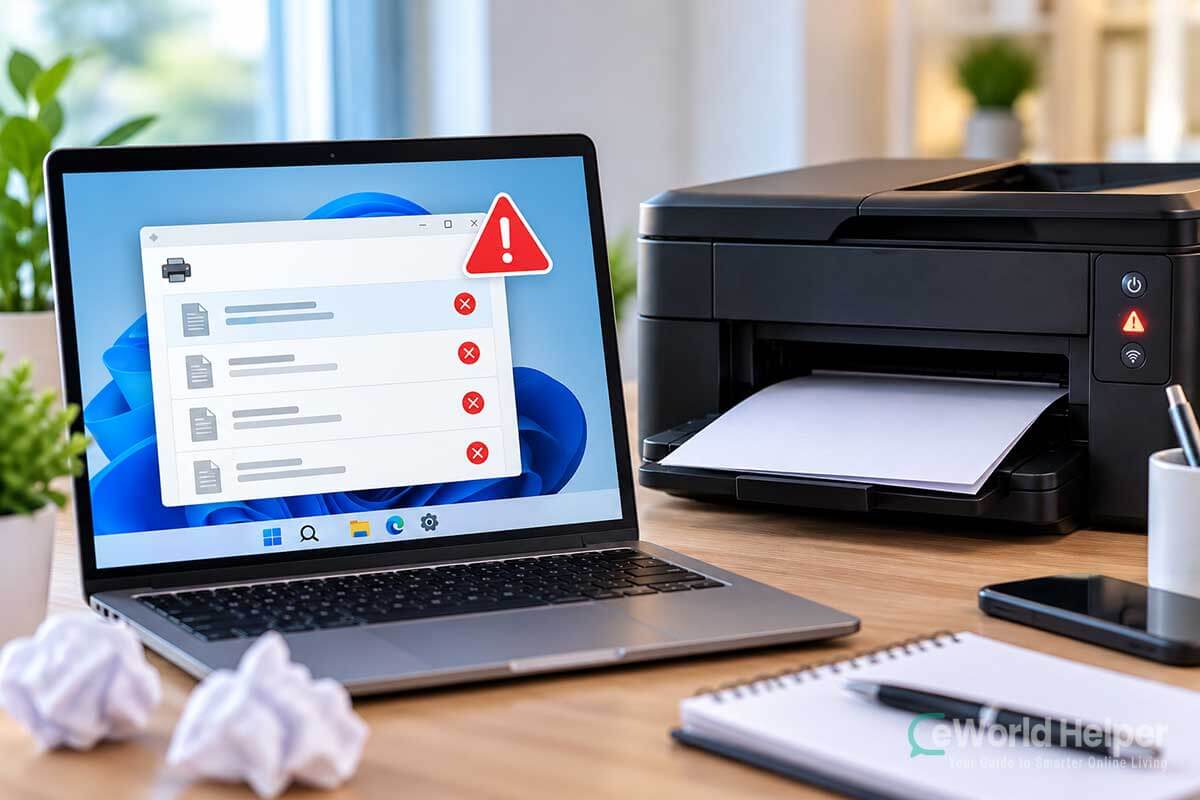
Fix 5: Restart the Windows Print Spooler
Windows uses a service called the Print Spooler to manage documents that are waiting to be printed.
If this service freezes or stops working correctly, you might notice problems such as:
Restarting the Print Spooler can often clear these temporary problems.
How to Restart the Print Spooler
On Windows:
Wait a few seconds for Windows to restart the service.
Then return to your document and try printing again.
If the print queue was previously stuck, check it before sending another document. You don’t want several old print jobs suddenly printing at once.
What If Print Spooler Isn’t Running?
If its status shows that the service has stopped, right-click Print Spooler and select Start.
You generally shouldn’t need to change its other settings just to troubleshoot a temporary printing problem.
Microsoft also recommends restarting the Print Spooler as one of the troubleshooting steps for Windows printing problems.
Fix 6: Remove and Reconnect the Printer
If Windows still recognizes your printer but refuses to print to it, removing the printer and adding it again can help rebuild the connection.
This is particularly useful if the printer worked previously and then suddenly stopped after a network, Windows, or printer configuration change.
Remove the Printer in Windows 11
Go to:
Settings → Bluetooth & devices → Printers & scanners
Select the printer that’s causing the problem.
Choose Remove and confirm the action.
Don’t remove the printer if you don’t know how it was originally connected or if it’s a workplace printer managed by your company. In that situation, it’s better to check with whoever manages the printer or network.
Add the Printer Again
After removing it, restart the printer and your computer.
Then return to:
Settings → Bluetooth & devices → Printers & scanners
Look for the option to Add device.
Windows should search for available printers.
If your printer appears, select it and follow the instructions to add it again.
For a wireless printer, make sure the printer and computer are connected to the same network while doing this.
If Windows can’t find the printer, don’t repeatedly remove and reinstall things. The next step is to check whether Windows or the printer software itself needs attention.
If you’re also having trouble keeping other devices connected to Wi-Fi, see our Wi-Fi Keeps Disconnecting? How to Fix It Step by Step guide before assuming the printer itself is faulty.
Fix 7: Run the Windows Printer Troubleshooter
If the basic fixes haven’t worked, Windows can automatically check for some common printer problems.
Microsoft now recommends using the automated printer troubleshooter available through the Get Help app in Windows 11.
The troubleshooter can check for problems that may be preventing Windows from communicating correctly with your printer.
How to Run the Printer Troubleshooter
On Windows 11:
Keep your printer turned on and connected while running the troubleshooter.
If Windows finds a problem, follow the recommended steps and then try printing a simple document again.
If nothing is found, that’s okay. It simply means we need to check another possible cause.
Fix 8: Check for Printer Driver Problems
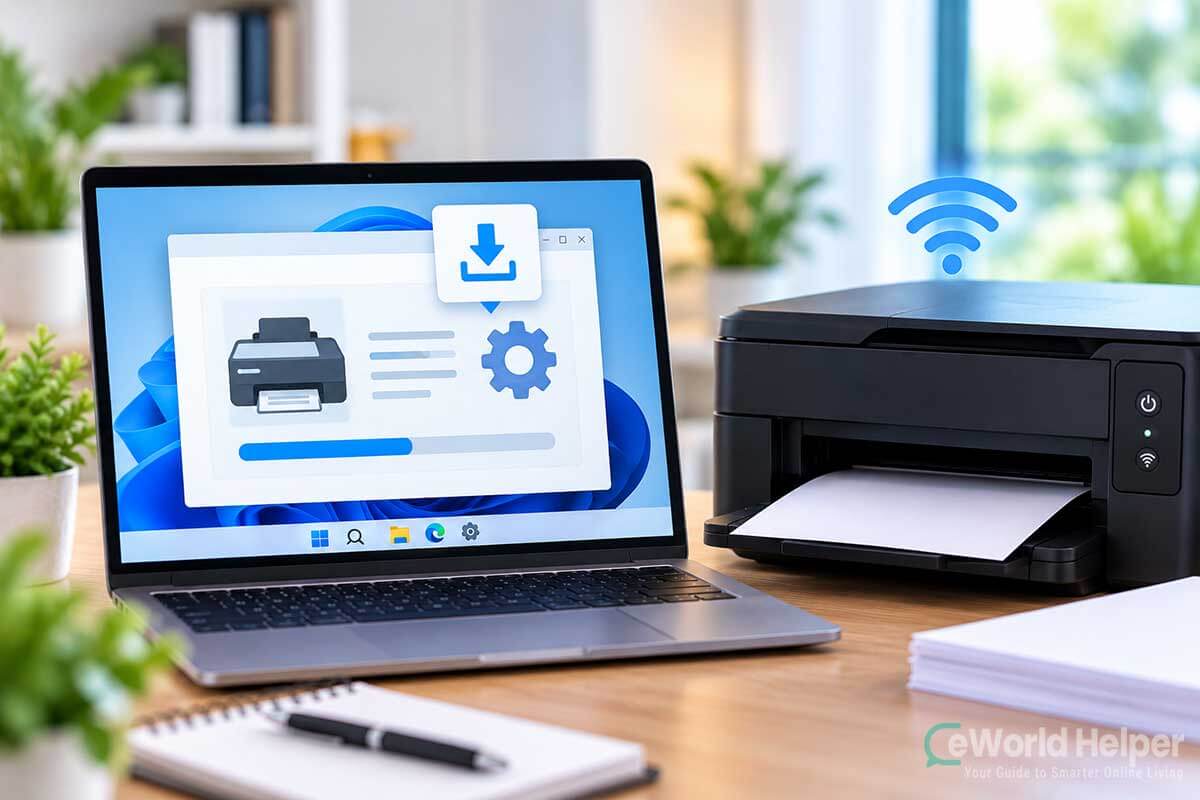
A printer driver is software that helps Windows communicate with your printer.
If the driver is missing, outdated, corrupted, or incompatible with your current version of Windows, the printer may appear on your computer but still refuse to print correctly.
Driver problems can sometimes appear after:
Check Windows Update First
Before downloading anything manually, check whether Windows has an update available.
Go to:
Settings → Windows Update
Select Check for updates.
Install relevant updates, restart your computer if required, and then test the printer again.
Windows can provide recommended drivers for some hardware through Windows Update.
Use the Printer Manufacturer’s Official Website
If Windows doesn’t solve the problem, visit the official support website for your printer manufacturer.
For example, if you have an HP, Canon, Epson, or Brother printer, search for your exact printer model on that manufacturer’s support website.
Download drivers only from a source you trust.
Avoid websites offering things such as:
“Free Driver Download,” “Instant Driver Update,” or “Update All Drivers.”
Third-party driver-download websites are usually unnecessary and may provide outdated, unwanted, or unsafe software.
If your printer manufacturer’s website says that your model doesn’t require a separate driver for your version of Windows, follow the manufacturer’s recommended setup method instead.
Don’t Update Drivers Just Because They’re Newer
If your printer is already working correctly, there’s usually no reason to constantly search for newer printer drivers.
We’re checking the driver here because we’re actively troubleshooting a printer that isn’t working.
After installing or updating the appropriate driver, restart your computer and printer, then try printing again.
Fix 9: Try Printing From Another App or Device
Sometimes the printer isn’t actually the problem.
The issue may be with the particular application, document, or device you’re trying to print from.
For example, if a PDF won’t print from your browser but a document prints normally from another application, the problem may be related to the browser or PDF rather than the printer.
Try a Simple Test Document
Open a basic application such as Notepad on Windows.
Type a short sentence and try to print it.
If the test document prints successfully, your printer and its connection are probably working. Go back to the original application or document and check for a problem there.
You can also try:
If only one particular file refuses to print, the file itself may be damaged or formatted in a way that’s causing the problem.
Try Another Device
If you have another computer, phone, or tablet connected to the same printer, try printing from that device.
This can give you an important clue.
If the printer works from another device, the problem is probably related to the original computer, its settings, software, or printer connection.
If the printer doesn’t work from any device, the problem is more likely related to the printer itself or its network connection.
This kind of simple comparison can save you from changing settings that aren’t actually causing the problem.
Fix 10: Check the Printer Manufacturer’s Support Tools
If you’ve worked through the previous fixes and the printer still won’t print, it’s time to check whether your printer manufacturer provides a troubleshooting tool or model-specific instructions.
Printer manufacturers often provide their own software for setup, diagnostics, firmware updates, ink or toner information, and connection troubleshooting.
Go to the official support website for your printer’s manufacturer and search for the exact model number.
The model number is usually printed somewhere on the front, top, or back of the printer.
Look for Model-Specific Problems
Once you’ve found the correct support page, check for:
This is especially important if your printer displays a specific error code.
Instead of searching the error code and downloading software from an unknown website, check the manufacturer’s documentation first.
When Might the Printer Itself Be the Problem?
If the printer cannot print its own test page, continues displaying hardware errors, repeatedly jams, makes unusual mechanical noises, or isn’t detected by multiple devices, the problem may be with the printer itself.
At that point, repeatedly reinstalling Windows drivers is unlikely to solve a physical printer problem.
Check the manufacturer’s support information for your model and, if necessary, contact its support service or consider professional repair.
For an older printer, it may also be worth comparing the likely repair cost with the cost of replacement before paying for a repair.
What If Your Printer Still Won’t Print?
If you’ve tried all 10 fixes, don’t start changing random Windows settings.
Instead, use what you’ve learned during troubleshooting to narrow down the problem.
For example:
The printer prints its own test page but won’t print from your computer:
Focus on the computer connection, print queue, Windows settings, or printer driver.
The printer works from another computer or phone:
The problem is probably specific to the original device.
No device can print to the printer:
Check the printer, Wi-Fi connection, or printer configuration.
The printer can’t even print its own test page:
Look for a printer error, paper or ink problem, jam, or possible hardware issue.
Only one document or application won’t print:
The problem may be with that file or application rather than the printer.
This is much more useful than repeatedly reinstalling software or resetting settings without knowing what you’re trying to fix.
If you’re dealing with other computer problems at the same time, our Basic Computer Troubleshooting for Beginners guide covers a broader step-by-step troubleshooting process.
Frequently Asked Questions About Printers Not Printing
-
Why is my printer connected but not printing?
A printer can appear connected even when something is preventing the print job from reaching it.
Common causes include a stuck print queue, incorrect printer selection, offline status, connection problems, or a printer driver issue.
Start by checking the printer itself, then make sure you’ve selected the correct printer and clear any stuck print jobs.
-
Why does my printer say it’s offline when it’s turned on?
An offline message usually means your computer isn’t communicating properly with the printer.
For a wireless printer, check that the printer and computer are connected to the same Wi-Fi network. For a USB printer, check the cable and try reconnecting it.
Restarting the printer and computer can also restore a temporary connection problem.
-
Why are my documents stuck in the print queue?
A document may become stuck because of a temporary Windows printing problem, connection interruption, application error, or problem with the Print Spooler.
Try cancelling the stuck documents first. If they won’t disappear, restart the printer and computer or restart the Windows Print Spooler as described earlier in this guide.
-
Why won’t my wireless printer print even though the Wi-Fi works?
Your internet connection can work normally while the printer still has a local network problem.
For example, your computer and printer could be connected to different Wi-Fi networks, or the printer may have lost its network connection.
Check the network shown in the printer’s wireless settings and make sure it matches the network your computer is using.
If you’re experiencing broader network problems too, see our How to Fix Internet Connection Problems at Home (Beginner Guide).
-
Should I uninstall and reinstall my printer driver?
Not as your first troubleshooting step.
Try the simpler fixes first, including restarting the printer, checking its connection, clearing the print queue, and running Windows troubleshooting.
If those don’t work and you suspect a driver problem, use Windows Update or your printer manufacturer’s official support website to find the appropriate driver.
Avoid downloading printer drivers from unknown third-party websites.
-
How do I know if my printer is broken?
One useful test is whether the printer can print a test or information page directly from the printer itself.
If it can print independently but won’t print from your computer, the printer hardware may still be working and the problem could be related to the connection, software, settings, or driver.
If the printer cannot print its own test page, repeatedly jams, displays persistent hardware errors, or makes unusual mechanical noises, check the manufacturer’s support information for your specific model.
Final Thoughts: Get Your Printer Working Again
When a printer suddenly stops printing, it’s tempting to immediately reinstall software or start changing advanced settings.
Usually, that’s unnecessary.
Start with the simplest possibilities: check the printer, confirm the connection, select the correct printer, and clear the print queue.
If those don’t work, move gradually to the Windows Print Spooler, printer troubleshooter, reconnection, and driver checks.
The key is to change one thing at a time and test the printer after each step. That way, you’ll know what actually solved the problem and avoid creating additional issues.
And if the printer turns out not to be the source of the problem, our Common Tech Problems and How to Fix Them: Beginner-Friendly Guide can help you troubleshoot other everyday device, internet, and computer problems.