
Wi-Fi keeps disconnecting while you’re working, streaming videos, or browsing the internet? Frequent Wi-Fi connection drops can be frustrating, but the problem can often be fixed with a few simple troubleshooting steps.
This is a common internet problem, and it can happen even when your Wi-Fi signal appears strong. Your connection may work normally for a few minutes, suddenly disconnect, and then reconnect again.
Common causes include a weak Wi-Fi signal, router problems, network congestion, outdated software, interference from nearby devices, or problems with your internet service provider.
The good news is that learning how to fix Wi-Fi that keeps disconnecting is often easier than you might think.
Quick answer: If your Wi-Fi keeps disconnecting, start by restarting your router and device, checking whether the problem affects one or all devices, moving closer to the router, reducing connected devices, and forgetting and reconnecting to the Wi-Fi network.
In this beginner-friendly guide, you’ll learn 12 simple troubleshooting steps to help you find the cause of the problem and get a more stable Wi-Fi connection.
👉 If your Wi-Fi is connected but you cannot access the internet, read:
Wi-Fi Connected But No Internet? 8 Easy Fixes That Actually Work
https://eworldhelper.com/tech-fixes/wifi-connected-but-no-internet/
Quick Fixes to Try First
Before going through every troubleshooting step, try these quick fixes:
After trying each solution, use your internet connection for a few minutes to see whether the problem returns.
If your Wi-Fi continues disconnecting, move through the following steps one at a time.
Why Wi-Fi Keeps Disconnecting and Reconnecting
Your Wi-Fi connection can repeatedly drop for several different reasons.
Some of the most common causes include:
The cause is not always obvious.
That’s why it’s best to begin with simple troubleshooting steps before changing advanced network settings or replacing your equipment.
How to Fix Wi-Fi That Keeps Disconnecting
1. Restart Your Router and Device
Restarting your equipment is one of the easiest ways to fix a Wi-Fi connection that keeps dropping.
Routers and connected devices can develop temporary software or network problems after running continuously for long periods.
To restart your router:
Next, restart the phone, computer, tablet, or other device experiencing the problem.
Reconnect to Wi-Fi and check whether the connection is now stable.
If your entire internet connection has stopped working, see our beginner-friendly guide:
How to Fix Internet Connection Problems (Beginner-Friendly Guide)
https://eworldhelper.com/tech-fixes/how-to-fix-internet-connection-problems/
2. Check Whether the Problem Affects One Device or All Devices
Before changing your router settings, find out how many devices are experiencing the problem.
Try connecting several devices to your Wi-Fi network.
For example, test your:
If Wi-Fi keeps disconnecting on only one device, the problem is probably related to that device.
Possible causes include:
If every connected device keeps losing Wi-Fi, the problem is more likely related to your router, modem, or internet service provider.
Identifying where the problem occurs can save you time and help you choose the correct troubleshooting steps.
3. Move Closer to the Router
A weak Wi-Fi signal is one of the most common reasons for frequent disconnections.
Wi-Fi signals become weaker as they travel through your home.
Walls, floors, furniture, and other physical obstacles can reduce signal strength.
Try using your device closer to the router.
For the best connection:
If your connection becomes stable when you move closer to the router, weak signal strength or router placement is probably causing the problem.
👉 If your connection works but is unusually slow, read:
How to Fix Slow Internet: 10 Easy Ways to Speed It Up
https://eworldhelper.com/tech-fixes/fix-slow-internet/
4. Check Your Router for Overheating
Routers can become warm during normal use, but excessive heat may cause connection problems.
An overheating router may:
Check whether your router feels unusually hot.
Make sure it has enough ventilation and is not:
If your router feels very hot, turn it off and allow it to cool before reconnecting it.
Keeping your router in a well-ventilated location can help prevent future overheating problems.
You can also use the FCC Speed Test App to check your mobile broadband performance and contribute anonymized test results to the FCC’s broadband data collection program.
5. Reduce the Number of Connected Devices
Too many connected devices can put additional demand on your home network.
This is especially noticeable when several devices are simultaneously:
Disconnect devices you are not currently using and check whether your Wi-Fi connection becomes more stable.
You should also pause unnecessary downloads and software updates while troubleshooting.
If reducing network activity solves the problem, network congestion may have been causing the frequent disconnections.

6. Forget and Reconnect to the Wi-Fi Network
Your device stores information about previously connected Wi-Fi networks.
Sometimes, this saved network information can become outdated or develop problems.
Removing the saved Wi-Fi network and reconnecting can create a fresh connection.
The exact steps vary depending on your device, but generally:
After reconnecting, use your device normally and check whether the connection continues to drop.
7. Update Network Drivers and Device Software
Outdated software can sometimes cause unstable Wi-Fi connections.
This is particularly important if Wi-Fi keeps disconnecting on your computer but works correctly on other devices.
On Windows
You can check for network adapter driver updates through Windows Update or Device Manager.
You should also install available Windows system updates.
On Mac
Check for available macOS updates and install them if appropriate.
On Phones and Tablets
Check whether an operating system update is available for your device.
Keeping your software updated can fix compatibility issues, network problems, and software bugs that may cause repeated Wi-Fi disconnections.
If your computer is also experiencing other technical problems, see:
Computer Keeps Freezing or Crashing: Simple Fixes for Beginners
https://eworldhelper.com/tech-fixes/computer-freezing-or-crashing-fixes/
8. Disable Wi-Fi Power-Saving Settings
Some computers and mobile devices use power-saving features to reduce battery usage.
In certain situations, these settings may temporarily disable or reduce power to the Wi-Fi adapter.
This can cause the internet connection to repeatedly disconnect.
If the problem happens mainly when your device is running on battery power or after being inactive, check your device’s power and battery settings.
On Windows computers, you can also check the power management settings for your wireless network adapter.
After changing a power-saving setting, restart your device and test the Wi-Fi connection again.
Avoid changing multiple advanced settings at once. Make one change, test your connection, and continue only if the problem remains.
9. Switch Between 2.4 GHz and 5 GHz Wi-Fi
Many modern routers provide both 2.4 GHz and 5 GHz Wi-Fi connections.
Each band has different advantages.
2.4 GHz Wi-Fi
Usually provides:
However, it may experience more interference and can be slower in crowded areas.
5 GHz Wi-Fi
Usually provides:
However, the signal does not travel as far as 2.4 GHz.
If your Wi-Fi keeps disconnecting while you are far from the router, try using 2.4 GHz.
If you are close to the router and experiencing congestion or interference, try 5 GHz.
Not every router displays these networks separately, so the available options depend on your equipment and router configuration.
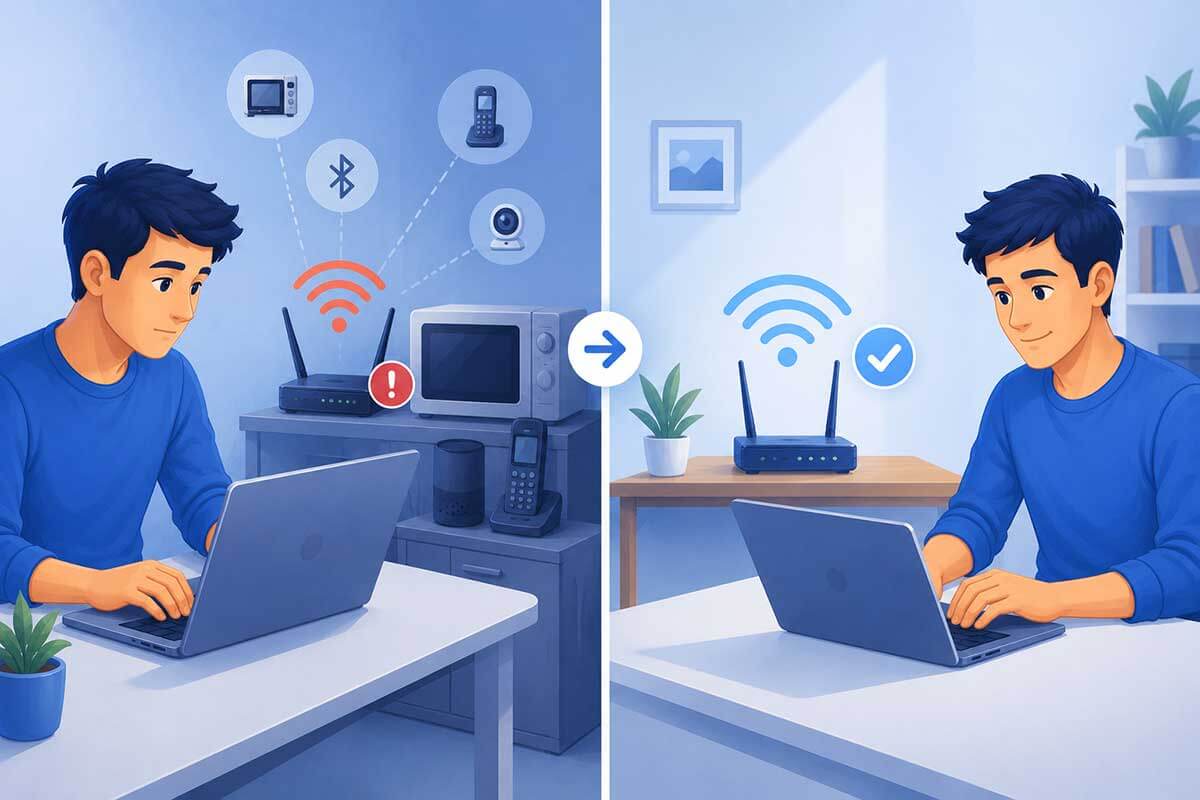
10. Check for Wi-Fi Interference
Other electronic devices and nearby Wi-Fi networks can interfere with your wireless connection.
Possible sources of interference include:
Try moving your router away from other electronics.
You can also test your connection in a different part of your home.
If your Wi-Fi connection is more stable in one location than another, signal interference or physical obstacles may be contributing to the problem.
11. Reset Network Settings
If your Wi-Fi still keeps disconnecting, resetting your device’s network settings may help.
A network reset can remove incorrect or corrupted network configurations.
However, this step may also remove:
Because of this, I recommend trying the simpler solutions first.
The exact network reset process depends on whether you use Windows, macOS, Android, or iPhone.
After resetting the network settings, restart your device and reconnect to your Wi-Fi network.
12. Check for Internet Service Provider Problems
Sometimes the problem is not inside your home.
Your internet service provider may be experiencing:
Check your internet provider’s official website or service status page for information about current outages.
You can also contact customer support if the problem continues.
If Wi-Fi keeps disconnecting on every device even after restarting your router and checking your home network, contacting your internet provider may be the best next step.
Why Does My Wi-Fi Keep Disconnecting and Reconnecting?
If your Wi-Fi repeatedly disconnects and reconnects automatically, the connection between your device and router may be unstable.
Common causes include:
Start by checking whether the problem affects one device or every connected device.
If only one device disconnects, focus on that device’s settings and software.
If every device disconnects, investigate your router, modem, and internet service.
Why Does Wi-Fi Keep Disconnecting on Only One Device?
If other devices remain connected normally, your router may not be the main problem.
The affected device could have:
Start by restarting the affected device.
Next, forget the Wi-Fi network and reconnect.
If the problem continues, install available software and network driver updates.
As a later troubleshooting step, you can consider resetting the device’s network settings.
Wi-Fi Keeps Disconnecting on Phone
If Wi-Fi keeps disconnecting on your phone but other devices work normally, start by:
You can also test your phone on another Wi-Fi network.
If the same problem happens on multiple Wi-Fi networks, the issue is more likely related to the phone rather than your home router.
👉 If your phone shows a Wi-Fi connection but cannot access the internet, see:
Connected to Wi-Fi But No Internet on Phone? Easy Fixes for Beginners
https://eworldhelper.com/tech-fixes/connected-to-wi-fi-but-no-internet-on-phone/
When Should You Replace Your Router?
You do not need to replace your router every time your Wi-Fi connection becomes unstable.
However, replacement may be worth considering if your router:
Before purchasing a new router, contact your internet service provider.
The provider may be able to test your connection, replace faulty equipment, or recommend settings that solve the problem.
How to Prevent Wi-Fi From Disconnecting Again
After fixing the problem, a few simple habits can help keep your connection stable.
Try to:
Regular maintenance can help prevent many common Wi-Fi connection problems.
Final Thoughts
If your Wi-Fi keeps disconnecting, you usually don’t need to immediately replace your router or change complicated network settings.
Start with simple troubleshooting steps.
Restart your router and device, check whether the problem affects one or all devices, move closer to the router, reduce network activity, reconnect to the Wi-Fi network, and update your software.
If the problem continues, check power-saving settings, Wi-Fi bands, interference, network configurations, and possible internet service provider problems.
By working through these solutions one at a time, you can identify what is causing the repeated disconnections and find the most appropriate solution.
For more beginner-friendly troubleshooting guides, visit:
Common Tech Problems and How to Fix Them (Beginner-Friendly Guides)
https://eworldhelper.com/tech-fixes/common-tech-problems-how-to-fix/
Frequently Asked Questions
-
Why does my Wi-Fi keep disconnecting?
Your Wi-Fi may keep disconnecting because of a weak signal, router problems, network congestion, Wi-Fi interference, outdated software, device settings, or problems with your internet service provider.
-
Why does my Wi-Fi keep disconnecting and reconnecting?
This usually happens when the connection between your device and router is unstable. Restart your equipment, move closer to the router, reduce network congestion, and check for software or ISP problems.
-
Why does Wi-Fi keep disconnecting on only one device?
If only one device is affected, the problem may be caused by outdated software, incorrect network settings, power-saving features, or corrupted saved Wi-Fi information on that device.
-
Can too many devices cause Wi-Fi to disconnect?
Too many active devices can increase network congestion, especially when several devices are streaming, downloading files, gaming, or making video calls at the same time.
-
Should I reset my router if Wi-Fi keeps disconnecting?
Restarting your router is a good first troubleshooting step. A full factory reset is more disruptive and should generally be considered only after simpler solutions have failed.
-
When should I contact my internet provider?
Contact your internet provider if multiple devices continue disconnecting after you restart your equipment and try basic troubleshooting, or if you suspect a local outage or service problem.