
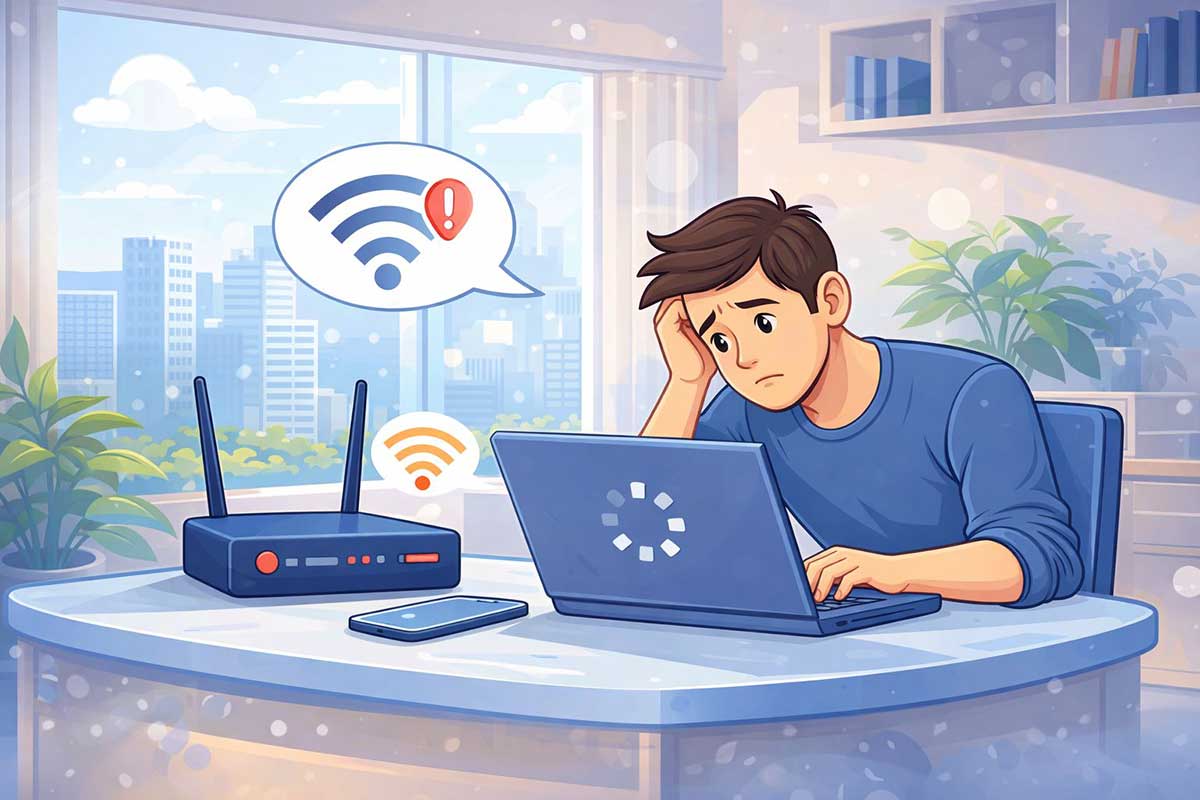
If you want to know how to fix slow internet, you’re in the right place. Web pages may take forever to load, videos may keep buffering, and downloads may be much slower than usual—even when your internet is still connected.
Slow internet doesn’t always mean your connection is completely broken. In many cases, something is simply affecting your internet speed.
Common causes include a weak Wi-Fi signal, too many connected devices, background downloads, router problems, network congestion, or issues with your internet service provider.
The good news is that learning how to fix slow internet is often easier than you might think, and many connection problems can be solved with a few simple troubleshooting steps.
Quick answer: If your internet is slow but still connected, start by restarting your router and modem, disconnecting unused devices, moving closer to the router, running an internet speed test, and temporarily disabling any VPN or proxy connection.
In this beginner-friendly guide, you’ll learn 10 simple ways to fix slow internet and improve your connection speed.
If you’re trying to figure out how to fix slow internet, start with the simplest solutions first, such as restarting your router, checking connected devices, and testing your internet speed.
👉 If your internet is completely not working, read:
How to Fix Internet Connection Problems (Beginner-Friendly Guide)
https://eworldhelper.com/tech-fixes/how-to-fix-internet-connection-problems/
How to Fix Slow Internet: Quick Fixes to Try First
Before going through every troubleshooting step, try these quick fixes:
After trying each fix, check your internet speed again. This can help you identify what is causing the problem without changing unnecessary settings.
If your internet is still slow, continue with the detailed troubleshooting steps below.
1. Restart Your Router and Modem
Restarting your router and modem is one of the easiest and most effective ways to fix a slow internet connection.
Routers and modems can sometimes develop temporary connection problems after running continuously for long periods. Restarting them refreshes the connection and may immediately improve your internet speed.
Steps:
Avoid restarting your router repeatedly within a short period. Give the equipment enough time to reconnect properly before testing your internet speed.
2. Check How Many Devices Are Connected
Too many devices using the same internet connection can reduce the amount of bandwidth available to each device.
Computers, smartphones, tablets, smart TVs, gaming consoles, security cameras, and other smart devices may all be using your connection at the same time.
Some devices can also use internet bandwidth in the background without you realizing it.
Try the following:
After disconnecting some devices, test your internet speed again.
If the connection becomes faster, too many connected devices may have been contributing to the problem.
3. Move Closer to the Router
A weak Wi-Fi signal can make your internet connection feel much slower than it actually is.
Walls, furniture, floors, and distance can weaken the wireless signal between your device and router.
Try moving closer to your router and testing the connection again.
For a better Wi-Fi signal:
If your internet becomes faster when you move closer to the router, weak Wi-Fi coverage is likely contributing to the problem.
👉 If your Wi-Fi keeps dropping, check this guide:
Wi-Fi Keeps Disconnecting? How to Fix It Step by Step (Beginner Guide)
https://eworldhelper.com/tech-fixes/wifi-keeps-disconnecting/
4. Check Your Internet Speed
Running an internet speed test can help you determine whether your connection is actually slower than expected. You can also use the FCC Speed Test app to check your mobile broadband performance.
Before testing your internet speed:
Then run the speed test and compare the results with the internet plan you are paying for.
Remember that Wi-Fi speeds may not always exactly match the maximum speed advertised by your internet provider. Distance from the router, network congestion, and device limitations can all affect the results.
However, if your internet speed is consistently much lower than expected, there may be a problem with your network equipment or internet service.
5. Close Background Apps and Tabs
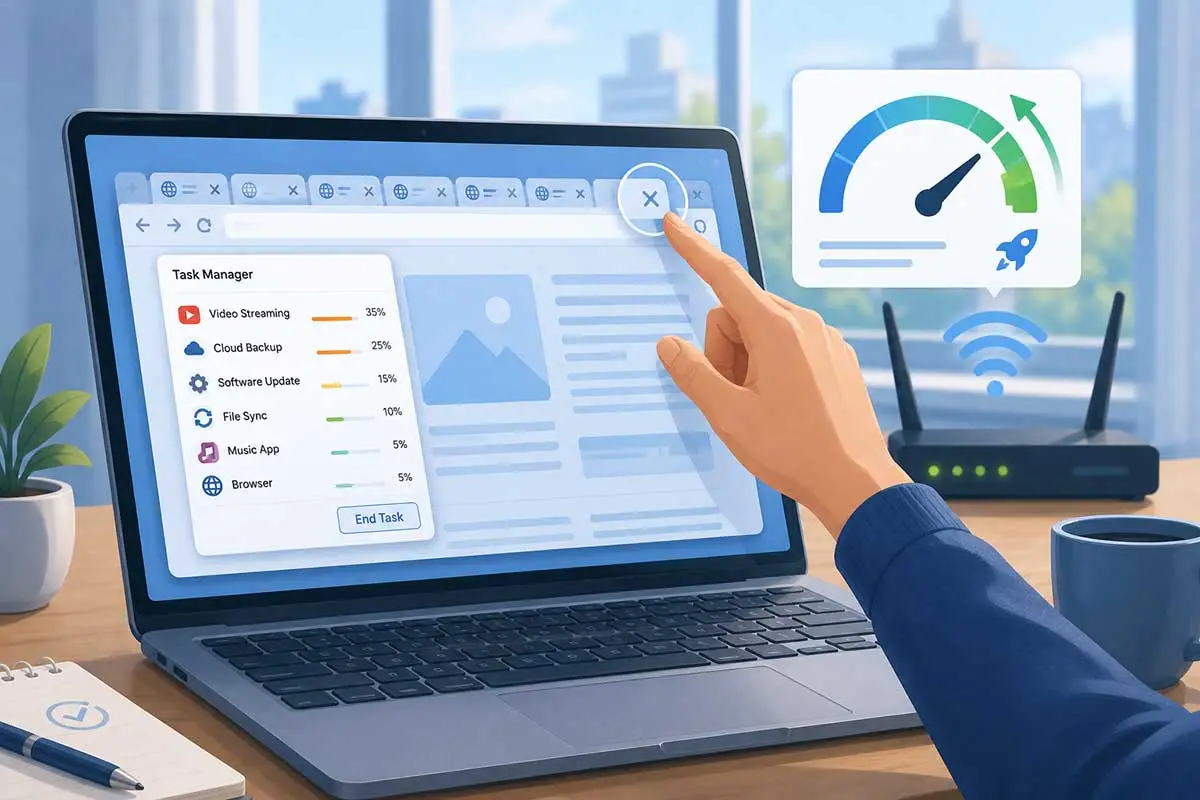
Apps and programs running in the background may use your internet connection without you noticing.
Cloud backups, software updates, file synchronization, downloads, and video streaming can all consume bandwidth.
Try the following:
After closing unnecessary programs, test your internet connection again.
If your internet becomes faster, background activity was likely using some of your available bandwidth.
6. Restart Your Device
Sometimes the problem is not your internet connection or router. The device you are using may be causing the slowdown.
Temporary software problems, background processes, or network errors can affect internet performance.
Restart your computer, smartphone, or tablet and reconnect to Wi-Fi.
Restarting your device can:
If other devices have normal internet speeds but one particular device is slow, restarting that device is a good troubleshooting step.
👉 If the device continues having problems, read:
Why Is My Device Not Working? A Step-by-Step Troubleshooting Guide for Beginners
https://eworldhelper.com/tech-fixes/why-is-my-device-not-working/
7. Change Wi-Fi Band (2.4GHz vs 5GHz)
Many modern Wi-Fi routers offer both 2.4 GHz and 5 GHz networks.
Choosing the right Wi-Fi band can improve your connection depending on your location.
2.4 GHz Wi-Fi:
5 GHz Wi-Fi:
If you are far away from your router, try using the 2.4 GHz network.
If you are close to your router and want faster speeds, try connecting to the 5 GHz network.
Not all routers or devices support both bands, so the available options will depend on your equipment.
8. Clear Browser Cache
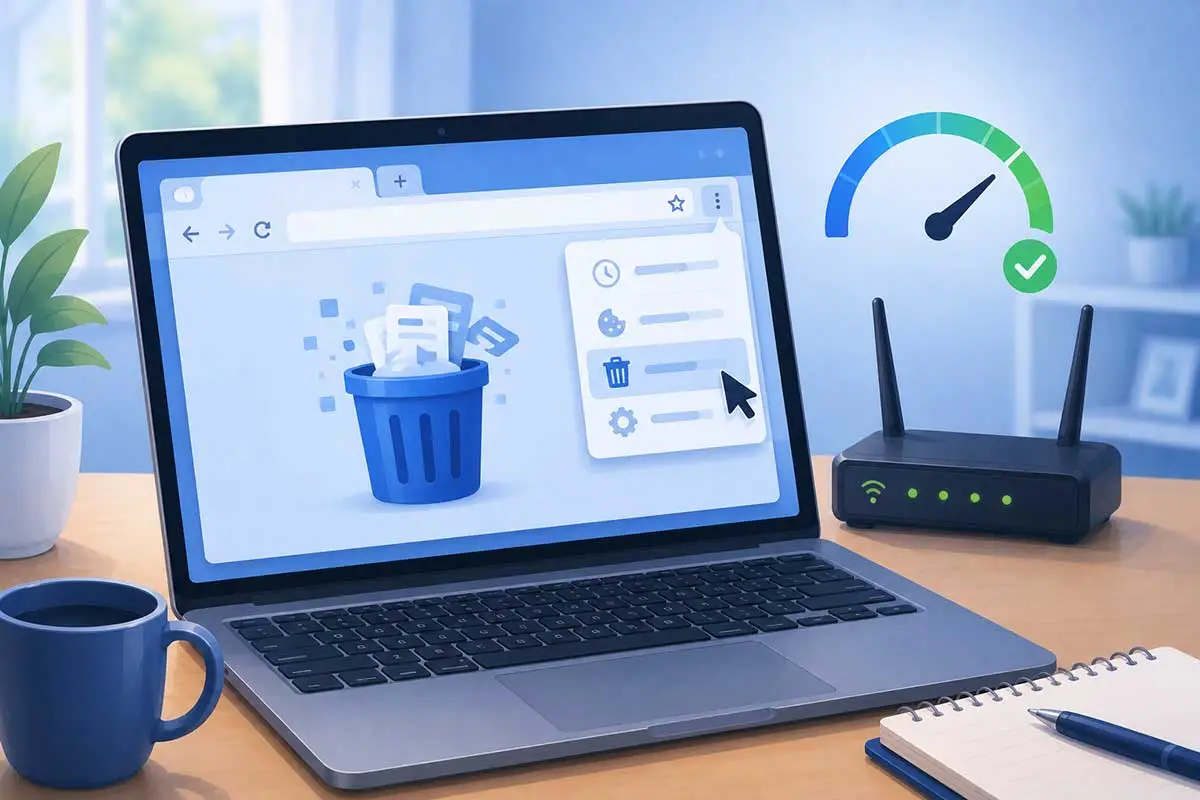
If websites are loading slowly but other internet activities seem normal, your browser may be contributing to the problem.
Browsers save temporary files called cache to help websites load faster. However, old or corrupted cached files can sometimes cause browsing problems.
Try:
If websites load normally in another browser, the problem may be related to your original browser rather than your internet connection.
9. Disable VPN or Proxy Temporarily
VPNs and proxy services can sometimes slow down your internet connection.
Your internet traffic may need to travel through additional servers, which can reduce speed depending on the service, server location, and network conditions.
To test whether your VPN is causing the problem:
If your connection becomes noticeably faster, try connecting to a different VPN server or reviewing your VPN settings.
Remember to reconnect your VPN afterward if you use it for privacy or security.
10. Contact Your Internet Service Provider
If none of the previous fixes work, the problem may be related to your internet service provider (ISP).
Possible causes include:
Before contacting your ISP, write down the troubleshooting steps you have already tried and the results of your speed tests.
This information may help the support team diagnose the problem more quickly.
You can also ask whether there are known outages or service problems in your area.
Why Is My Internet Slow But Connected?
Your device can remain connected to Wi-Fi even when your actual internet performance is poor.
Some of the most common causes include:
Too Many Connected Devices
When many devices share the same connection, the available bandwidth is divided between them. Streaming, gaming, video calls, and large downloads can make the connection feel slower for everyone.
Weak Wi-Fi Signal
Distance, walls, furniture, and other obstacles can weaken the connection between your device and router.
Background Apps Using Data
Cloud backups, software updates, downloads, and other background activities may consume bandwidth without being immediately noticeable.
Network Congestion
Internet speeds can sometimes become slower when many people are using the network at the same time.
Router Problems
Older equipment, temporary software problems, or poor router placement can affect internet performance.
Problems With Your Internet Provider
Service outages, maintenance, network problems, or other ISP issues may cause slower speeds.
Identifying whether the problem affects one device or every device connected to your network can help you determine where to begin troubleshooting.
👉If your Wi-Fi shows connected but you cannot access the internet at all, read:
Wi-Fi Connected But No Internet? 8 Easy Fixes That Actually Work
https://eworldhelper.com/tech-fixes/wifi-connected-but-no-internet/
Final Thoughts
If your internet is slow but still connected, start with the simplest troubleshooting steps first.
Restart your router and modem, check how many devices are connected, move closer to the router, and run an internet speed test.
If the problem continues, check for background apps, restart your device, try a different Wi-Fi band, clear your browser cache, and temporarily disable your VPN.
You usually do not need to try every solution. Test your internet connection after each step so you can identify what fixed the problem.
For more beginner-friendly solutions to common computer, device, and internet problems, visit our Common Tech Problems and How to Fix Them guide.
Frequently asked questions
-
Why is my internet slow but working?
Your internet may be slow because of a weak Wi-Fi signal, too many connected devices, background downloads, network congestion, router problems, or issues with your internet provider. Start by restarting your router and checking whether the problem affects every connected device.
-
How can I make my internet faster?
Restart your router and modem, move closer to the router, disconnect unused devices, stop unnecessary downloads, and run an internet speed test. If your connection remains consistently slower than the speed expected from your plan, contact your internet service provider.
-
Does router position affect internet speed?
Yes. Walls, floors, furniture, and distance can weaken your Wi-Fi signal. Placing the router in an open, central, and elevated location can improve Wi-Fi coverage and connection quality.
-
Why is my Wi-Fi slow on phone but fast on other devices?
If only your phone has slow Wi-Fi, the issue may be caused by background apps, temporary software problems, network settings, or a weak connection to the router. Restart your phone, reconnect to Wi-Fi, close unnecessary apps, and compare the connection with another device.
-
Why is my internet suddenly slow?
A sudden slowdown can be caused by network congestion, large background downloads, too many connected devices, temporary router problems, or an issue with your internet provider. Restart your equipment and check whether other devices are experiencing the same problem.