
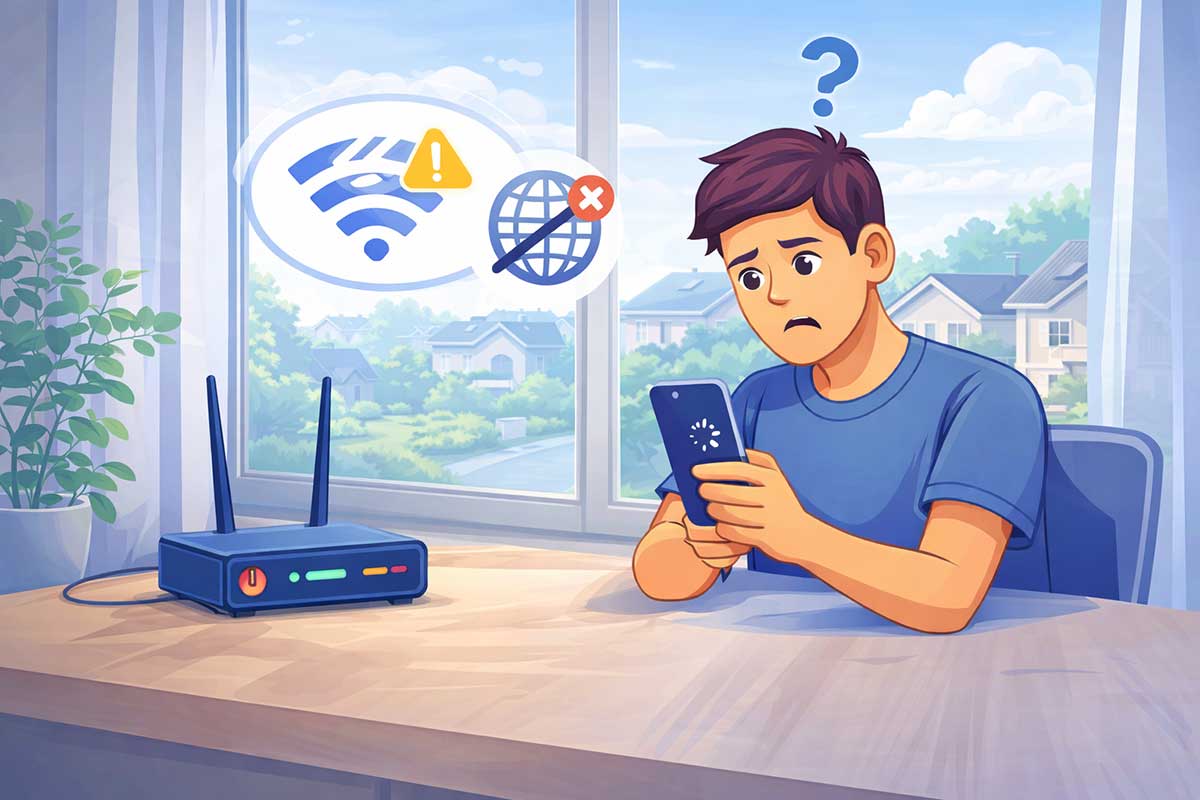
If your phone is connected to Wi-Fi but there is no internet, it can be really frustrating. The Wi-Fi icon may look normal, but websites do not load, apps stop working, and messages fail to send. This problem is common on both Android phones and iPhones, and in many cases, it can be fixed with a few simple steps.
The good news is that you usually do not need advanced technical skills to solve it. In this beginner-friendly guide, you will learn why your phone says it is connected to Wi-Fi but has no internet and the easiest ways to fix it safely.
If you want a broader guide that covers all devices, you can also read our Wi-Fi connected but no internet article.
Why Is My Phone Connected to Wi-Fi But There Is No Internet?
When your phone says it is connected to Wi-Fi, it only means the phone has connected to the router. It does not always mean the router has a working internet connection.
This can happen because of:
This is one of many common tech problems and how to fix them, and the good news is that most causes are easy to check.
1. Turn Wi-Fi Off and Back On
Start with the simplest fix first.
This can clear temporary connection glitches and refresh your phone’s network link.
2. Restart Your Phone
A quick restart can fix many temporary software issues.
To do this:
If your phone has been acting strangely in other ways too, you may also want to read why your device is not working.
3. Restart Your Router
Sometimes the problem is not your phone at all. Your router may be connected to your phone, but not properly connected to the internet.
To restart your router:
This is often the quickest fix when a phone shows Wi-Fi connection but no internet access.
4. Check If Other Devices Have the Same Problem
Try connecting another device, such as a laptop, tablet, or another phone, to the same Wi-Fi network.
If your connection drops on and off, read Wi-Fi keeps disconnecting for more troubleshooting steps.
5. Forget the Wi-Fi Network and Reconnect
Saved network settings can sometimes become corrupted.
To fix this:
This creates a fresh connection and often solves phone-specific Wi-Fi issues.
6. Check for an Internet Service Outage
Sometimes your phone is not the problem. Your internet provider may be having a temporary outage.
You can:
If the internet problem affects your whole home network, you may also find our guide on how to fix internet connection problems helpful.
7. Disable VPN or Private DNS Temporarily
If you use a VPN or custom DNS service, it may interfere with your connection.
Try this:
If the internet starts working, the issue may be with that extra network setting rather than your phone or router.
8. Reset Network Settings on Your Phone
If nothing else works, resetting network settings can help.
This usually resets:
Make sure you know your Wi-Fi password before doing this.
On most phones, this option is found under:
Settings > System > Reset
or
Settings > General > Transfer or Reset
Resetting network settings is a safe way to clear stubborn connection problems.
When Should You Ask for More Help?
You may need extra help if:
At that point, you may need help from your provider or a local technician.
Frequently Asked Questions
-
Why is my phone connected to Wi-Fi but nothing loads?
This usually means your phone is connected to the router, but the router does not have working internet access or your phone has a network settings issue.
-
Why does my phone say connected without internet?
This message appears when your phone can detect the Wi-Fi network but cannot reach the wider internet.
-
Can restarting my phone fix Wi-Fi with no internet?
Yes. A restart can clear temporary software glitches and refresh your connection.
-
Should I reset network settings if my phone has no internet?
Yes, if simpler steps do not work. It is often an effective fix for stubborn phone network issues.
Final Thoughts
If your phone is connected to Wi-Fi but there is no internet, do not panic. In many cases, the problem is caused by a simple router issue, phone setting, or temporary outage. Start with the easiest steps first, such as restarting your phone and router, then move on to reconnecting the network or resetting settings if needed.
Most importantly, work through one step at a time. Troubleshooting is often the fastest way to solve common connection problems without needing professional help.